Forum Replies Created

Page 13 of 36
  • Hector Vera

    May 6, 2024 at 7:30 pm in reply to: Clean Trim of Open Path with a Closed Path

    You can use the Shape Builder tool to achieve this in illustrator!

    Here are some of the steps on how to do it:

    1. Draw the circle using the Ellipse tool.
    2. Draw a straight line that intersects the circle.
    3. Select the circle and line, and then select the Shape Builder tool from the Toolbar.
    4. Click and drag with the Shape Builder tool along the intersection point of the circle and line to create a smooth, curved line.
    5. Alternatively, you can use the Eraser tool to erase the excess lines and create the curve.

    You can also use the Pathfinder tool to merge the 2 shapes but I will not fully recommend it since it will not give you the most desired results. For more info on how to use the Ellipse Tool in details, I found a video that can help you with that: https://www.youtube.com/watch?v=BFSulCxQsqo

    Some contents or functionalities here are not available due to your cookie preferences!

    This happens because the functionality/content marked as “Google Youtube” uses cookies that you choosed to keep disabled. In order to view this content or use this functionality, please enable cookies: click here to open your cookie preferences.

  • Hector Vera

    May 6, 2024 at 7:24 pm in reply to: How to find all my 16 bit images

    Are the 8 and 16 bit images different file formats from the others? On a Windows Folder, you can right click a white space to open the menu, select “Sort By” and choose by size. Pretty much all 16 bit images should have more megabytes of space than 8 bits since they have more pixels and takes more data. If like your 16 bit images are PNGs for example and 8 bits are maybe jpeg for example, you can easily seperate the two and know which is which.

    Here is a link I found that can also help you identify them better: https://shotkit.com/8-bit-vs-16-bit/ Hope that this helps! 🙂

  • Hector Vera

    May 6, 2024 at 7:19 pm in reply to: Video Stabilizer not working Vegas Pro 20

    That is pretty odd, I had only used Video Stabilizer once when working on a client’s project a few months back. Sometimes the tool is not perfect. But in your case if nothing is working at all, maybe try uninstalling the plugin and reinstalling. Also try restarting your OS afterwards to see if the results are different. If that does not work, you may need to look for a better plugin file that works cause sometimes, some plugins does not work properly as it should. I hope it helps.

  • Incase you wish to know more on Master Properties in Master effect, here is a tutorial that I found: https://www.youtube.com/watch?v=H1ZsiQy764Q

    First you select the layer of the Master Properties to change, then click on the Master Properties Icon and then select the Master Properties you wish to change by scrolling down. Then you double click it and type in that new text.

    You should see the updated text in that Master property layer afterwards.

    Some contents or functionalities here are not available due to your cookie preferences!

    This happens because the functionality/content marked as “Google Youtube” uses cookies that you choosed to keep disabled. In order to view this content or use this functionality, please enable cookies: click here to open your cookie preferences.

  • Hector Vera

    May 1, 2024 at 4:00 pm in reply to: How do I do this? – Filling Arrows

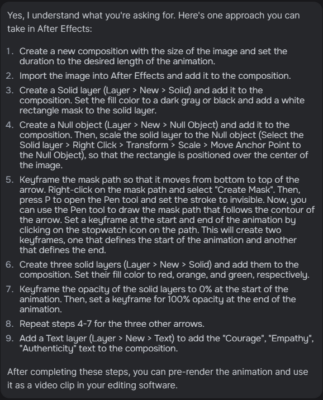
    It seems that you will need to create some different layers so you can add to the composition. I remember when I did animation in photoshop, you have to create multiple layers which at first the solid objects needs to start off DIM and slowly becoming brighter. I found these steps online that may give you an idea step by step on how to execute correctly your first animation on After Effects! Best of luck!

  • Hector Vera

    April 30, 2024 at 3:16 pm in reply to: MOCHA PRO – TIFS and PNGS COMING IN WRONG

    Try converting the current file format of that glitched file to another one that is also supported by AE. Have you tried opening the file normally outside of AE?

  • Hector Vera

    April 29, 2024 at 3:19 pm in reply to: MOCHA PRO – TIFS and PNGS COMING IN WRONG

    That is pretty strange indeed. I remember this happening to me before in the past where I import a PNG image and it comes darker and looks glitchy. Sometimes there could be something wrong in the file format as well. Have you tried closing After Effects fully (including End Task on task manager) and then reopen it to see if the results are different? Hope to hear from you soon.

  • Hector Vera

    April 29, 2024 at 3:15 pm in reply to: Extending endpoint on graphic gets aliased

    This could be a bug indeed, sometimes I would get corrupted video clips that gets glitched out and normally I would cut those parts out but if its doing it the whole clip, then it could be something wrong with the SD card that was recording that clip. If you are able to show me some screenshots on how its visually looking on your end or a video clip demostrating it. Perhaps I can help you further on that! Hope to hear from you soon!

  • It could be a bug related to your version of Premiere Pro you may have recently updated too. I would suggest trying to see if its actually at the latest update or to go to “Edit > Preferences > Reset” from the menu.

    And if those does not work, try uninstalling and reinstalling fully. If that does not work for you either, you may need to contact Adobe Support for further assistance. I wish you the best!

  • Hector Vera

    April 29, 2024 at 3:07 pm in reply to: How to trim a video clip within essential graphics?

    The process to trim a video clip from Essential Graphics should be very similiar to trimming a normal video clip.

    Here is what I found: https://helpx.adobe.com/premiere-pro/using/trimming-clips.html

    And I also found this video too that teaches you the ins and outs of Essential Graphics.

    https://helpx.adobe.com/premiere-pro/using/trimming-clips.html

    Not sure if you are trying to trim a video clip outside a Sequence or inside it but try selecting the trim tool and then clip the parts of the clip that you want exactly to be cut off. Hope it helps, if there is something I am missing there, you can let me know!

Page 13 of 36

We use anonymous cookies to give you the best experience we can.
Our Privacy policy | GDPR Policy