Red-rob Rothkopf
Forum Replies Created
-

On frequent crashes.. that sucks. As is usually the case, not everyone is having that same unstable experience that you’re having.
Is the crashing project-specific? Reproducable via a series of steps?
perhaps a particular favorite transition or plugin is causing issues?
have you tried the various steps like disabling GPU, dynamic ram preview of changing the file handler if there is a particular file type (or file) causing the grief?
-
Use the advanced autosave features they added in 17. It may be called advanced backup.. under the tools menu I believe. You can set frequency and location for minor, major and critical backups, essentially defining a frequency and retention policy.
-
Hey Scott!
Here’s one way to do that — hopefully this helps you ?
- Insert an Audio Bus (this will be your “REVERB” bus)
- On your audio track (which you’ve hard panned left), make it a bit larger so you can see the new “Bus A” that you added. Bring up its audio level and make sure it’s set to “PRE”. That will send that track’s audio to the new Audio bus you created, pre-fader
- Add your REVERB effect to that REVERB audio bus (Bus A) as a track effect. In my example, I used the Vegas “REVERB” effect. Because you only want the effect to be output by this track, we’ll set the “Dry Out” to -INF
Cheers!
🙂 Rob
-
Can you give more backgrounds as to why you’d not want to use Vegas to render a Vegas project?
I’m confused by your question. It reads to me like:
“Is there a way to drive a car without using the car?”
-
Red-rob Rothkopf
February 17, 2021 at 2:48 am in reply to: Best settings for archived PAL 25fps to MP4Hey Andy!
When you write that you used the “Internet HD 720p” template, I presume you mean the Sony AVC/MVC render format and then that template inside there?
When you’re in the “Customize” dialog, if you want to reduce the file size you probably want to be lowering the “Bit rate (bps)”. Lower bitrate will increase compression to fit the best image it can into a given size/bps. Your target resolution is essentially standard def (SD). DVD quality was no more than 6,000,000 bps as an MPEG2 file. MP4’s do better with compression so the same size image could likely be closer to 2 or 3,000,000 and look just as good. YMMV
-
Is your problem with a specific .wav file or any wave file? Have you tried another file you know works ok?
-
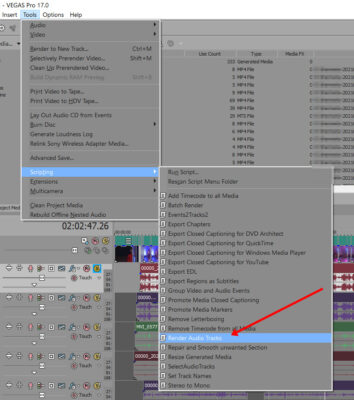
If what you’re looking to do is export just the audio tracks that are in your file, each track as a unique file, check out Tools.Scripting.ExportAudioTracks.

-
(1) I can only compare your CPU to mine for reference. Your Core i7-950 (Q2 2009) compared to my i7-7700K @4.2Ghz (Q4 2016). My “CPU Mark” is 9709, yours is 3087, at http://cpubenchmark.net). I have 32 GB RAM vs your 8 GB.
(2) My graphic card (Radeon RX 470, 2016) has a slightly faster clock, but much faster bus interface. # of Samples of mine is 10619 vs 4825 of your GeForce GT610. G2D Rating (whatever that means LOL) is 706 vs your 125. G3D Mark of mine is 7958 vs your 298.
(3) *my* machine can easily edit real-time 1080p footage and most 4K footage depending on how high a bitrate it was recorded on. It can edit 4-6 HD cameras pretty smoothly too (multi-cam), but throw 4K into the mix and it drops significantly in that setup. My GPU is a Radeon RX470 w/4GB dedicated RAM.
So.. that said, questions!
Q1: what type of footage are you trying to edit? What resolution and bitrate?
Q2: When you say it’s “very sluggish” on the timeline — if you dropped a single typical video clip into your timeline — in what way, and what times, is it sluggish you you? (how do you observe the sluggishness)
My thoughts (and I’m no expert, just a long-experienced ex-computer geek):
1. 8 GB is baseline these days. My *guess* is that low RAM is causing OS memory swapping (to disk to be happening, and Vegas unable to cache/read much of your video file into memory causing more disk I/O to be going on. Increasing RAM in this case would help a lot
2. You’re probably using standard spinning disk drive.. probably 5400RPM. IF you are experiencing excessive disk I/O, replacing that with an SSD drive that works in your system, would make booting, loading AND overall Vegas program faster too
3. If the CPU benchmark is any indication, my CPU is like 3x faster than yours. If your CPU is doing all the work on your computer, a faster CPU would indeed help everything go faster
4. Often, and when enabled, your video card can handle the decoding of video for display, and also be used to help render, process transitions, and do other things. How I’m interpreting the benchmark info, your card isn’t doing you any favors as compared to newer, faster cards
So — THAT all said — one place to start might be to open the Windows Task Manager (Ctrl-Shift-ESC) and look at the Memory utilization, CPU utilization, and Disk Utilization — the idea here is to see if you can figure out where your bottleneck is that’s slowing things down.
I’d also take a pop over to the Performance Tab. Especially with laptops I’ve seen the CPU get throttled at a RIDICULOUSLY low number on a few machines.. like instead of climbing up to one of my machine’s max of 3.2Ghz, it was “locked” at 800Mhz… EVERYTHING on that machine was so slow! (on those laptops, we run an app called “throttlestop” which un “sticks” their CPU and they works properly)
Don’t know if this helps you at all.. maybe a forward step towards a better experience?
-
Red-rob Rothkopf
January 15, 2021 at 5:40 am in reply to: render one audio file as left channel. one as rightHappy to help 🙂
On the 1st external (replacement) audio track which you want to be your new “L” audio, just change the track’s “Pan” to be hard left. On the 2nd external (replacement) audio track, change the track’s “Pan” to be hard-right.
If you don’t see the PAN setting on the tracks, you may need to make the track a bit larger (as you shrink the track’s size it slowly starts removing the info you see)
-
Wish I had anything positive to add here, but I just looked around in export options and various render formats hoping maybe it’d show up as an available audio CODEC that a preset could be setup for… but I turned up empty-handed.
Searching online it looks like this has been discussed and asked for since at least 2014, but not a feature that got added. ?! You may want to pop over on the other Vegas forums as well to see what kind of support there might be (or not be).
https://www.vegascreativesoftware.info/us/