Red-rob Rothkopf
Forum Replies Created
-

Red-rob Rothkopf
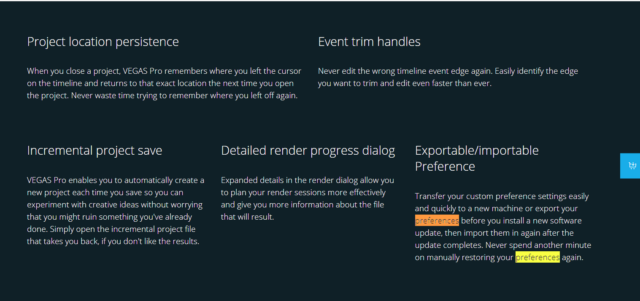
August 13, 2021 at 9:32 pm in reply to: Can Preferences be saved for Vegas reinstall?Also. they say the “Export/Import” preference features was new for Vegas 18.. maybe 17 had it too (sometimes the marketing implies it’s new for a version but it’s been there in prior ones too)?

-
Red-rob Rothkopf
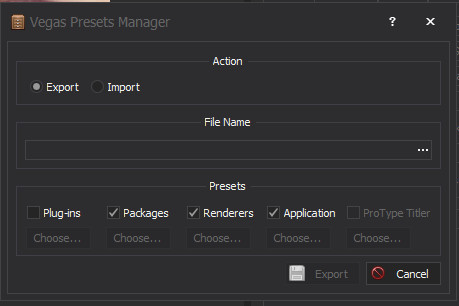
August 13, 2021 at 9:28 pm in reply to: Can Preferences be saved for Vegas reinstall?If you have Vegasaur, its “Vegas Presets Manager” might help you with what you’re doing.
-
” there are only two ways to get faster render speeds”
I would venture to guess, besides the two things Stephen mentions, there are many other things that can impact render speed 😉
– Changing settings to use (or not use) your graphics card can help.
– Changing which effects you use can help — some transitions and VFX are way more processor intensive (e.g. noise reduction) than others.
– Changing the target render format — it’s not only the source video decoding that takes processing — the target format/compression also can make a big difference.
– Your target drive — if you’re rendering to a device on a USB bus and you’re having issues with bus speed, that could impact your render times.
– Have you looked at Windows Task Manager to see if any resources are being maxed out when the rendering takes place? CPU? Disk I/O. RAM? Video card utilization? May give some insights.If you could post some examples of the render speeds you’re getting, the source media format and target render settings, we can get a better sense if what you’re experiencing is below-average or actually pretty good.
-
If you hold the Ctrl key while moving them, only their vertical can move (locked horizontal movement)
If you hold the ALT key while moving them, only their horizontal will move (locked vertical)
🙂
-
Steve’s answer is great.. totally works if you also want to move your events and have the envelopes “stick” to the events.
Another options if you only want to move the envelopes (along the timeline, or as a group up or down), is to choose the “Envelope Edit Tool” (it’s on the toolbar at the bottom, or the menu bar ‘Edit->Editing Tool->Envelope’). With that chosen, if you select a range on your timeline, all points in that range become selected… then you can easily manipulate them as a group — slide on the timeline, move up and down, cut the group or even copy the group and paste somewhere else!
-
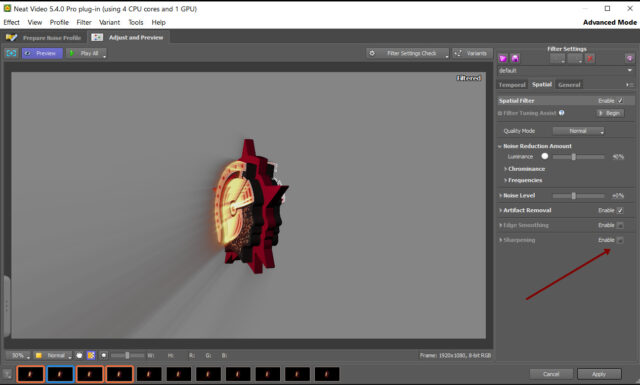
If you haven’t already, try enabling the “Sharpening” option on the “Spatial” tab page under “Filter Settings”. (on the “Adjust and Preview” page). I usually enable that and it restores the crispness quite nicely 🙂
-
Red-rob Rothkopf
June 16, 2021 at 1:04 am in reply to: Best (good) rendering-resolution for digital video distribution?Perhaps in your situation where some clients are unable to download because their Internet speeds do not support it, you can simply host the video for them to watch and provide a link they can use to watch it whenever they want? Or render a high quality and lower-bitrate 720p file for those who can’t download the higher quality files?
-
Red-rob Rothkopf
June 4, 2021 at 4:10 pm in reply to: Combining audio and video track in Vegas Pro 18Hey Dave!
2 things.
1. you want to group the two events (audio and video), not the tracks. Are you selecting both those events and then grouping them? (The “G” hotkey will also group them unless you’ve remapped that key)
2. Make sure the little icon on the bottom that says “ignore event grouping” is not enabled
-
Hey Dan!
If you haven’t already found the answer, here’s what you need to do.
Find PE4Vegas14.dll and PE4VegasLoader14.dll. You’ll probably find them in C:\ProgramData\Vegas Pro\12.0\Application Extensions (since you’re upgrading from Vegas 12)
Copy those DLL files into the similar-named folder under C:\ProgramData\Vegas Pro\18.0\Application Extensions … and/or the 18.0.482 subfolder if you have one.
Restart Vegas and it should Magixly appear 😉