Forum Replies Created

Page 9 of 46
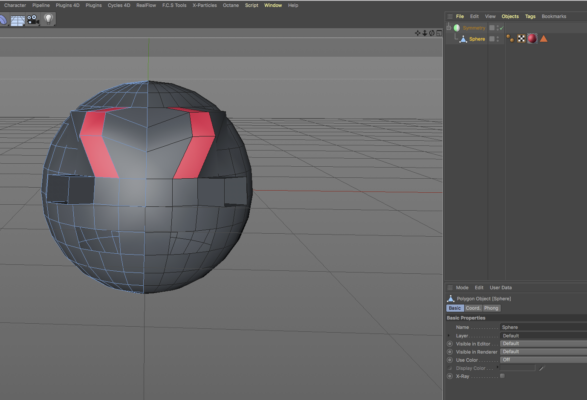
  • I can’t say that what you’re asking is impossible, but far as I know the only way to select/manipulate symmetrical attributes of an object is with the Symmetry object. Otherwise, I don’t know how C4D would be able to correlate one side of an object with the other and select and modify the appropriate polygons, points or edges. The Symmetry object is obviously just creating a mirror image of its child object, and manipulating both halves, but without doing that I don’t see how to accomplish what you’re looking for. If you find a way, please pass it on. Good luck.

  • If you first select and delete one half of your polygon object, and then place it in a Symmetry object, any selections or modifications done to the original half will be repeated on the other half.

  • Jim Scott

    June 22, 2021 at 10:58 pm in reply to: Preview Max Time not working

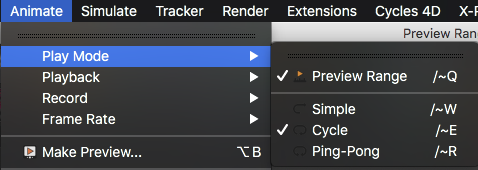
    I think I have found your issue. In the “Animate” menu in “Preview Mode,” see if you have “Preview Range” unchecked. That needs to be enabled in order for playback to use the defined preview range. See screenshot below, and one from the Help files: (If the image isn’t fully visible, click to open it)

  • Jim Scott

    June 21, 2021 at 11:23 pm in reply to: Preview Max Time not working

    Copying everything to a new scene would have been my next suggestion as well. It shouldn’t hurt, since you’ll still have the original one. Other than that I’m at a loss. I’ve got to leave for an appointment, but I’ll try to play around with it later and see if I can find anything. Good luck.

  • Jim Scott

    June 21, 2021 at 11:08 pm in reply to: Preview Max Time not working

    Interesting. When I set up a project as you described it works fine. I’m not aware of a preferences setting that would change that behavior, but there’s a plenty I don’t know about C4D. Just for grits, have you tried closing and reopening C4D? I assume your timeline looks like the image below.

  • Jim Scott

    June 21, 2021 at 9:52 pm in reply to: Preview Max Time not working

    Based on your question, I concur with Justin. For reference, the frames visible on the ruler will match whatever the scroll bar has been adjusted to (141 to 237 in my example below). When the Play button is pressed it will loop through only those frames. If that’s not the behavior you’re looking for, or aren’t getting, please provide more info.

  • Jim Scott

    June 21, 2021 at 6:20 pm in reply to: How do I create a clear material with blue edges?

    Here’s another method if you like the look:

    https://www.youtube.com/watch?v=gMsFd7G8Am4

    Some contents or functionalities here are not available due to your cookie preferences!

    This happens because the functionality/content marked as “Google Youtube” uses cookies that you choosed to keep disabled. In order to view this content or use this functionality, please enable cookies: click here to open your cookie preferences.

  • Jim Scott

    June 21, 2021 at 3:24 pm in reply to: How do I create a clear material with blue edges?

    There doesn’t seem to be an attached photo.

  • You’re welcome.

  • All of the scheme colors can be found in Preferences (Edit > Preferences, or Command + E) > Scheme Colors (click the + to open). Many, but not all, colors are customizable. The ones that are will bring up a color selector at the bottom of the window when selected. The Title Safe color for the Picture Viewer can be edited, but I could not find one for the View window. You’re probably running the Dark scheme (see Interface at the top of the Preferences window) so one option would be to lighten one or both of the Background – Gradient 1, 2 colors (under Editor Colors) to make the Title Safe standout better.

Page 9 of 46

We use anonymous cookies to give you the best experience we can.
Our Privacy policy | GDPR Policy