Forum Replies Created

Page 1 of 15
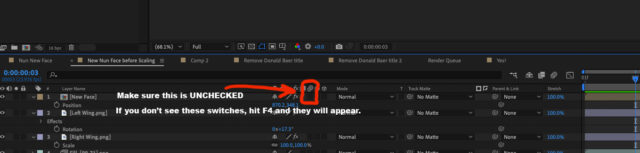
  • Eric is correct – if you can’t see the motion blur switches, press F4.

  • Jim Dodson

    December 13, 2022 at 10:19 pm in reply to: Timeline footage replace not working

    Silly question, but did you select the target layer so that it is highlighted before you option drag the new footage onto it?

  • Jim Dodson

    April 26, 2020 at 4:45 pm in reply to: Raid drive won’t work in link media browser

    **TRUE SOLUTION***
    This supersedes my previous post – just found a true soution (at least for Premiere CC2020)

    Just switch off ‘Use Media Finder’ on the locate dialogue, Premiere then uses explorer and you can find your network drives in the normal way.

    Amazing!

    Jim Dodson

    8 Core Intel — Mac – OSX

  • Jim Dodson

    April 26, 2020 at 4:40 pm in reply to: Raid drive won’t work in link media browser

    ***WORKAROUND / PSEUDO-SOLUTION***
    Hi there –
    I read all of the “solutions” and none worked for me.
    Problem: When re-linking, Premiere (CC2020) would show my OWC Raid but can’t double click into RAID folders or see any files on the RAID.

    Deleting Disk icon did not help

    making alias on my HD did not work

    trashing preferences didn’t work

    SO:
    Instead of re-linking I tried “REPLACE FOOTAGE” from the “clip” menu.
    During Replace, Premiere can see the RAID no problem. The only bummer is I must manually relink each file one at a time – but still, so much better than transferring nearly 1 TB of data to a new hard disk. I created a keyboard shortcut for “Replace Footage” – so 2 clicks per file wasn’t the end of the worl – let me know if this helped you: jim-at-asymmetricpix com

    Jim Dodson

    8 Core Intel — Mac – OSX

  • Jim Dodson

    November 27, 2014 at 7:38 pm in reply to: RAM Preview vs. Final Render?

    Thanks Graham — thanks to you — I have a solution of sorts… Although, considering my settings and the fact that I am not using motion blur on any layer and the master Motion Blur button remains off, it feels like an AE bug or at least a strange hiccup. Here’s what I discovered:

    My render queue settings automatically sets Motion Blur to “On for Checked Layers”.

    Even though I have no layers with checked motion blur (I’m not using motion blur at all), when I manually change Motion Blur to “off” in the Render Settings, AE successfully uses the Cached frames in the final render and it goes REALLY fast.

    THEN I realized if I change Motion Blur Render Settings to “Current Settings” it also uses the CACHED frames – this is probably the best choice for that setting…

    Thanks again Graham!! Really appreciate it!!!

    Jim Dodson

    8 Core Intel — Mac – OSX

  • Jim Dodson

    November 27, 2014 at 4:52 pm in reply to: RAM Preview vs. Final Render?

    Hi Graham-

    Great question – I thought we had cracked it, because I did not have it set to full resolution. But I just ran a test; RAM previewing at full resolution – cache’ing those frames then doing a final render and it does indeed still need to re-render those frames again.

    Jim Dodson

    8 Core Intel — Mac – OSX

  • Jim Dodson

    November 27, 2014 at 3:09 am in reply to: RAM Preview vs. Final Render?

    PS – I have the entire comp Cached to the hard disk – so I can’t understand why those cached RAM preview frames can’t be used for the final render…

    Jim Dodson

    8 Core Intel — Mac – OSX

  • Jim Dodson

    November 2, 2012 at 3:34 am in reply to: Persistent Disk Cache (mostly) vanished?!

    Yes it was at it’s limit — I can understand it removing some older files – but it dumped 300 gigs of renders….

    I am switching between 2 different large projects each with many sub-comps of High Def footage…. It’s as if it dumped all of one project to make room for the other — didn’t think it was supposed to do that…..

    I updated to CS 6 — 11.0.2 today… Hoping that might help…

    Jim Dodson

    8 Core Intel — Mac – OSX

  • Jim Dodson

    October 28, 2012 at 7:39 pm in reply to: AE CS6 Cache/RAM updating issue

    Stephane-

    Just for the record I have had similar problems in different varying scenarios. I make a change but After Effects is still showing the Cache’d version of the frame (changes I make in Plexus for example do not prompt After Effects into thinking a change has been made).

    One (not great) work around is to take the opacity of the layer where you are making the change to 99.99% — this triggers After Effects to re-render the Cache’d frame.

    Unfortunately, once you use this trick and then make a new change to that layer – After effects thinks it has a 99.99% version and won’t show the new change — in this case, I can take the opacity to 99.98% etc etc….

    I don’t love this workaround (it bugs me that I am not at 100% opacity) but it does trick After effects into updating the frame…

    Jim Dodson

    8 Core Intel — Mac – OSX

  • Thanks for the response. The Optical Flare is a long line that I am using as an underline for my text layer so I need to place it very specifically in 3D space…. The only way I know to do that is to make a 3d layer – go to frame 0 parent it to my camera which at frame 0 is set to “reset” position (i.e. the center of the universe) – then move forward in my timeline to where the camera “lands” on the text. Unparent the new solid and now that solid is exactly where I need it to be. I then apply the Optical Flare layer to that 3d solid — that part works, but I need to hit the continuously rasterize button and then it won’t obey the camera….

    Jim Dodson

    8 Core Intel — Mac – OSX

Page 1 of 15

We use anonymous cookies to give you the best experience we can.
Our Privacy policy | GDPR Policy