

Forum Replies Created
-

Derek Moran
September 16, 2025 at 7:36 am in reply to: Media Generator window is not fully expandingThere is only one last thing I recommend you try. I think you should do a full program reset for VEGAS Pro. It’s something that needs to be checked off the list. If you don’t know how to do a full program reset, I have instructions here on my site:
https://www.moviestudiozen.com/free-tutorials/doctor-zen-faq/how-to-reset-sony-software-to-default-settings#a1If you read the “rabbit hole” thread on the official VEGAS Forum, you will hear from various users with the same problem as yourself. Not everyone was able to fix with the same instructions, but it appears that everyone did finally work it out. You may find some info in that thread I overlooked?
https://www.vegascreativesoftware.info/us/forum/solved-my-ui-is-very-messed-up–102907/I experienced the exact same problem as yourself, many years ago now. The problem is being caused by Windows. In VEGAS Pro, the Credit Roll plugin is one of the oldest parts of code in the program and hasn’t been update in years. It must need older parts of Windows (registry) to work properly.
At this stage you’re probably asking why is it only affecting me? I will guess it has to do with the history of Windows Updates on your computer. When this problem affected myself (long time ago), I installed the missing Fonts and it was fixed. Years later I reinstalled Windows 11 about 7 months ago and the problem did not return with a fresh install of Windows 11. I have the same version of VEGAS Pro you are using on Windows 11 Pro 24H2 – no problems.
I am now out of ideas. Maybe you should ask on the official VEGAS Pro forum and post in that same thread I showed you. Make sure to explain all the steps you have already tried. Maybe someone else knows of another solution??
-
Derek Moran
September 15, 2025 at 10:49 pm in reply to: Media Generator window is not fully expandingYes, I am aware that you have just told me the fonts are present, however, the problem goes a little deeper on some folks computers. Apparently there are different versions of the same fonts. You need to get the really old version installed, then it should be fixed.
You can read about the rabbit hole here, on the official VEGAS Pro forums. Some people get the problem fixed immediately, and others need to go an extra step.
Steps to resolve problem:
1. Try installing the tiny font registry file from my forum, which I have already told you about. If you download then un-zip my file, you can inspect it with Notepad and see I am not trying to trick you with something malicious. Re-boot computer after install.
2. If that does not work, go to this page and download [sseriff . fon] and install.
http://www.dll-found.com/download/s/sserife.fon -
Derek Moran
September 15, 2025 at 1:29 am in reply to: Media Generator window is not fully expandingHi John
There are many different things you could check, but I am going to guess what the actual cause is. This is going to sound weird, but your computer is probably missing some fonts in the Windows Registry. The main font in question is MS Sans Serif 8,10,12,14,18,24.I posted a solution for this on my own forum here:
https://www.moviestudiozen.com/forum/vegas-pro/2916-vegas-18-shows-only-portion-of-video-media-generators-window-when-creating-credit-roll#14667There are steps on how to check your Windows Registry, to see if Fonts are missing.
I created small file that will fix problem OR you can manually find and install missing fonts yourself.If you are unsure, make sure to Create a System Restore Point before installing my tiny font file for the registry. Then you can take your computer back in time if something goes wrong – but it won’t.
The problem was widespread back in 2020-2021.
Regards
Derek -
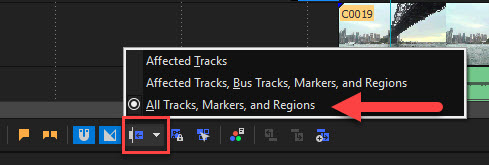
There are 3 different Auto-Ripple settings.
Click tiny triangle on right side of Auto-Ripple button and select All Tracks, Markers and Regions.
-
Hi Dirk
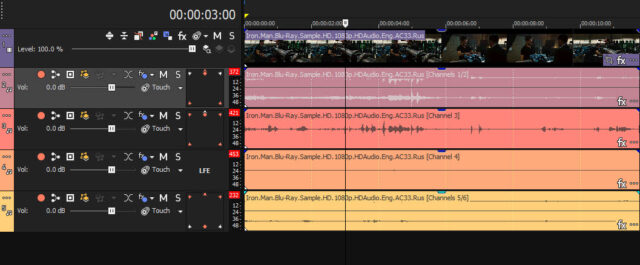
It sounds like the .m2ts videos you are working with, have been recorded with 5.1 Surround Sound Audio. As far as I am aware, there was a bug in VEGAS Pro 16, that made 5.1 Audio look like Stereo on the timeline, unless you manually changed the audio Project Property Settings, before you imported your video. Open Project Properties and check Audio / Master Bus Mode.
If a video file contains a standard Stereo Audio stream, the audio should import into the VEGAS Pro timeline on one track and you will see 2x audio waveforms – one for the Left channel and one for the Right channel.
However, if your video contains a 5.1 Surround Sound audio stream, it will create 4x separate Audio Tracks.
Track #1 = Video stream
Track #2 = Audio stream for Front Left / Front Right channels
Track #3 = Audio stream for Center channel
Track #4 = Audio stream for LFE (Low Frequencies)
Track #5 = Audio stream for Back Left / Back Right channelsIs your .m2ts video in VEGAS Pro 22, creating 4x Audio Tracks, as described above?
If it is, your video is definitely using 5.1 Surround Audio.Another test: Open VEGAS Pro 16.
Before you import your video, open Project Properties for Audio and set to 5.1 Surround.
Now import your video. Does it show 4x Audio Tracks now?If 5.1 Surround audio is confirmed, 4 tracks is correct. You can render down to Stereo, if this is what you prefer.
Another test you can do, is use a free app called Media Info and use that to inspect your video files, to see what type of Audio Streams they contain. If your not familiar with Media Info, please read/watch my tutorial here:
https://www.moviestudiozen.com/free-tutorials/other-software/how-to-use-mediainfo-appRegards
Derek
-
The only thing left now is I can NOT get the output of Vegas to show in “Video Preview on External Monitor”. I’ve got HDMI out to my smaller work monitor and a second HDMI out to the output monitor, but nothing happens when I select it in Vegas. I’ve tried every option in “Preview Device”, but no go.
Make sure your 2nd preview monitor is connected to the correct HDMI port from your Graphics Card. I’m sure you have already done this, but I have to mention it first. Sometimes folks accidentally connect a monitor to the “default” Motherboard HDMI port, and that won’t work if you use a dedicated Graphics Card.
Inside of VEGAS Pro, there is a setting to configure a 2nd Preview Monitor, however, normally it auto-detects 99% of the time.
There are 2x settings to check!
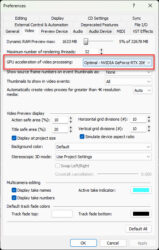
Just to be on the safe side, first make sure your Graphics Card is being selected as the primary device. Right-click Preview window and select Video Preview Preferences.
Make sure your Graphics Card has been selected for GPU Acceleration of Video Processing.Next, right-click Preview window again and select Preview Device Preferences this time.
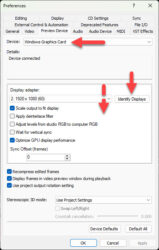
Press Identify Displays – the No. 1 should appear on primary monitor and No. 2 on secondary monitor. If both displays are being detected, you should see two listings in the drop down list next to Identify Displays button.At the top of this window, the Device = Windows Graphics Card.
If it doesn’t say that, open drop down list and select it.If you’re still having problems, you will need to open your Graphics Card controls and check settings there. On Windows 11, right-click Desktop, select Show more options, then select NVIDIA Control Panel (if you have an Nvidia GPU) or AMD option (name maybe different depending on model).
-
Hi John
Copy & Paste is working OK in VEGAS Pro 22 – Build #250 on my Windows 11 machine.
You may have accidentally activated a setting, or something may have become corrupted in the VEGAS Pro settings after the upgrade to VP22. I have personally seen some weird stuff happen after some upgrades. Resetting VP normally fixes this type of thing.
What I recommend you try is a full program reset. This will clean/delete the Temporary Files Cache, Restore all functions to Default Settings, and re-scan for FX on your system. Just remember that if you have set some custom settings inside the Preferences (for example), you will have to reconfigure a few things after the reset.
I have full reset instructions on my website here:
https://www.moviestudiozen.com/free-tutorials/doctor-zen-faq/how-to-reset-sony-software-to-default-settings#a1Regards
Derek -
Hi Blaine
This is a follow up message for you.
I can confirm from my own extensive testing and checking with other long time VEGAS Pro users, that the bug you are experiencing is being experienced by all VEGAS Pro 22 users, with the formats you have mentioned.
.mts and .m2ts formats are also affected.
The first appearance of the bug began in VEGAS Pro 21 and then became worse in VEGAS Pro 22. In VP21 it was only affecting .mp4 videos (as far as I know), but now more extensions are also affected. However, things like .mov ProRes are still working OK though.
I wish I had known about this a long time ago, because I might have been able to apply some extra pressure to get it fixed, way back last year when VP22 was first released, but I was in and and out of hospital and out of the loop for the last 9 months.I have reported this bug to the developers of VEGAS Pro for you. At this stage I don’t know when it will be fixed. VP22 – Build #250 which was the last update to be released so far, was only released recently. So I don’t expect anything to happen quickly, at the moment.
I’m really not sure if Windows 11 is the actual cause ?
I am guessing it has something to do with the decoder engine.
One example of something that did screw up VEGAS Pro after a Windows 11 update, was the removal of AC-3 decoding/encoding. Any videos that contain AC-3 audio streams won’t work now, unless you reinstall the AC-3 decoder/encoder manually into Windows 11.
I suspect a major re-write of some important section of the program, has caused this bug to appear with .sfl Markers not saving/reading. What I do know, is that the VEGAS Pro code base is being extensively updated, rewritten and modernized one section at a time. This task can’t be done quickly, so it’s a gradual process and small things do get missed, until users like yourself discover problems.I will be sure to report back here, if and when I receive any news about a fix. It will be fixed and has to be fixed !!
Derek
-
Hi Kelly
It could actually be a Windows 11 Audio configuration problem, which is then causing the problem in VEGAS Pro. If you have connected a USB Microphone, Headphones with microphone, Webcam, Monitor with speakers inbuilt etc… sometimes the default “Playback” device can be auto-selected incorrectly, so that instead of the Audio coming from your main speakers, it could be going through a connected device like I already mentioned.Checklist:
1. Check your Windows Audio Settings.
Right-click the “little speaker” in bottom right corner of your Windows Taskbar.
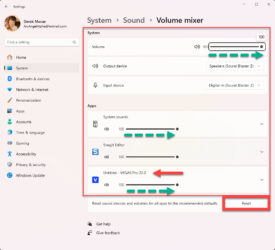
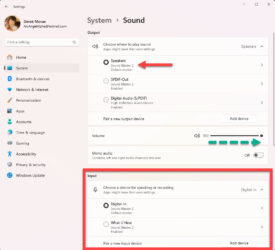
There are 2 options: (a) Open Volume Mixer or (b) Sound Settings.
You will need to check BOTH of these settings!
Volume Mixer: In Windows 11, it creates & applies an individual Volume Mixer to any app that is open. Sometimes you may be trying to watch a video on YouTube and can’t hear any sound. If you check the Windows 11 Volume Mixer, it may be at ZERO for the web browser your using.
You should find a Volume Slider for VEGAS Pro in this control panel.
Even if it is showing Volume = 100%, I recommend pressing the RESET button at bottom!
Sound Settings: In this window, make sure your default Speakers are selected.
If you have a Microphone / Webcam / Headphones attached, also make sure correct Input Mic is selected.2. Once you know Windows 11 Audio is configured correctly, then you can check your VEGAS Pro settings. I recommend re-booting VEGAS Pro first.
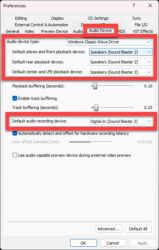
Go to Options / Preferences / Audio Device
For the average user, I recommend selecting Windows Classic Wave Driver – this is the most reliable setting on a stock standard computer. More advanced users with Pro audio, may select ASIO Drivers instead.
Make sure the Speakers are selected correctly, that match your Hardware.
If you have a Microphone attached, make sure to select it as the Default Audio Recording Device.Tip: Remember to click on blue text links for images I uploaded, to view FULLSCREEN !
Regards, Derek.
-
Hi Kelly
Just reading your thread today.
The same problem has been reported on the official VEGAS Pro forum. Apparently it’s a bug that only affects some people. So there is some type of weird combination of things that causes it. I have never experienced this bug.
https://www.vegascreativesoftware.info/us/forum/super-loud-blip-sound-on-clip-start-end-on-occasion–141617/?page=1Which exact version of VEGAS Pro are you using?
Which build version do you have installed?
Open Vegas and go to Help / About to find this info.
At the end of the thread I linked above, it is suggested the bug was fixed from VEGAS Pro 21, Build #187 onwards.Regards
Derekvegascreativesoftware.info
Super Loud Blip Sound on Clip Start/End on occasion
Does anyone know if there is a way to get around this bug in Vegas Pro 19 where it blasts a super loud blip at the start and end of clips on the timel...