

-
New system, where to select sound card?
Posted by Kelly Griffin on June 30, 2025 at 11:58 pmI have a new Windows11 system, built to specs for VegasPro 20.
I don’t know enough about hardware stuff to feel confident in where I go in “Options” or “Preferences” to select my sound card so I can hear audio, and I don’t want to screw anything up just poking around and guessing. I see meters in Vegas but don’t hear anything (yet).
Can someone please advise?
Thank you!
–Kelly
Derek Moran replied 1 year, 2 months ago 3 Members · 4 Replies -
4 Replies
-

Derek Moran
July 1, 2025 at 7:26 amHi Kelly
It could actually be a Windows 11 Audio configuration problem, which is then causing the problem in VEGAS Pro. If you have connected a USB Microphone, Headphones with microphone, Webcam, Monitor with speakers inbuilt etc… sometimes the default “Playback” device can be auto-selected incorrectly, so that instead of the Audio coming from your main speakers, it could be going through a connected device like I already mentioned.Checklist:
1. Check your Windows Audio Settings.
Right-click the “little speaker” in bottom right corner of your Windows Taskbar.
There are 2 options: (a) Open Volume Mixer or (b) Sound Settings.
You will need to check BOTH of these settings!
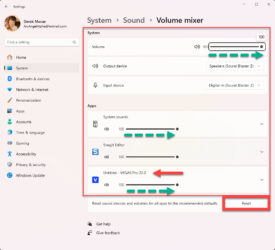
Volume Mixer: In Windows 11, it creates & applies an individual Volume Mixer to any app that is open. Sometimes you may be trying to watch a video on YouTube and can’t hear any sound. If you check the Windows 11 Volume Mixer, it may be at ZERO for the web browser your using.
You should find a Volume Slider for VEGAS Pro in this control panel.
Even if it is showing Volume = 100%, I recommend pressing the RESET button at bottom!
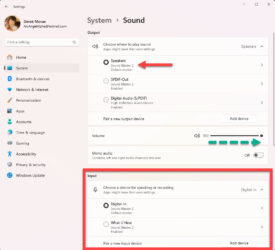
Sound Settings: In this window, make sure your default Speakers are selected.
If you have a Microphone / Webcam / Headphones attached, also make sure correct Input Mic is selected.2. Once you know Windows 11 Audio is configured correctly, then you can check your VEGAS Pro settings. I recommend re-booting VEGAS Pro first.
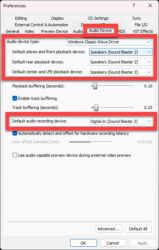
Go to Options / Preferences / Audio Device
For the average user, I recommend selecting Windows Classic Wave Driver – this is the most reliable setting on a stock standard computer. More advanced users with Pro audio, may select ASIO Drivers instead.
Make sure the Speakers are selected correctly, that match your Hardware.
If you have a Microphone attached, make sure to select it as the Default Audio Recording Device.Tip: Remember to click on blue text links for images I uploaded, to view FULLSCREEN !
Regards, Derek.
-

Kelly Griffin
July 1, 2025 at 7:41 pmDerek, you da MAN. Thank you, I got it working.
* * *
The only thing left now is I can NOT get the output of Vegas to show in “Video Preview on External Monitor”. I’ve got HDMI out to my smaller work monitor and a second HDMI out to the output monitor, but nothing happens when I select it in Vegas. I’ve tried every option in “Preview Device”, but no go.
Do you have any ideas?
-
Derek Moran
July 3, 2025 at 8:18 amThe only thing left now is I can NOT get the output of Vegas to show in “Video Preview on External Monitor”. I’ve got HDMI out to my smaller work monitor and a second HDMI out to the output monitor, but nothing happens when I select it in Vegas. I’ve tried every option in “Preview Device”, but no go.
Make sure your 2nd preview monitor is connected to the correct HDMI port from your Graphics Card. I’m sure you have already done this, but I have to mention it first. Sometimes folks accidentally connect a monitor to the “default” Motherboard HDMI port, and that won’t work if you use a dedicated Graphics Card.
Inside of VEGAS Pro, there is a setting to configure a 2nd Preview Monitor, however, normally it auto-detects 99% of the time.
There are 2x settings to check!
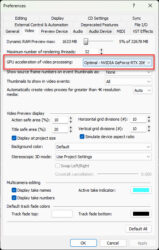
Just to be on the safe side, first make sure your Graphics Card is being selected as the primary device. Right-click Preview window and select Video Preview Preferences.
Make sure your Graphics Card has been selected for GPU Acceleration of Video Processing.Next, right-click Preview window again and select Preview Device Preferences this time.
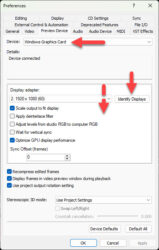
Press Identify Displays – the No. 1 should appear on primary monitor and No. 2 on secondary monitor. If both displays are being detected, you should see two listings in the drop down list next to Identify Displays button.At the top of this window, the Device = Windows Graphics Card.
If it doesn’t say that, open drop down list and select it.If you’re still having problems, you will need to open your Graphics Card controls and check settings there. On Windows 11, right-click Desktop, select Show more options, then select NVIDIA Control Panel (if you have an Nvidia GPU) or AMD option (name maybe different depending on model).


Reply to this Discussion! Login or Sign Up