Stephen Dixon
Forum Replies Created
-

To access a position keyframe of the camera for example, at the first key:
thisComp.layer("Camera 1").transform.position.valueAtTime(thisComp.markerKey(n).time)Markers can be accessed by number (the number is the order that they appear, not the number it is assigned to, which is actually its name), or by name, e.g.
thisComp.layer("Camera 1").transform.position.valueAtTime(thisComp.markerKey("my marker").time) //or
thisComp.layer("Camera 1").transform.position.valueAtTime(thisComp.markerKey("1").time)
docs here
-
There are, as always a few ways you can do it. The best, most fun way is with maths.
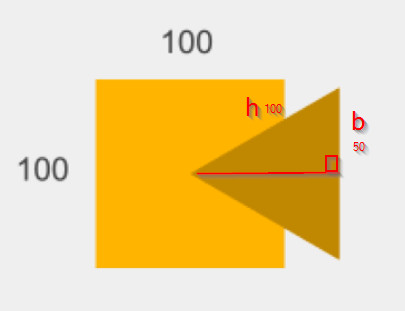
The default polystar triangle is an equilateral triangle. If we bisect it (cut in half, in this case along the horizontal mid-line) to make two right angle triangles, we have a triangle with a hypotenuse (h) the same length as the sides of the original, i.e. 100px long; a base (b, the one we cut in half) 50px and what we have to find is the length of the other side which we’ll call a.
Pythagoras tells us that h² = b² + a², so
a² = h² – b²
a = sqrt(h² – b²)
so that’s the original height of the triangle (you could also do it with trig, using 100*sin(60), because the angle of the top corner is 60°). We need to work out how to scale that so that it equals 50px. Or in other words we need to work out n, where
n*a = 50.
substituting the value for a we worked out earlier:
n*sqrt(h² – b²) = 50
so
n = 50 / sqrt(100² – 50²)
n= 0.57735026918962576450914878050196
Since it’s a scale, so in percentages, we need to multiply by 100
57.735026918962576450914878050196
in expressions that would be
let r = [link to rectangle x size, use the expressions pickwhip to get it];
100 * (r/2) / Math.sqrt(Math.pow(r, 2) - Math.pow(r/2, 2))
if you use the expression you don’t have to recalculate if the size of the rectangle changes.
The other way would be to convert the triangle to a bezier shape, then calculate the position of all the points.
let r = [link to rectangle size (x and y), use the pick-whip to get it];
let p = [[r[0]/2, 0 - r[1]/2], [r[0]/2, r[1]/2], [0,0]]
createPath(points = p, inTangents = [], outTangents = [], is_closed = true)
-
Stephen Dixon
October 9, 2020 at 12:22 am in reply to: Get time value in seconds of keyframes in a given rangekeyframes have a time property so the line would be:
let keyframeTime = position.key(k).time
You can access all the properties of keyframes this way, e.g.
let keyframeValue = position.key(k).value
more info about keyframes in expressions here
-
The problem is that the sourceRectAtTime ecxpression is just giving you dimensions of the text box, not the positions of the text box in comp co-ordinates. Since the text dimensions don’t change when you move it, the boxes doesn’t follow.
There are a couple of ways to get the comp position of the corners. The simplest, but least robust is to add the text box’s position to the expression, and subtract the shape layer’s position (this is in effect what would happen if you made the box layer the child of the text layer). So the last line could be
[w+l, h+t]+src.transform.position - transform.position
This won’t work if the text layer is scaled or rotated or is a child of another parent. That’s when you’d use layer space transforms. These translate coordinates to / from layer space from / to comp space. In this case you’d translate the coordinates of the text box into comp space, and then the comp space coordinates into the shape layer’s space. Layer space transforms are a little tricky to get your head around, but they’re very useful. So in this case you’d use this as the last line for the top left:
fromComp(src.toComp([l,t]))
This means “get the point on this layer over the point on the comp that is under the point [l, t] as seen from the text layer”
-
Math.sin(a) * x
would do the same thing (ish)
-
Stephen Dixon
October 6, 2020 at 2:19 am in reply to: Script to trim end point of layer when opacity is at 0%.Your question is very broad; that would definitely be something that you could script. Either to create the comp from scratch given the CSV, or to trim the ends based on the opacity. https://docs.aenhancers.com is the place to go for extendscript documentation.
-
Stephen Dixon
October 6, 2020 at 2:15 am in reply to: Can’t get Source Text parameter to execute 2 expressions.You need to store the sourceText in a variable, and apply the style changes to that variable. So:
let st = comp(“CHANGE TEXT”).layer(“1 Line Small Text”).text.sourceText;
if (comp(“CHANGE TEXT”).layer(“Layout_Selector”).effect(“Comedy Central”(“Checkbox”) == 1){
st.style.setFont(“AmericanTypewriter”)
} else {
st.style.setFont(“Helvetica”)
}
st -
Stephen Dixon
October 1, 2020 at 12:57 am in reply to: Script for setting inPoint and outPoint of images using .csvYou could do it with expressions controlling the slide’s opacity, thsi would be less overhead than writing a script. Expressions can work with external data files like csv, you can read about it here: https://helpx.adobe.com/after-effects/using/data-driven-animations.html
You could write an expression that reads the csv, checks to see if the time was greater than the slide’s start time and less than the next slide’s start time, and if so turn the opacity to 100%.
-
Stephen Dixon
September 30, 2020 at 3:18 am in reply to: Disable or Enable an Expression with a Checkbox ControlSimple, use an if() statement
let chkbx = [link to checkbox control, use the pickwhip];
if (chkbx.value){
    [your expression here]
} else {
    value //returns the keyframed value without the expression
}
For the other layer use the boolean not operator: “!“
if (! chkbx.value){ -
Stephen Dixon
September 29, 2020 at 1:59 am in reply to: I need help with this Expression: linear(time, 0, thisComp.duration, 0, 100);the distance around a rectangle is the (width + height) * 2. The proportion of the distance to the first vertex is (pseudocode):
(the distance from start to point 1)/total distance
and to the third point
(the distance from start to pt 1 + distance from pt 1 to pt 2)/total distance
if the rectangle goes clockwise from the top left the first distance is equal to the width, so to stop at the first vertex we multiply the expression you had by
width / ((width + height) * 2)
or for the whole thing
let w = <link to="" the="" shape's="" width,="" use="" pick-whip="">;
let h = <link to="" the="" shape's="" height,="" use="" pick-whip="">;
let prop = w / ((w + h) * 2); // proportion of distance
linear(time, 0, thisComp.duration, 0, 100) / prop;
for the second point the proportion is going to be
(width + height) /((width + height)*2)
There’s no need to do anything complicated here, this will always equate to 1/2. so dividing your original expression by 2 should work here. The third point is going to be
(width * 2 + height) /((width + height)*2)
so the expression will be
let w = <link to="" the="" shape's="" width,="" use="" pick-whip="">;
let h = <link to="" the="" shape's="" height,="" use="" pick-whip="">;
let prop = (w * 2 + h)/ ((w + h) * 2); // proportion of distance
linear(time, 0, thisComp.duration, 0, 100) / prop;
To go anti-clockwise swap w for h on the top of the fraction, e.g. for the third point:
let w = <link to="" the="" shape's="" width,="" use="" pick-whip="">;
let h = <link to="" the="" shape's="" height,="" use="" pick-whip="">;
let prop = (h * 2 + w)/ ((w + h) * 2); // h * 2 + w instead of w * 2 + h
linear(time, 0, thisComp.duration, 0, 100) / prop;