Forum Replies Created

Page 1 of 15
  • Paul Benson

    July 25, 2026 at 7:59 pm in reply to: Stroke Effect on an Object Matte

    I found a solution using Vegas – Thanks John for that pointer. I left my original reply since I’m still curious what Vegas was trying to do with the matte and showing the multiple paths.

    What I did:

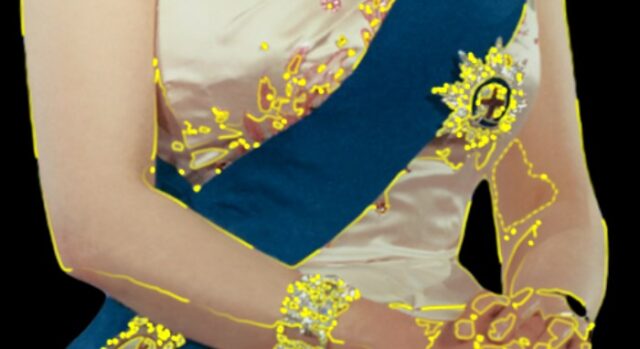
    1) Create the Object Matte of the queen

    2) Create a new solid layer above the picture of the queen

    3) Set the Track Matte of the solid to the layer below it

    4) Pre-comp with ‘Move all attributes’ the solid layer

    5) Put the Vegas effect on the pre-comp and set blend mode to Transparent and adjust other variables.

  • Paul Benson

    July 25, 2026 at 6:35 pm in reply to: Stroke Effect on an Object Matte

    Thanks for the help, John, but it is not doing what I expect. This should show you what I am encountering.

    1) Get the picture of Queen Elizabeth from Wikipedia.

    https://en.wikipedia.org/wiki/Elizabeth_II#/media/File:Queen_Elizabeth_II_official_portrait_for_1959_tour_(retouched)_(cropped)_(3-to-4_aspect_ratio).jpg

    2) Bring it into your comp as the only layer and scale it to fit in your comp if needed.

    3) Double click on the picture in the comp window so that the layer window opens.

    4) Apply Object Matte Tool to the queen – it should do a decent job of selecting her.

    5) Pre-comp this layer (I tried both ‘leave attributes’ and ‘move attributes’. ‘Move attributes’ worked better since ‘leave attributes’ left me with an empty screen)

    6) Add Vegas effect and do the settings you recommend

    The Vegas effect appears, but it is not following the outline of the picture. There seem to be other paths in the necklace, on her face, her torso, etc. that the effect is finding. Note, in the attached photo, the render blend mode is not transparent as you suggested, but is ‘over’. This was just so you could see some context of the paths and the picture of the queen. When I make it transparent, it just shows the vegas light trails (which is close to what I want).

    Thanks,

    Paul

  • Paul Benson

    July 8, 2024 at 4:42 pm in reply to: RGB+Alpha Channels option

    Maybe answered. It appears the channels option is removed and you have to choose a preset that states ‘plus alpha’. I ended up using Quicktime and a profile with alpha. Oddly, I couldn’t find it for AVI, and that is what I’ve used in the past.

    Note that even when I choose the profile with alpha, I still don’t see a specific setting that is tied to this. I’m still curious if I am missing something obvious, as removing the Channels option seems odd.

  • Paul Benson

    July 5, 2024 at 9:03 pm in reply to: Clean Trim of Open Path with a Closed Path

    A delayed thanks. I thought I had it set up to get an email when someone replied.

  • Paul Benson

    May 11, 2023 at 9:02 pm in reply to: Painting using a projector and Photoshop
  • What throws me is that you see this across multiple versions and machines. Since most people do not encounter this, I hypothesize that there is another tool/plugin that you install in your systems that is causing this. The plugin may be a ‘system plugin’ that gets loaded as the OS boots or a plugin that is loaded with AE.

    For the system plugins, try booting to a base environment and see if the problem persists. If it does not, then try disabling your startup programs (Task Manager if Windows), especially ones that are common across your systems and are tied to input devices, and keep booting different combinations until the problem reappears.

    If not a startup app, then do a similar clean launch test with AE (i.e. no AE plugins) and then partial enablement of the plugins until the problem appears and you identify the misbehaving tool. I found this link describes how to disable AE plugins. https://www.toolfarm.com/tutorial/in_depth_troubleshooting_after_effects/

    If this is happening with a clean boot and a clean launch, then I am out of ideas…

    Pauley

  • Paul Benson

    January 9, 2017 at 1:22 pm in reply to: CC2017 and GPU Acceleration

    Hello Neal,
    I did not realize that. Thank you for pointing that out. I’m sure adobe tracks that type of stuff, so that may be a way to show a minor protest.

    Pauley

  • Paul Benson

    January 9, 2017 at 1:21 pm in reply to: CC2017 and GPU Acceleration

    Hi Chris,
    Thanks for responding. The nVidia control panel is set for ‘Auto’ (or something like that), but it shows my card under it with a check mark since I only have that card.

    gpusniffer finds the card correctly. I added my card to the “cuda_supported_cards.txt” file, and this has worked for AE (different txt file changed) but not for Premiere, as it has in the past.

    I’ll check out the iGPU setting next time I reboot.

    At the end of the day, though, I think Adobe just ‘forced’ the cuda support to the approved cards and removed the ability to manually add the cards (which was never supported). I find it odd they allowed it for AE (in fact they made it a bit easier with a checkbox to enable unsupported cards), but drew a hard line for Premiere.

    Pauley

  • Paul Benson

    February 10, 2015 at 7:07 pm in reply to: Adaptive Wide Angle – Failed To Calibrate

    Oh yes. This is with CS6 (DVD).
    Adobe Photoshop Version: 13.0.1 (13.0.1.3 20131024.r.34 2013/10/24:21:00:00) x64

  • Paul Benson

    October 15, 2010 at 3:39 am in reply to: Difficulty printing posters

    Been a while. Did you ever figure this one out?

    Pauley

Page 1 of 15

We use anonymous cookies to give you the best experience we can.
Our Privacy policy | GDPR Policy