Forum Replies Created

Page 2 of 3
  • Nir Vanaskitz

    January 25, 2025 at 2:46 pm in reply to: having issues with 3d tracking

    If you’re having trouble with 3D tracking in After Effects, try the following:

    1. **Improve Footage Quality**: Ensure your footage has good contrast and distinct features for the tracker to latch onto. You can enhance this by adjusting brightness or adding a slight contrast boost.

    2. **Use the 3D Camera Tracker Effect**: Apply the 3D Camera Tracker to your layer and let it analyze a longer segment of the footage for better tracking accuracy.

    3. **Check Tracking Points**: After analysis, review the tracking points for stability and proper placement. Delete any unstable or irrelevant points that might be causing issues.

    4. **Create a New Camera**: Once tracking is successful, generate a new camera from the tracker to match the scene’s motion accurately.

    These steps should help resolve common 3D tracking issues in After Effects.

    Best,
    Nir-Vana

  • Nir Vanaskitz

    January 25, 2025 at 2:46 pm in reply to: Motion Tracking Long Shots

    Hi Sandro,

    Glad to hear the explanation was helpful! It sounds like setting up null points along with the After Effects camera for exporting to 3DS Max is the right approach for your road project. Best of luck with the 3D road overlay and adding those moving vehicles!

    Cheers,
    Nir-Vana

  • Hi Jess,

    To change the vertical units in the Graph Editor, you can adjust the Y-axis scaling by selecting the property you’re animating and then right-clicking to choose Separate Dimensions if needed. Alternatively, you can scale the graph manually by dragging the Y-axis handles to fit your desired unit range. This should help you better visualize and control your animation curves.

    Hope this helps!

    Best,
    Nir-Vana

  • Nir Vanaskitz

    January 24, 2025 at 11:26 pm in reply to: Optimizing Settings for Best Performance (?)

    Sure! Happy to help

  • Nir Vanaskitz

    January 24, 2025 at 10:20 pm in reply to: Optimizing Settings for Best Performance (?)

    it sounds like your new setup might need some tweaks. Check Vegas\’ preferences under \’Video\’ and ensure \’GPU acceleration\’ is enabled. Also, under \’File I/O,\’ make sure \’Enable legacy AVC file decoding\’ is unchecked. If the lag persists, try lowering the preview resolution or closing background apps. Your hardware might also need a driver update. Hope this helps\u0021

  • Nir Vanaskitz

    January 24, 2025 at 10:17 pm in reply to: Optimizing Settings for Best Performance (?)

    it sounds like your new setup might need some tweaks. Check Vegas’ preferences under ‘Video’ and ensure ‘GPU acceleration’ is enabled. Also, under ‘File I/O,’ make sure ‘Enable legacy AVC file decoding’ is unchecked. If the lag persists, try lowering the preview resolution or closing background apps. Your hardware might also need a driver update. Hope this helps!

  • Nir Vanaskitz

    January 24, 2025 at 9:07 pm in reply to: Optimizing Settings for Best Performance (?)

    I am experiencing the same issue

  • Nir Vanaskitz

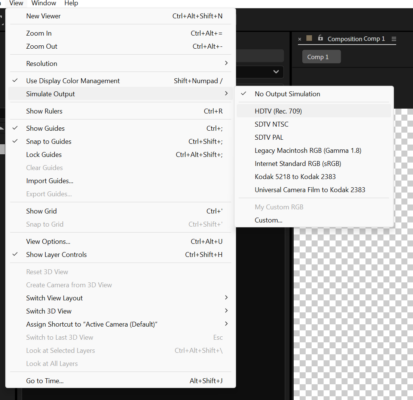
    January 23, 2025 at 10:00 pm in reply to: ICC Profile isn't consistent on my second monitor.

    Maybe try to simulate the output from the view menu and the color profile you are working with

  • Nir Vanaskitz

    January 21, 2025 at 12:00 am in reply to: having issues with 3d tracking

    Happy to help!

  • Nir Vanaskitz

    January 20, 2025 at 11:03 pm in reply to: Motion Tracking Long Shots

    Hi Sandro

    You might find similar tutorials on motion tracking long shots on Video Copilot like this:

    https://www.videocopilot.net/tutorials/set_extensions/

    It’s an old one but Hope this helps!

    Nir-Vana

Page 2 of 3

We use anonymous cookies to give you the best experience we can.
Our Privacy policy | GDPR Policy