Forum Replies Created

Page 3 of 4
  • Jurgen Murataj

    March 10, 2025 at 11:52 pm in reply to: Using Credit Roll as a Teleprompter

    Hey there! I have used OBS to do something similar, and I think this might apply to you since Vegas doesn’t do live keying well.
    It should be a simple setup:
    -Set Up a Scene in OBS

    -Add your camera feed as a Video Source.
    -Add a green background behind yourself (you don’t need to key it out yet).
    -Add your Credit Roll as a scrolling text overlay (OBS supports this natively).
    -Use OBS as a Live Monitor
    -Output OBS to your external TV.
    -Look at the TV while recording with your separate camera.
    -Record Separately or Use Virtual Camera
    You can either record within OBS or send the live composite to Vegas for recording if you want to edit in real-time.
    Hope this helps!

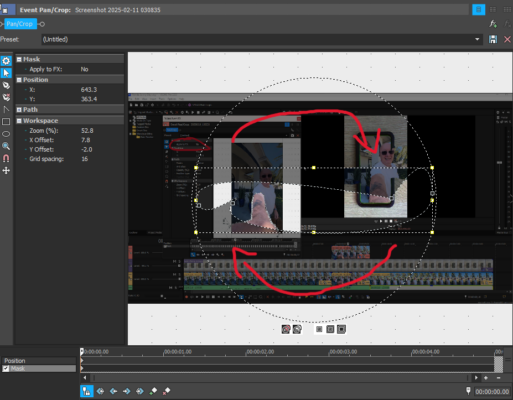
  • There is definitely something in the settings that’s messing with this, but I cannot identify that problem based on the screenshots provided. What I’d do to just finish this project, is trying to rotate the mask manually. To do that, you just double click on the mask outline so it selects all of it, then click, hold and drag anywhere within the circle as displayed in the picture to rotate it. Make sure to line it up with the preview and you’ll have it in the position you want.

  • Can you try a test render just to see if the mask appears correctly on the final video? Sometimes the preview will glitch like that.

  • Have you been working on Track Motion, too? If you have that enabled it might interfere with the position.

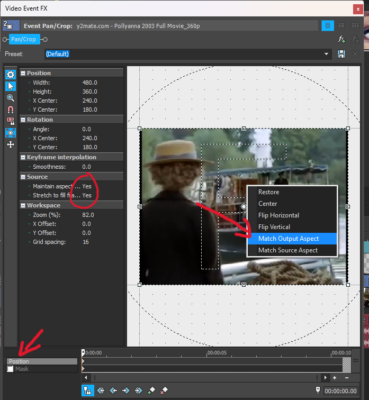
  • Make sure you’re on the “Position Tab”, and the options I circled are checked. After that you can right click and choose “Match output aspect”. Let me know if that worked.

  • If you would rather change the video resolution instead of the project resolution, you could right click inside the Pan/Crop frame and then select Match Output Aspect.

  • Jurgen Murataj

    January 31, 2025 at 1:41 pm in reply to: Optimizing Settings for Best Performance (?)

    Of course! It’s my pleasure!

    My email is:

    jurgenmurataj24@gmail.com

  • Jurgen Murataj

    January 30, 2025 at 11:31 pm in reply to: Optimizing Settings for Best Performance (?)

    Hey Kelly,
    Adding more RAM would at the very least help with a smoother preview and a faster response time from Vegas. If you go to the “performance” tab on task manager, you can see how many GB of RAM you have installed. With windows 10, I would suggest at least 8GB of RAM for a smooth experience.
    If you wind up going down that route, make sure to know what type of RAM you get, how much space your PC’s motherboard has to add more RAM, and the frequency of it. If you’re not certain about that, make sure to consult somebody before buying. I’m happy to help with that in the future, too!

    -Jurgen

  • Jurgen Murataj

    January 29, 2025 at 7:54 pm in reply to: Optimizing Settings for Best Performance (?)

    Hey, there! Based on the screenshot you sent, I see that the RAM usage is not the worst, but the power usage might be what’s causing it.

    You might want to switch power settings on Windows. (note that if you have a laptop, it will drain the battery faster)
    Go to Control Panel > Power Options > select High Performance

    If the problem still consists, then maybe one of these will help:

    <div>Go to Options > Preferences > Video.Under the Dynamic RAM Preview Max (MB), lower the amount (try 256 MB or lower). This way, it won’t use up too much of your system’s resources when rendering previews. That might affect their quality so if you don’t want that, you can reverse it.
    </div>

    Lastly you could try enabling GPU acceleration
    Go to Options > Preferences > Video.
    Under the GPU acceleration of video processing dropdown, ensure you’re using your GPU.

  • Jurgen Murataj

    January 29, 2025 at 3:24 am in reply to: Vegas2handbrake issues with windows 11?

    That’s good to know! if I encounter the same issue in the future, I’ll keep that in mind. Glad we could help, and thanks for the update!

Page 3 of 4

We use anonymous cookies to give you the best experience we can.
Our Privacy policy | GDPR Policy