Jim Scott
 1
COW Coin
1
COW Coin
Forum Replies Created
-

At around 17:50 in the video he shows how to quickly switch between the plain pane of glass and the shattered one so as to create the realistic effect of an instantaneously shattered pane of glass. If you haven’t watched that far, is that what you want to do?
-
The simplest way would be to import an image file as a texture.

-
Jim Scott
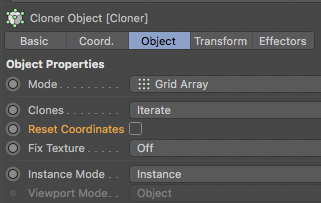
August 16, 2021 at 4:31 pm in reply to: Why is my keyframed animation not working with a cloner?Deselect “Reset Coordinates” for the cloner and the clones will inherit the animation.
-
Jim Scott
August 10, 2021 at 1:03 pm in reply to: Reflections still visible when animating visibility with display tagSorry you had issues with downloading. For some reason I couldn’t upload images yesterday, so perhaps the COW server was having problems. I will certainly pass it along if I come across an explanation or solution for the visibility tag issue.
Good luck with your project.
Edit: I just tried to download the project file and got the same error message you did. Something’s definitely amiss.
-
Jim Scott
August 9, 2021 at 11:36 pm in reply to: Reflections still visible when animating visibility with display tagHere’s the modified project file (set the render to .mov and lowered the resolution just to make it faster to render).
-
Jim Scott
August 9, 2021 at 11:32 pm in reply to: Reflections still visible when animating visibility with display tagThe COW seems to be having issues with uploading an image. I’ll post the sample project file next.
-
Jim Scott
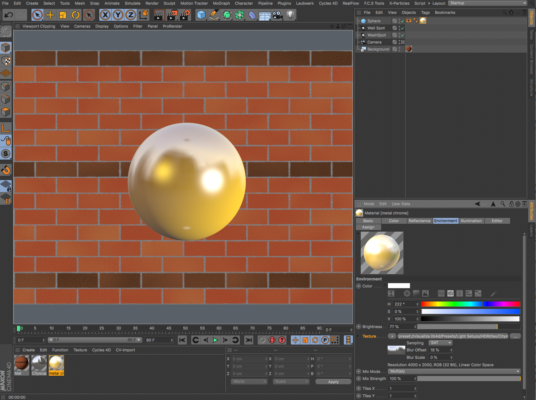
August 9, 2021 at 11:25 pm in reply to: Reflections still visible when animating visibility with display tagThis is a perplexing issue, and so far I have no clue as to why it is occurring. To get the display tag visibility fade to work properly either reflectance or the Sky object must be off. In order to get a similar look as your original one but without the Sky object, and keep reflectance for the two lights, I added an Environment channel to the sphere’s material and placed the .hdr file in there, added some Blur Offset, and set the Reflectance channel’s Attenuation to “Additive.” (I used a Brick texture in the Background material since I don’t have the one you used.)
-
Hi Brian,
Just as you mentioned, I understand a normal as referring to a polygon’s orientation (like a vector pointing outward from it) and which thus defines its front face.
Here’s an excerpt from the Help files for “Align Normals” which may help:
Why are Normals needed?
Cinema 4D cannot easily recognize an object’s inner and outer surface without extra information. A basic sphere has an inner and an outer side, but only one surface level, which can be confusing. We need a better definition. Let’s define this single surface level to have an inner and an outer property. Outer designates, in principle, the direction in which the surface Normals point and inner is therefore the opposite direction. This plays a role with texture projection, where you can project textures from only the front or the back.
So, if as many Normals point one way as the other way, how do we decide which is the outer surface? We could either choose randomly or, perhaps, look at the first polygon in the sequence and use its normal as the basis of our calculation — Cinema 4D does the latter.
Why change the direction of the Normals? As described above, the direction of the Normals defines the interior and the exterior of an object. This is important, among other things, for displaying an object in the viewport. Occasionally, when building certain objects, a situation can arise in which some polygons seem invisible. This can happen if <nobr>
 Backface Culling</nobr> is on and the reason is as follows. To save on processor performance you may have enabled backface culling for your scene; this is where only the polygons visible from the front of an object are displayed in the viewport. The polygons positioned directly at the back of an object are not drawn.
When displaying a sphere and other volume objects in the Gouraud Shading mode you may notice no difference, simply because you do not see the back of the sphere anyway. But should you select all the polygons of this sphere and reverse the Normals (see next section), you will now see only the back of the sphere; the front is now transparent since you have inverted the sphere. The inside is now the outside, and this becomes invisible because of the backface culling.
Should you find yourself inadvertently in a situation like this you should switch off backface culling and reverse the Normals of these polygons.
The adjustment of these Normals also plays an important role with tools such as Smooth Shift and Extrude. These model tools always move in the direction of the Normals by default. If you should need to move several surfaces with different normal alignments using Smooth Shift you will obtain useless results, since the surfaces are moved in their own respective — and opposite — directions.
Another important factor is smoothing with a disabled Angle Limit option (see Phong tag). Cinema 4D determines whether or not to smooth edges based on the angle with which adjoining surfaces lie to each other. If the Normals of two adjoining surfaces have opposing orientations Cinema 4D will receive conflicting angle data, which can result in unwanted results:
-
Jim Scott
August 9, 2021 at 3:19 pm in reply to: Reflections still visible when animating visibility with display tagThanks Richard. I misunderstood your first post, but I see what you’re talking about now. Nothing comes to mind immediately, but I will play with it and get back to you.