David Conklin
 12
AE Expressions Coins
12
AE Expressions Coins
 4
After Effects Coins
4
After Effects Coins
 18
COW Coins
18
COW Coins
Forum Replies Created
-

David Conklin
September 12, 2024 at 2:48 pm in reply to: TimeRemap with Random Frame Expression… NOTWhat aspect of the Advanced 3D renderer do you need for this comp? Remember, you can specify a different 3D render engine for each composition. So, even if you need to do something like extrude text or import a 3D model in another comp, you can still set this comp to Classic 3D.
-
David Conklin
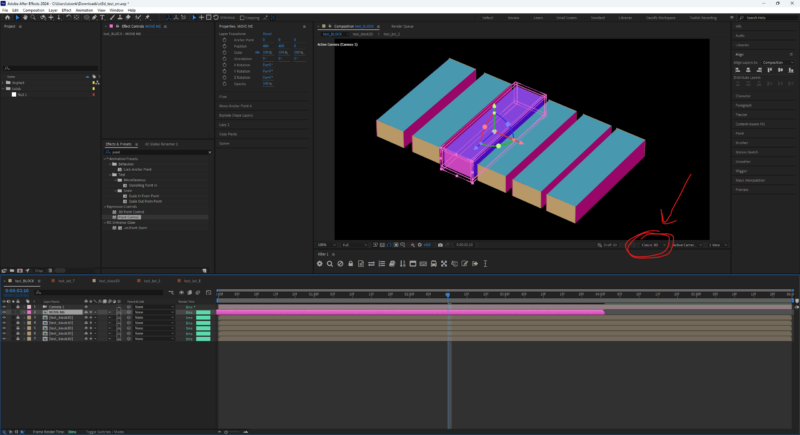
September 11, 2024 at 9:20 pm in reply to: TimeRemap with Random Frame Expression… NOTThis does seem like a glitch, or at least an inconsistency.
Fortunately, changing the 3D engine on the top-level comp from “Cinema 4D” to “Classic 3D” fixed the issue. Must be a bug in how the C4D 3D engine is handling instancing.
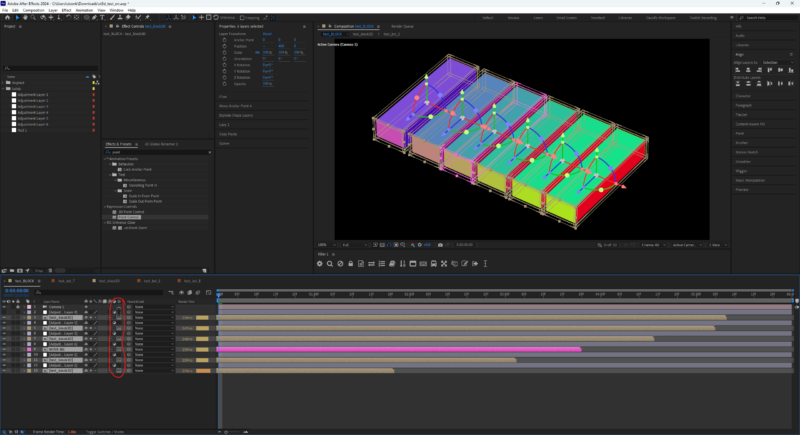
If for whatever reason you NEED to use the C4D 3D engine. I was able to “cheat” it to make it work by throwing an adjustment layer (any visible 2D layer will work) between each of the boxes to “break” the 3D space up. Now each one retimes on its own.
Hope that helps!

-
David Conklin
May 9, 2024 at 9:06 pm in reply to: Define width&height of a single word from a text lineHey friend,
Unfortunately there is no easy way to do what you’re saying in AE currently. It’s impossible to get the X location of a character within a string.
Fortunately, this task does become trivial if you have each word (or letter, line) on its own layer. If you need help with that, let me know, but the short version animate a slider (or use an interpolation function) from 0-1 and then use that to “scale” your height variable in your expressions.
If you’re able to separate your text into individual words, that is definitely the path of least resistance. Trust me. However, because you posted this in the expressions forum I think you may be in search of the needlessly complex answer. This is not very practical, BUT…
<div>
- Duplicate your text layer and link the copy’s source text back to the original.
- Add a Scale Text Animator to the duplicate. Set scale to [0,0] and delete the range mapper
- Add an expression selector and add this expression: textIndex <= timeToFrames(time) ? 0 : 100;
- Important: Change the “based on” dropdown inside the expression selector to “Words”
- This expression writes on 1 word per frame. So frame 0 will have 0 words shown, frame 1 will have 1 word shown, etc.
- The idea here is that we can use sourceRectAtTime(frame#) to look at how big our text layer is at a specific frame, and because frame#=textIndex due to our expression selector, we can now essentially request the sourceRectAtTime object for all of the text up to the given index. Now, if we compare the bounding box at our desired index against the bounding box at our index minus 1 we can create a box for each word).
Here’s an example with an expression that goes on the mask property of a solid layer. It lets you input an index and will make a box that covers that word and animate it up from the baseline over half a second.
(AEP attached, code didn’t really make sense without context)
Good luck!</div>
-
It’s hard to know without seeing your full setup but in the abstract you want to use the modulus operator (%) to “loop” the time property rather than trying to loop the expression. Check out this article from the legend himself 🙂
deltaT = 0.02;
loopTimeInSeconds = 0.5;
thisProperty.valueAtTime( time % loopTimeInSeconds - deltaT);
This will get you a sawtooth graph which is about half way there. To then offset each loop you could do something like
deltaT = 0.02
loopTimeInSeconds = 0.5;
numLoops = Math.floor(time / loopTimeInSeconds);
t = time % loopTimeInSeconds;

deltaV = thisProperty.valueAtTime(loopTimeInSeconds) - thisProperty.valueAtTime(0);

(numLoops + deltaV) + thisProperty.valueAtTime(t - deltaT);
Basically, we measure how much our value changes from the start of our comp (0), to wherever the loop would end. We then add that amount multiplied by the current iteration count of the loop to create the “offset” loop effect.
I just made this on a simple shape layer with 2 keys on Y position for a proof of concept but hopefully that gets you started. Also note that I typed this in the browser didn’t copy+paste so apologies in advance for any typos.
Good luck!
motionscript.com
Dan Ebberts's Expressioneering Design Guide
Dan Ebberts's resource for After Effects scripting and expressions
-
I saw there were no replies here so I wanted to jump in.
I may be misreading, but it’s possible you’re overcomplicating things. If you just want to keep an anchor point centered in your text layer, regardless of its settings in the character panel or position in the comp, you can use this expression on the anchor point property:
const { top, left, width, height } = sourceRectAtTime(time-inPoint, false);
[left + width/2, top + height/2];
I am assuming because of the complexity of your problem that you need the anchor point to stay exactly at the baseline of type (I’m assuming that’s what the “ignore descenders” bits are about).
If you have an even # of lines this numerically centers the layer vertically. If you have an odd # of lines this sticks the anchor point at the baseline of the middle line.
A text layer’s anchor point will always be y=0 at the baseline of line 1. Knowing that, we can use the leading to “count down” the lines (l * numLines)
const { top, left, width, height } = sourceRectAtTime(time-inPoint, false);

const s = text.sourceText.getStyleAt(0,0);
const l = s.autoLeading ? s.fontSize * 1.2 : s.leading;

const numLines = 1 + Math.floor(height/l);
// const bottom = top + (l * numLines);

const xPos = left + width/2;
const yPos = (numLines%2==0) ? top + height/2 : l * Math.floor(numLines/2);

[xPos, yPos];
Like I said it’s possible I’m misreading but hopefully there are some snippets in there that help you get where you need to be.
Good luck!
-
David Conklin
May 2, 2024 at 8:52 pm in reply to: Change selected master properties with ExtendScriptI think this is what you’re asking for. Let me know if not.
This script will update your [first] selected property on your [first] selected layer in your active comp to say “abcd.”
(function(){
  app.beginUndoGroup("Updated selected text essential property.");

  var comp = app.project.activeItem;
  var lyr = comp.selectedLayers[0];
  var prop = lyr.selectedProperties[0];
  prop.setValue("abcd")

  app.endUndoGroup();
})();
If you wanted to be more specific you could say
var prop = lyr.essentialProperty.property(1);
or
var prop = lyr.essentialProperty.property("thePropertyName");Hope that helps.
-
David Conklin
May 2, 2024 at 8:30 pm in reply to: How to make a sliding number counter in After EffectsThere’s not a silver-bullet expression you can apply to a single property to achieve this effect. Depending on how comfortable you are with expressions there are more- and less-complex ways to do it.
This might get you started:
1. On a new text layer, type the numbers 0-9 and then another 0, each on its own line.0
1
2
...
8
9
02. Make a new slider on the text layer.
3. Apply this expression to your text layer’s position:
const numberSlider = effect("Slider Control")("Slider");
const leading = text.sourceText.getStyleAt(0,0).leading;
value - [0, numberSlider * leading];
A text layer’s leading is how many px tall 1 line is. So 1 * leading = height of 1 line. 5 * leading = height of 5 lines, etc.
4. Next, apply this expression to your Slider Control:
value % 10;Now, when you animate that slider, it should give you the correct digit up to 10. The expression we added to the slider effector makes the value “wrap” after 10, once it counts up to 9.999999 resets to 0 instead of becoming 1. This is essentially how you’d do you “ones” place. Think about how you might calculate a tens or hundreds place (hint: dividing by a factor of 10 and truncating decimals), that could be a good next step.
If you combo a couple of these together with some masks and a control layer and you’ve got a rig. There are probably ways to do this with an expression selector on a single text layer, but I don’t think the complexity merits the result.
Hope that helps get you started.
Cheers
-
Hi,
I think your question was already solved, but just posting this here in case it prove helpful to anyone else. I ran into variations of your problem for AGES before I finally found this expression:
function customBezier(t,tMin,tMax,value1,value2,bezierPoints){if(arguments.length!==6)return value;var a=value2-value1;var b=tMax-tMin;var c=clamp((t-tMin)/b,0,1);if(!(bezierPoints instanceof Array)||bezierPoints.length!==4)bezierPoints=[0,0,1,1];return a*h(c,bezierPoints)+value1;function h(f,g){var x=3*g[0];var j=3*(g[2]-g[0])-x;var k=1-x-j;var l=3*g[1];var m=3*(g[3]-g[1])-l;var n=1-l-m;var d=f;for(var i=0;i<5;i++){var z=d*(x+d*(j+d*k))-f;if(Math.abs(z)<1e-3)break;d-=z/(x+d*(2*j+3*k*d));}return d*(l+d*(m+d*n));}}It’s a generic bezier easing function. I have no idea how it works, but it does. This lets you supply an array of 4 bezier points (x1, y1, x2, y2) and will return an interpolation using that bezier curve.
So, instead of
linear(time, 0, 1, 0, 1)
you could do
customBezier(time, 0, 1, 0, 1, [0.17, 0.67, 0.83, 0.67])
for example.
I wish I could remember where I got this from to give proper credit. But, I think it was in the expression of another artist’s file who was using a script to do their easing. Maybe ease and and wizz? Flow? In any case, it’s been super useful to me and hope it is for you, too.
Cheers
-
In order to get the box to position correctly around the type, the anchor point has to be centered on the type. I placed an expression to keep the anchor point in the centre, but it does make the type behave as center-justified even if that’s not how it’s set in the paragraph panel. To fix, simply add the following expression to the position property on the type layer. All it does is forcibly offset the position of the type to make it appear as if it writes out from the left (it’s actually writing from the center, but moving to the left at the same time so it seems like it’s left justified).
var box = sourceRectAtTime();

var w = box.width * (scale[0]/100);

[value[0]-w/2,value[1]]
I also made a new file with right justified type (I just applied that expression). Let me know if that works for you.
David Conklin
mographcode.tumblr.com -
My example above animated from the centre out. I’ve made a few adjustments to the project file to demonstrate a right-left animation. This basically involves setting the anchor point of the shape group to always be at the right edge of the type layer, and then offsetting the position enough to compensate. There’s a new project here.
David Conklin
mographcode.tumblr.com