Wayne Waag
 2
COW Coins
2
COW Coins
Forum Replies Created
-

New Build 1.0.3.22 is now available that includes CuminCode FrameServer support. For more information, https://www.vegascreativesoftware.info/us/forum/happy-otter-scripts-for-vegas-pro–113922/?page=37#ca853335
-
New build 1.0.3.20 is now available.
Change log may be found here. https://tools4vegas.com/wp-content/uploads/HappyOtter-Change-Log.pdf
New versions of FFmpeg, Nvencc64, Qsvencc64, MPC-HC
New Features and Improvements- CuminCoder support now added to all rendering tools
- KwikProxy
- Improved Vegas style proxy creation using avc and mpeg encoding for Vegas 18-19
- Option to convert vegas-style proxies to swap style proxies without re-encoding
Option to add video levels change (PC to TV or TV to PC )during processing
Bug Fixes
- Media Finder – crash when search folder doesn’t exist—fixed
- Import Assist – failed when importing AC3 files using open file dialog—fixed
- Error during setup for missing keyboard.ini file—fixed
Known limitations – Sony Vegas 12
- No longer compatible with V12 Windows 7 installations
- ImportAssist in Win10 requires use of previous version script (ImportAssist.V12)
-
New build 1.0.3.19 is now available.
Change log may be found here. https://tools4vegas.com/wp-content/uploads/HappyOtter-Change-Log.pdf
For a somewhat better formatted version.https://www.vegascreativesoftware.info/us/forum/happy-otter-scripts-for-vegas-pro–113922/?page=36#ca821621
New versions of Nvencc64, Qsvencc64, Vceenc64
New Features and Improvements10 Bit Frameserving Support (requires use of CuminCoder)
- Outputs 10bit v210 codec
- Pause/resume rendering
RenderPlus
- Added ProRes encoding including interlaced renders
- Added option to use custom Avisynth scripts “as is” in Avisynth Filters dialog
- 10 bit Frameserving and pause/resume support
Import Assist
- New Trimmer dialog for accurately trimming media files prior to import
- New Crop/Resize dialog
- Added support for Avisynth pre-filtering with dialog similar to Render+ including
- Crop/resize/trim
- Deinterlacing
- Frame rate changes/slow motion
- Fisheye removal
- Denoising/sharpening
- V19 Dark theme preset
Bug Fixes
- KwikProxy—exception after creation of first proxy—fixed
-
New build 1.0.3.18 is now available.
Change log may be found here. https://tools4vegas.com/wp-content/uploads/HappyOtter-Change-Log.pdf
For a somewhat better formatted version. https://www.vegascreativesoftware.info/us/forum/happy-otter-scripts-for-vegas-pro–113922/?page=35#ca810586
New HappyOtter Tool
AudioSyncR
- Waveform matching of audio events and loop regions with reference audio track
- Optional pre-syncing using timestamp metadata
- Options for adding synced audio to event as a take or to new track
- Drift detection and correction by adjusting Vegas playback rate
- Synced events moved to align with reference track or remain in same position with added audio
- Trial version for licensed HOS users expires 8/15/2021
- AudioSyncR Demos
Event Syncing https://tools4vegas.com/wp-content/uploads/EventsSyncing.mp4 - Long Program Syncing https://tools4vegas.com/wp-content/uploads/LongProgramSyncing.mp4
- Timestamp Presyncing https://tools4vegas.com/wp-content/uploads/TimeStampPresyncing.mp4
- Drift Correction https://tools4vegas.com/wp-content/uploads/DriftCorrection.mp4
- Dialog Options https://tools4vegas.com/wp-content/uploads/DialogOptions.mp4
- Licensing Information https://tools4vegas.com/get-a-license/
New HappyOtter Script
EventDucker
- Event based ducking of audio Volume envelope and video Composite envelope
- Selected or all track events can be used to control ducking
- Silence detection and creation of new audio track with silent sections removed
- Option to replace or add to existing envelopes in multiple target trackss
- Event Ducker Demo https://tools4vegas.com/wp-content/uploads/EventDuckerDemo.mp4
New Features and Improvements
- RenderPlus
- Added dts audio encoding
Added button to replace render file name with project nameImportAssist
- Added dts audio import which transcodes to a lossless pcm wave file
Added Cineform and ProRes encoding options using FFmpeg
- ProxyAssist
- Added support for events with multiple Takes
OtterBar,
- OtterInfoBarAdded opacity control for toolbar icons
Bug Fixes
- License activation failed if first or last name contained spaces (E.g. Joe Bob)—fixed
- AudioTrim
- Audio stream selection not being honored for events renders—fixed
- Keeping/removing certain audio event and track Fx not working correctly–fixed
-
New build 1.0.3.17 is now available.
Change log may be found here. https://tools4vegas.com/wp-content/uploads/HappyOtter-Change-Log.pdf
New Features and Improvements
- OtterMenu-now checks for new HOS builds when a script is launched
- KwikPreview
- Added 8 and 10bit MagicYUV direct renders from Vegas for those with MagicYUV license
- Added support for interlaced encoding to built-in Mpeg2 template
- Added temp folder quick access button similar to other tools
- RenderPlus – Added support for interlaced encoding when using the Mpeg2 format
- AviDubAdded – Avisynth color format conversion options including YUV422 and YUV444
- MediaRenamer – Vegas interface now accessible after tool is launched permitting changes in What to Rename
Bug Fixes
- Uninstaller failed to remove BatchRender shortcut from desktop—fixed
- ProxyAssist-no Vegas template error message on exit when using x264—fixed
- Render Plus—join option not working for output filepaths containing whitespace—fixed
- AviDub – use of media file properties for temporary render not working correctly–fixed
-
Just added a few new toolsets–the first, Zoom Tools, is a set of simple scripts enabling the user to quickly zoom in and zoom out of the timeline without use of the mouse wheel. Scripts include ZoomToProject which zooms out to the length of the entire project; ZoomToLoop which zooms into the selection loop; ZoomToEvents which zooms into selected events and finally, ZoomToCursor which zooms in at the cursor position. The amount of “zoom in” is controlled by a GUI which enables the user to set the timeline range displayed using either Time or Frames. Here’s a screenshot of the GUI.
A demo can be found here. https://vimeo.com/547030473
The second, SlipSlide Tools, is a set of simple scripts enabling the user to slip or slide selected events by a specific amount of time. While you can do this inside of Vegas, there is no easy way to precisely control the length of the slip or slide. A simple GUI enables the user to set both slip and time times using frames or time in milliseconds. Setting the time to just a few or a single millisecond can be useful for adjusting audio delay. Here’s a screenshot of the GUI.
The third, Add Tape Name, is a script that enables the user to add a Tape Name to project media. A simple UI enables the user to specify the name to be entered and whether the name should be applied to Selected Project Media or Project Media from Selected Events. Here’s a screenshot of the GUI.
And finally, not new, but an update to SelectEvents, a set of text scripts that enable the selection of events before, under, or after the cursor, events with markers, events within the selection loop, or events within regions.
A demo can be found here. https://vimeo.com/547030457
These can be freely downloaded at the HappyOtterScripts FreeTools Library at https://tools4vegas.com/library/
Some contents or functionalities here are not available due to your cookie preferences!This happens because the functionality/content marked as “Vimeo framework” uses cookies that you choosed to keep disabled. In order to view this content or use this functionality, please enable cookies: click here to open your cookie preferences.
-
For $30, you can’t go wrong. Just a few of added features are GPU supported renders using Nvenc, support for UHD displays, improved stabilization, native support for video formats not supported in V14, nice dark mode display, etc. I’d highly recommend it.
Plus an added advantage is that you can use the license to upgrade to later versions unlike purchases from Steam.
-
Just added a new tool–AutoColorGrading. It consists of 4 scripts that are designed to quickly apply auto settings such as Color Levels or Color Balance to multiple timeline events. Since the Vegas scripting API does not provide access to the controls within the new Color Grading dialog, the approach taken is to have separate scripts for selecting the next event on the timeline and then simulating the required mouse click of the Auto Color control. Once these scripts are assigned keyboard shortcuts, a 2-click operation becomes possible from the keyboard or a 1-click operation possible for those users having a Contour Shuttle or a programmable mouse that supports macro creation.
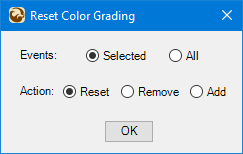
Also included is a script, ResetColorGrading, that enables the user to reset the Color Grading Fx to “Default” for selected or all events. The user may also remove or add the Color Grading Fx to timeline events. The GUI for this script is shown below.
Here is a demo.
And finally, a direct link to the AutoColorGrading page.https://tools4vegas.com/auto-color-grading/

-
I’d suggest that you post a MediaInfo screenshot for both the 9 hr mp3 that’s OK and the 30 hr mp3 that is shortened.