Forum Replies Created

Page 26 of 1278
  • Walter Soyka

    September 26, 2021 at 12:29 am in reply to: AE “used media” indication

    You can import the same file into Ae multiple times, and each one will count as a separate item in the project panel.

    You can use the File > Dependencies > Consolidate All Footage command to make combine all items that refer to the same file (with the same interpret footage settings) into the same single item in the project panel.

  • Walter Soyka

    September 24, 2021 at 7:39 pm in reply to: AE “used media” indication

    Having a usage column would be really nice; that’d make a great feature request.

    If you select an item in the project panel and look at its thumbnail, you’ll see its usage count next to the thumbnail:

    This is a bit of hack, but we could use a script to stuff the usage count into the comment column. (Please note this wouldn’t update live; you’d have to run the script every time you wanted to get accurate use counts.)

    // this script steps through the entire project, and puts each item's usage count in its comments column in the project panel

    // we might be overwriting some project panel comments, so let's make sure we can undo this action

    app.beginUndoGroup("Put usage in comment field");

    // how many project items have usage counts?

    var countedItems = 0;

    // step through all items in the project

    for (var i = 1; i <= app.project.numItems; i++) {

    // check to see if they're footage items or comp items

    if (app.project.item(i) instanceof FootageItem || app.project.item(i) instanceof CompItem) {

    // get the usage count for the item

    var usedInCount = app.project.item(i).usedIn.length;

    // if it's used once or more, update the comment and update the item usage counter

    if (usedInCount >= 1) {

    app.project.item(i).comment = "Used in " + usedInCount + " comp" + (usedInCount == 1 ? "" : "s") + ".";

    countedItems++;

    }

    }

    }

    // write a note to the info panel about how many items we've tweaked comments on

    writeLn("Updated comments for " + countedItems + " item" + (countedItems > 1 ? "s" : "") + ".");

    app.endUndoGroup();

  • Walter Soyka

    September 8, 2021 at 12:53 pm in reply to: frame rate 30fps to 60fps and composition settings

    When you render out your 30fps movie, then import it and render it again at 60fps (without frame-blending enabled), Ae samples the 30fps movie 60 times per second. The first 1/60 of a second is the first frame; the second 1/60 of a second is STILL the first frame. The third 1/60 of a second is the second frame; the fourth 1/60 of a second is STILL the second frame. Ae will simply repeating every frame once. It will look exactly the same when it plays, but if you step through a frame a time, you’ll see that each frame repeats.

    Depending on how you’ve animated, though, you can export your original comp at 60fps. Ae will interpolate any tweened properties twice as often and you’ll get a smoother export. (If you’ve done a lot of frame-by-frame animation, though, this won’t help!)

  • I don’t think there’s a timeline tool in Ae to do that directly. I think you’ll just have to re-trim to the new timing you want.

  • Unfortunately, this is not easy to do in Ae.

    You might just be able to enable “Collapse Transformations” for the affected precomp layer.

    However, if you’re using effects or masks on that layer, it will not work as you intend. In that case, you’ll have to step into each precomp one-by-one, run the Scale Composition script, and then correct the scale property in other comps where those precomps are used as layers.

  • Walter Soyka

    September 3, 2021 at 3:52 pm in reply to: Shortcuts to place multiple layers in order?

    Select the layers in the timeline panel. Right-click one of the selected layers, then choose “Keyframe Assistant > Sequence layers…”

    There is no shortcut assigned to this by default, but you can set one in the keyboard shortcut editor (Edit menu > Keyboard shortcuts…)

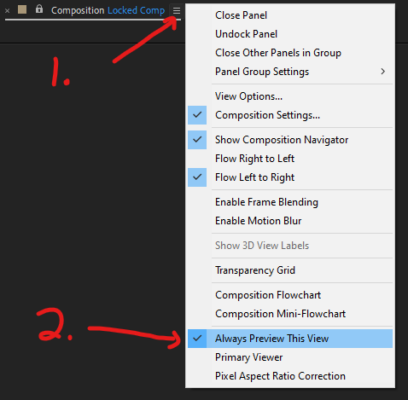
  • Click the hamburger menu on the locked comp viewer, then enable “Always preview this view.”

  • Walter Soyka

    August 31, 2021 at 8:24 pm in reply to: Creating StarGlow w/o plugins??

    Starglow does quite a lot that makes it worth having, but I understand sometimes there are cases where you just have to build your own effect on a stock install.

    I’d start with multiple instances of Directional Blur with an Add or Screen blend mode at different angles.

  • Change the clockStart variable, which determines the starting point for the countdown timer in seconds. 900 seconds = 15 minutes * 60 seconds/minute.

    If you wanted a 5 minute countdown, you could do this:

    clockStart = 5 * 60;
  • Walter Soyka

    August 31, 2021 at 12:37 am in reply to: Doing stuff after rendering (scripting)

    You should just be able to render in a loop — rendering blocks additional scripting tasks (other than through a status change or error callback) until the render is complete, then continues execution.

    Maybe instead of using a post-render action to import the file (I don’t think this returns the value anywhere), grab the file reference out of the render queue item after the render has finished and then import it yourself.

Page 26 of 1278

We use anonymous cookies to give you the best experience we can.
Our Privacy policy | GDPR Policy