Forum Replies Created

Page 3 of 3
  • Silviu Negoita

    July 22, 2026 at 4:40 pm in reply to: Intermediate files for 60fps not 60i

    Hi!Sony MXF HD422 is a solid intermediate codec, but you’re correct—it doesn’t support 1080p60 in VEGAS, which is why you’re limited to 30p/60i.

    If you need a 60 fps intermediate that works well with VEGAS Pro 22, I would use Magix Intermediate – If it’s available in your installation, this is probably the best choice since it’s designed to work well with VEGAS and supports higher frame rates.

  • Hi!

    You’re right, Event pan/crop in VEGAS doesn’t let you edit separate motion curves for the X and y axes.

    A couple workarounds you can try

    1. Use Track Motion instead of Pan/Crop, it ussually gives smoother camera movement.

    2.Add more keyframes.

    3.Try different keyframe interpolation modes, experiment wigth the Smooth, Fast,Slow or Linear.

    Since the version you are using is a pretty old one there aren’t many solutions.

  • Silviu Negoita

    July 21, 2026 at 3:23 pm in reply to: Title Assistance in Vegas 2026

    I see, If you are sure Continuum is installed but doesn’t appear anywhere in VEGAS, check the following:
    Open the Boris FX Hub( I think that’s what it’s called) and make sure Continuum is activated with the same license you’re expecting(Especially if you upgraded to Ultimate)
    In Vegas, go to Options – Preferences – VST Effects then restart VEGAS to force it to rescan plugins

    Check if any BCC effects appear in the Video FX panel. if none appear, it usually means VEGAS is not loading the Continuum OFX plugins at all.

    One last thing, if you just upgraded to Ultimate edition, it may also be worth running the Borris installer again to ensure the OFX plugins are installed for the current version.

    One question, Are there any BCC effects in the Video FX panel, or is the entire BCC category missing?

  • Hello!

    If your goal is to create a highlighter effect you do NOT need to use Difference Squared.

    A much simpler approach is:
    1. Create a colored rectangle (for example yellow) behind the text.

    2.Animate the rectangle so it moves across the text using keyframes.

    3. Duplicate your text layer and place the copy above the rectangle.

    4. Change the top text color to black and use a mask so the black text is only visible where the highlighter passes.

    This gives the effect of the text changing from white to black as the highlight moves over it, without darkening the background.

  • Silviu Negoita

    July 21, 2026 at 1:42 pm in reply to: Title Assistance in Vegas 2026

    Hello!

    I am not very experienced with the Boris Vegas, but I did some research on the topic.

    If you’re using VEGAS Pro 2026, the new Boris FX Titler isn’t included as a standard built-in Video FX. BCC Title Studio is part of the Boris Continuum (BCC) package, so it will only appear if Continuum is installed and licensed. Therefore please check the following things:
    1.Make sure Boris Continuum is installed, not just Vegas Pro.

    2.Open the Video FX window and look under BCC 3D Objects or search for “Title Studio”

    3.If it’s still missing, try Options → Preferences → VST/OFX (or the plugin manager) and rescan your plugins, then restart VEGAS.


    If the problem still persists, please let me know which edition of Vegas pro you are using(Edit, Plus, Ultimate) and if the plugin is PROPERLY installed on your device.

  • Silviu Negoita

    July 20, 2026 at 1:49 pm in reply to: Vegas Pro Masking

    Hi! Since the background behind the telemetry is always moving, using a normal mask will probably be very time consuming and difficult.

    What I would recommend is the following: 1.Put the telemetry video on a track ABOVE your drone footage. 2.Add the LUMINANCE KEYER Effect to the TELEMETRY video. 3.Adjust the setting until only the white text is visible and most of the background disappears.

    I do not have much experience with such aspects, please try it and tell me if the results are satisfactory, if not, I can probably adjust and think of another method.

  • Silviu Negoita

    July 20, 2026 at 1:48 pm in reply to: Vegas Pro 22 audio exports

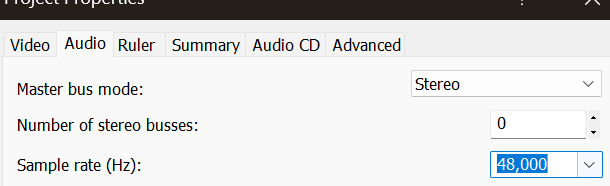
    Hello! It seems to me that the problem might be occuring due to a “failed” sample rate. Please check if your project sample rate is set to 48.000 HZ (File – Properties – Audio), afterwards, check if the WAV file is being exported at the same sample rate (It should be somewhere in files properties)
    If the problem still occurs after checking this please tell me your vegas build number.

  • Silviu Negoita

    July 20, 2026 at 1:48 pm in reply to: Clip Length in bottom right GONE – V23 (302)

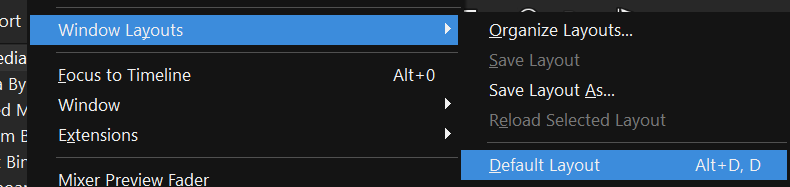
    Hello! This is most likely not caused by the Windows Update. First, please check that the status bar under VIEW is enabled.If this doesn’t work I would recommend reseting the layout by going to VIEW – WINDOW LAYOUTS – DEFAULT LAYOUT. If that doesn’t solve it, let me know your exact build of VEGAS 23 and whether the problem occurs in only this one project or in all of them.

Page 3 of 3

We use anonymous cookies to give you the best experience we can.
Our Privacy policy | GDPR Policy