Forum Replies Created

Page 22 of 51
  • Kouraib Abdmalek

    October 22, 2024 at 8:15 am in reply to: Asset browser file names

    Ah, so that’s the reason! No worries, I too was searching for a solution to the problem but didn’t bother to ask why, I first thought of asking you about it, but then I guessed that for some reason the textures don’t stay with familiar names because the file is imported from another application or something else otherwise the textures must keep the names they had before saving with assets, glad you found the solution and thanks for sharing this with us it should be helpful to those who may be facing the same issue.

  • Kouraib Abdmalek

    October 19, 2024 at 9:23 am in reply to: Asset browser file names

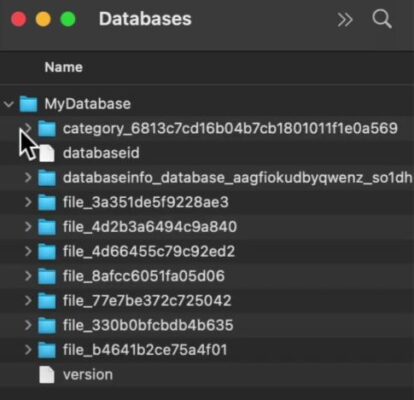
    Always happy to help you, Andy! These weird names come from the file structure names in the database as in the attached screenshot and changing the names of these files will cause a bug in the database so I stated that I don’t think it is possible to change the names in cinema and Indeed I found one of the developers in Maxon saying in one of the discussions that this behavior cannot be avoided, for Python there is a code to change the path of the files collection but I did not find one related to changing the names, I have put below a link of a discussion with Maxon developers about an issue related to changing the files’ names which may help you to visualize the problem better also you could ask your question there so please let us know if you come up with something. I hope this helps you.

    https://developers.maxon.net/forum/topic/7779/9977_weird-filenames-when-using-make-project-solved/6

  • Kouraib Abdmalek

    October 18, 2024 at 8:57 am in reply to: Asset browser file names

    Hi Andy,

    The names you get it are similar to the names in the file structure of the database so you may not be able to change that in Cinema 4d because it will cause a malfunction in the database, instead there are ways to change the names of the images apart from the Cinema 4d. You will find if you googling several ways to rename multiple files at once using Windows Explorer or other tips, I hope this is useful to you

  • You are welcome, Kevin! So glad that was helpful to you.

  • Hi Hans,

    As long as it is in one object, select the polygons, either the frame or canvas, choose the easiest for you, then apply another material to it, copying it from the first material, then download the Materialize program, which is a free and easy-to-use and there are tutorials about it on YouTube, so open your texture on Materialize and create the roughness map with ease, then put it in its place in the material that you want to give a certain glossy. Let me know if this works for you or if you encounter any other problems.

  • Kouraib Abdmalek

    October 9, 2024 at 8:53 am in reply to: Converting an old old C4D file

    gladly! Just post your file here or send it to my email and I will convert it for you.

  • Kouraib Abdmalek

    October 8, 2024 at 9:33 am in reply to: Toon shader – looks different when rendered

    Hi Chad,

    I sent you a sample file, try putting your project in the cube location and hit render, if the problem persists with you, then the problem is in the Redshift, maybe rebuilding the “dc” and “description.db” folders in the preferences can resolve this issue by the following steps:

    1. Open Cinema 4D, and select Edit > Preferences from the Cinema 4D menu.
    2. In the Preferences window, click the “Open Preferences Folder” button on the lower left.
      This action will open a File Explorer window (Windows) or a Finder window (Mac) where your Cinema 4D preferences are stored.
    3. Close Cinema 4D.
    4. Open the preference folder associated with the version of Cinema 4D you are using.
      For instance, if you are using Cinema 4D 2024, look for the **Maxon Cinema 4D 2024_******** folder.
    5. Locate and delete the “dc” and “description.db” folders.
    6. restart Cinema 4D to rebuild the dc and description.db folder

    If the problem persists with all of the above, reinstalling the Redshift may fix the issue.

    Let me know if this works for you.

  • Hi Ryan,

    internal hard drives are typically faster and more reliable than external hard drives, but they can be more expensive. External hard drives offer portability and convenience but may not be as fast or reliable. Ultimately, the best hard drive for you will depend on your needs and budget. I just watched this video that recently posted on the forum, I think it will be useful to you.

    https://www.youtube.com/watch?v=mAUNLaPchMU

  • Kouraib Abdmalek

    September 28, 2024 at 8:19 am in reply to: Speed/Performance when using external hard drive?

    Hi Ryan,

    internal hard drives are typically faster and more reliable than external hard drives, but they can be more expensive. External hard drives offer portability and convenience but may not be as fast or reliable. Ultimately, the best hard drive for you will depend on your needs and budget. I just watched this video that recently posted on the forum, I think it will be useful to you.

    https://www.youtube.com/watch?v=mAUNLaPchMU

    Some contents or functionalities here are not available due to your cookie preferences!

    This happens because the functionality/content marked as “Google Youtube” uses cookies that you choosed to keep disabled. In order to view this content or use this functionality, please enable cookies: click here to open your cookie preferences.

  • Kouraib Abdmalek

    September 27, 2024 at 8:17 am in reply to: editing 82 million polys

    Hi Hans,

    You could use the Split tool to copy the part of the mesh you want to modify, then delete that part from the original mesh, then take the polygon you got after using Split to another file to work on it comfortably, then return the result to the original file as in the screen recording below, let me know if this method worked for you.

Page 22 of 51

We use anonymous cookies to give you the best experience we can.
Our Privacy policy | GDPR Policy