Forum Replies Created

Page 3 of 4
  • It is possible to install a postgreSQL database on a NAS and connect it to Resolve – a quick google search will yield some results for you. The only drawback with this is you have to manage the postgreSQL database yourself as I don’t believe you can run the DaVinci Resolve Project Server software on a NAS. We initially tried managing our own postgreSQL database but made the smart move to use the default Resolve database and software on a local machine.

  • Hi John,

    Set up one of your machines in your local network with a fixed IP address to host the database. Install Davinci Resolve Project Server software on this machine PLUS the PostgresSQL database via the DaVinci Resolve software installer.

    Launch Resolve Project Server and create a database, then on any other machine connected to the same network as your host computer, you can connect to this database using the PostgreSQL option and the fixed IP address of your host machine. That’s it. Then you can create projects on this database, turn on collaboration in the project and others can open it at the same time.

    Do you have mixed machines or all macOS or Windows?

  • Dean Baker

    January 21, 2021 at 1:15 am in reply to: Compound clip question

    Hi Mike,

    Compound clips are timelines, if you right click a compound clip you can open in timeline viewer and make your changes there. These changes are then reflected back in the master timeine.

  • Dean Baker

    October 5, 2020 at 10:53 pm in reply to: Project Database gone after update

    Tim did you at any stage install DaVinci Resolve Project Server? You may simply need to reconnect to your database.

  • Dean Baker

    September 22, 2020 at 11:16 pm in reply to: Ripple Delete Weirdness

    You could move the playhead to your in point and cut all tracks (Command+B [mac] or Control+B [windows]), then move playhead to out point, cut all tracks. Select all clips in the cut section and hit Shift+Backspace to ripple delete selection. A few more steps but avoids the issue you are having.

  • Dean Baker

    September 21, 2020 at 1:44 am in reply to: copy paste clip into another video track

    Make sure when you paste the clip that you have the auto-select “on” for the track where you want the clip to go and “off” for the other track(s). If you hold down Option+click the auto-select icon, this will toggle on/off states for the other tracks. Also, make sure you do the same for the audio tracks otherwise if the clip you are copying has audio with it, it will paste over the existing audio from the parent track.

  • Dean Baker

    September 17, 2020 at 12:06 am in reply to: Ripple Delete Weirdness

    That is odd, Sean.

    Does it work correctly if you use the default ripple delete key combination (shift+backspace)?

  • Dean Baker

    September 16, 2020 at 11:48 pm in reply to: DaVinci Resolve 16 for the PC Beginner videos

    Hi Charles, have you gone through the Davinci Resolve 16 Beginners Guide on the Blackmagic website?

    https://documents.blackmagicdesign.com/UserManuals/DaVinci-Resolve-16-Beginners-Guide.pdf

    You can download tutorial files and run through the guide – it obviously doesn’t cover every nuance of the program but it is quite extensive and very informative.

    It shouldn’t matter if you are on Mac or Windows machine, the basic function is the same (the only real difference I have found is some keyboard commands are slightly different).

    Regarding your specific issue, can you give more detail of the type of media you are using and perhaps provide supporting screenshots of the problem?

    Good luck!

  • Dean Baker

    September 12, 2020 at 10:57 am in reply to: 2020 27” iMac: 8-core vs 10-core for Resolve?

    These guys do a lot of builds and performance benchmarks for Resolve and have some good articles that may help you decide which CPU to go for.

    https://www.pugetsystems.com/recommended/Recommended-Systems-for-DaVinci-Resolve-187/Hardware-Recommendations

  • Dean Baker

    September 10, 2020 at 11:49 pm in reply to: Timeline Audio Tracks

    Hi Richard,

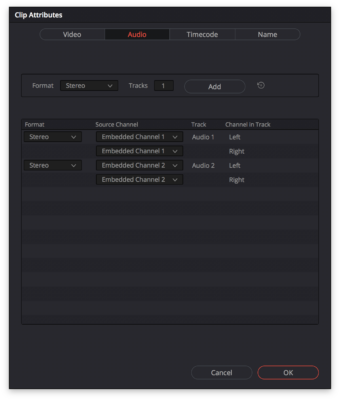
    Resolve combines the audio from the clip into one track. What you can do is right-click on the video clip in the media pool and select ‘Clip Attributes’. From here you can add another stereo track and change the configuration like the image attached. I hope this helps.

Page 3 of 4

We use anonymous cookies to give you the best experience we can.
Our Privacy policy | GDPR Policy