

Activity › Forums › DaVinci Resolve › DaVinci Resolve 16 for the PC Beginner videos
-
DaVinci Resolve 16 for the PC Beginner videos
Posted by Charles Meyer on September 16, 2020 at 10:15 pmI’ve spent a lot of time and energy watching DaVinci 16 tutorials on BlackMagic’s official home page and YouTube only to discover they were for a Mac and I’m on a PC. Others have just glossed over steps. Just Forrest Gumping my way around I imported video files into the Media Pool but some appear with a music symbol on the video but they are not music videos nor music files. Also, when I drag a video down on to the Timeline it generates the letter A next to one of them, again it’s not an audio file. Has anyone found an free truly beginner videos for the PC for DaVinci Resove 16? Thanks so much.
Michael Reed replied 5 years, 10 months ago 6 Members · 13 Replies -
13 Replies
-

Dean Baker
September 16, 2020 at 11:48 pmHi Charles, have you gone through the Davinci Resolve 16 Beginners Guide on the Blackmagic website?
https://documents.blackmagicdesign.com/UserManuals/DaVinci-Resolve-16-Beginners-Guide.pdf
You can download tutorial files and run through the guide – it obviously doesn’t cover every nuance of the program but it is quite extensive and very informative.
It shouldn’t matter if you are on Mac or Windows machine, the basic function is the same (the only real difference I have found is some keyboard commands are slightly different).
Regarding your specific issue, can you give more detail of the type of media you are using and perhaps provide supporting screenshots of the problem?
Good luck!
-

Michael Reed
September 17, 2020 at 12:34 amI have found the YouTube channels MrAlexTech, Casey Farris and Billy Rybka all excellent.
I am a PC user.
-

Michael Gissing
September 17, 2020 at 4:09 amThe software is the same regardless of OS. Keyboard is just the usual Apple key = CNTRL switch.
-

Tom Watson
September 18, 2020 at 3:23 amResolve has a steep learning curve, but once you get more familiar through tutorials and practice, it will one day click. Hang in there as it is a very good program. I went through the same thing when I switched from Adobe to DaVinci. I also use a PC, and like others have pointed out, the only difference between the MAC and PC is the keyboard shortcuts.
I found that there is no one good beginner YouTube channel, but there are a large number of beginner videos spread throughout YouTube. Try searching YouTube for the specific chore with which you are having difficulty.
When the music symbol shows up in the lower left corner of your clip in the media pool, that simply means that this clip also contains an audio file. The software has detected a mp3, wav, or any other recognized audio file.
Similarly, when you drag a clip onto the timeline, you will see V1 (Video 1) and a corresponding A1 (Audio 1) if the clip contains audio. Resolve detects the audio within the clip.
If you drag a second video clip that contains no audio onto the V2 track, you will only fill the V2 timeline, and the A2 track will not appear. You can then right click below the Audio 1 and add a track from the menu, and put some other audio there – like some music.
The same with video tracks, right click above the V1 and choose to add a track. Or, just drag another clip onto the timeline above your other video and Resolve will create the track. Just play with it and experiment. Remember, right clicking is your friend, as it brings up menus in many places.
-

Charles Meyer
September 20, 2020 at 9:34 pmHi Tom and all,
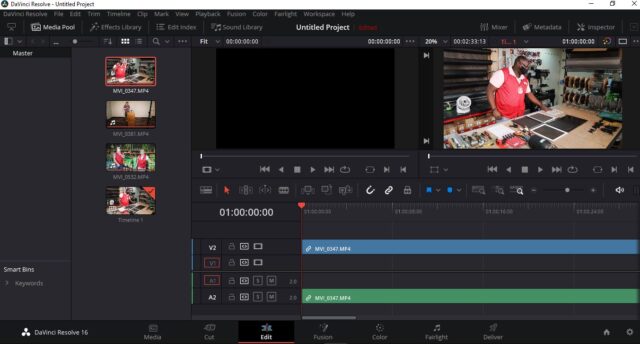
I’m stuck right at the beginning so I wonder if there’s a setting I need to change? I’ve uploaded a jpg of what I see. Thank you so much.

-
Tom Watson
September 20, 2020 at 11:21 pmThat looks like a common screen. If you are not using the second viewer, I would choose the one viewer option and make it bigger so you can see better.
With only one video in the timeline, it would be better practice to put the clip in V1. Just drag it down there and its associated auto clip will follow into A1.
Otherwise, I don’t know what you are wanting to do.
-
Charles Meyer
September 21, 2020 at 7:03 pmHi Tom,
All I want to do is replicate what I see in the YT videos to learn DAR. So, I opened DAR in one window and opened another window net o it in File Explorer and found 3 separate MP4 videos. I dragged all 3 to the Movie Pool wind and you see it lists them (not in horizontal form as I would like and I see in the YT videos but vertical so I’m not sure how to fix that. But, more importantly, when I drag all 3 videos down to the Time line you see from my jpg it only shows one video and DAR automatically converts it into A1 and V1. I never chose that, DAR just does that. I’m just trying to learn how to use the Edit page (button) to edit videos. I have no idea why DAR takes the 3 videos when I drag them and only displays them as A1 and V1. How can I correct that and/or ensure I only see a video or video clips on the Timeline like I see in the YT videos? Also, do you see show DAR auto creates a Timeline in the Media Pool window? I never created that. Again,how can I avoid DAR auto creating that Timeline? Thank you!
-
Tom Watson
September 22, 2020 at 6:29 amThere are so many different ways to set up your workspace in resolve that it is unlikely any two on YouTube will be the same. You will need to just play with the settings and learn how to set your desired workspace.
The horizontal or vertical media pool display choice is one of the choices above the media pool. Again, you need to just look for that stuff and play with it.
When you create a Timeline, the file actually lives in the media pool bin from which you created it. It is normal to see that file in your media pool. You are simply displaying that timeline in the editor.
It is normal for a series of clips to display one after another in V1 and A1. If you want a clip in V2, for example, you must move it there.
Your questions indicate that you have zero experience with video editing. Resolve is professional level software with a steep learning curve. My suggestion would be to watch a few hours of YouTube beginner tutorials. Don’t worry about your screen. Don’t try to follow along. Just watch the videos get a grasp on how editing is done. Attempt to comprehend how the tools are being used in the tutorials. Once you get a grasp of the basic tools, you will realize that the Workspace GUI is a matter of personal preference, and the basic operations can be carried out in just about any Workspace. Once you find your preferred Workspace, you can save your Workspace. Take it slowly, and don’t move on until you grasp each step. Also, there is a good deal of step-by-step instructions in the Resolve manual.
-
Charles Meyer
October 10, 2020 at 10:29 pmHi Michael,
It’s been crazy busy but thank you so much for sharing your suggestions. Do you recall any specific YT videos that were most helpful when you got started in DAR? There’s so many of Mar AlexTech,etc.
-
Tom Watson
October 11, 2020 at 12:29 amI think the Black Magic videos are the best. You can download the video and the files they are working on.
Reply to this Discussion! Login or Sign Up