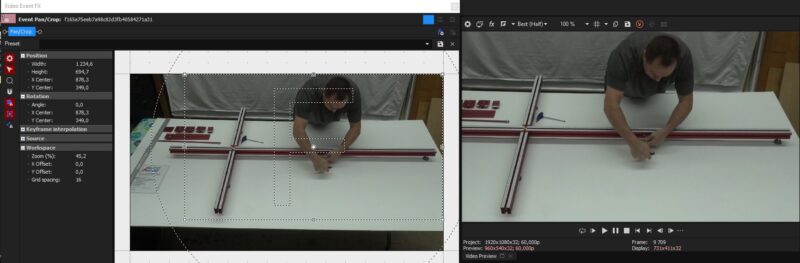
Assuming that this is a static shot, you could mostly get by with only masks, cropping & zooming. However, removing the background behind a moving person in this case will be quite hard. As far as I know Vegas Pro doesn’t have any native tools that could easily try to remove such a background. If it was a well lit green/blue screen – that would be more doable with Chroma Keying. In your case you’d have to look for some other tools that could remove/replace the background, but even those will not do a perfect job, as this is not the best case setup.
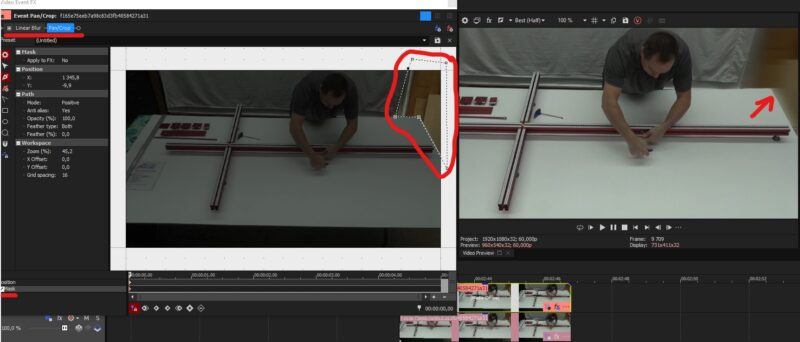
So I suggest you first pan/crop the area you want to be shown. Then if there’s something within the new framing that you want to hide or blur, you can duplicate the whole footage to another track and add a blur or pixelization effect to it. To contain the effect to a specific area you need to open pan/crop for the footage in the top track and enable “Mask”, then you use the masking tools to create an area where this blurred track will be visible. If you have already cut your footage, you can right click, copy, paste event attributes to the rest of the clips to save time.
Attached 2 images – one of a simple zoom and pan, one with a selectively blurred background. Personally I think that if you were to go with similar framing as in my examples, you don’t even need to add that extra blur as there aren’t any particularly eye-drawing features there that would distract from your main subject.