Forum Replies Created

Page 6 of 10
  • x265 are not too edit friendly with Vegas Pro, older versions especially. Upgrading to a newer version might help, but not guaranteed. You can try a trial version of Vegas Pro 20 and see if it works any better.

    You can try and change some settings, which might improve your playback. Go into Options -> Preferences -> File I/O and enable any hardware decoding options you have, see if that helps. Also at the bottom there should be settings for “Hardware Decoder To Use” – try changing it to your GPU if it isn’t already.

    If everything fails then one workaround is to convert these video files to another file format (like h264 for example) with something like Handbrake.

    I’m pretty sure there are no codecs to install to fix x265 or x264 for that matter in Vegas – not a thing.

  • Essentially this is down to the picture in picture plugin being kinda primitive. It lacks anti-aliasing.

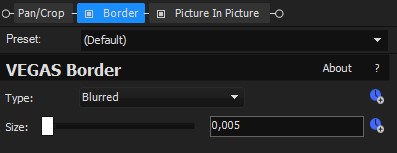
    I did find a fix for this though – add “Border” before “Picture In Picture” and set it to Blurred. For me size 0,005 was enough. This should fix the jagged borders.

    Note that the preview quality is also important here. Setting it to Good (Half) vs Best (Full) – in Best (Full) the edges will be more detailed by default, so keep that in mind. Your project is likely set to render with the Best settings, not just Good.

  • Aivis Zons

    June 30, 2023 at 4:33 am in reply to: blocky/choppy/vertical lines

    It would help to see an example with recording & project parameters, but I believe the main problem you’re having here is called video judder.

    That stuttering during pans is particularly noticeable when there are a lot of reference points in your video, no 1 clear focus point for your eye. There’s a lot of parameters that influence how strong the stuttering will be, but the main thing here is panning speed. The slower you go the better the results should be.

    Higher framerate can also help with reducing judder. Comparing 30 to 60 fps – you could safely pan 2x faster in 60fps for example. Shutter speed is also a big factor – try matching it to the framerate.

    You could do some post processing and add motion blur to help blend the judder, but that might also hinder your shots – depends. I wouldn’t recommend this approach though.

    As for the vertical lines… the only vertical line artifacts I can think of would come from GPU driver problems. However, if you meant horizontal lines (interlacing) – that might be from “Field order” in project and/or render settings. Set Field order to “None (progressive scan)” and see if that helps.

  • You can import an image sequence as a single file. File -> Import -> Media, look for the first frame in your export and select it. Before you click open check the “Open sequence” box and it will import it as an animation. Press Open and then Vegas should open the Properties for that media – here you can check if the frame rate, alpha channel, color space, etc. matches your export. If it doesn’t simply change the values. Alpha channel should likely be set to “Straight” in your case – depends on export settings.

    There are some file types that aren’t supported by Vegas Pro, but you can check if you’ve enabled the QuickTime plugin which fixes some conflicts: Options -> Preferences -> Deprecated Features -> Enable the QuickTime plugin. If it doesn’t show up, you might have to install it, restart, enable it and try your files again.

  • Not a Fusion user, but a quick thought that came to my mind was exporting as .png sequences. Shouldn’t have any problems with the alpha channel there. The only downside would be no audio.

  • Aivis Zons

    June 11, 2023 at 3:40 pm in reply to: Upgrading my VEGAS Pro 11

    I recommend you just test it out first with one or two projects and create backups of course, as when you open a .veg project in a newer version – it gets converted to that version and won’t be accessible in VP11. I think it should work fine? Hard to say, haven’t had to leap so many versions at once. But if you can open one, you should be able to open all. You might have to enable some deprecated features in VP19/20 if you used them in VP11 (Options -> Preferences -> Deprecated Features).

    VP19 vs VP20 – I suggest going with the latest. There aren’t too many differences between the two so hard to say which one would be “safest” – they’re very similar.

    Installing VP11 on Windows 11. Hmm… if it doesn’t work natively then a workaround would be to create a virtual machine running Windows 10 or earlier and install VP11 there. There’s a couple ways of going about that, and if you really need VP11 installed I suggest you look into some video tutorials on how to set one up. Although I have to say I’m surprised that it didn’t install just as is in W11.

  • Aivis Zons

    June 10, 2023 at 1:16 am in reply to: Cut/Paste between projects (?)

    To open a new instance when you already have a project open you right click on Vegas Pro in your Taskbar and either click on “Vegas Pro 20.0” or one of your recent projects. That should launch a new instance. Don’t think anything has changed in this process from the earlier versions of Vegas.

    However, something that is relatively new for Vegas Pro is nested timelines where you’re essentially making a project within a project and you can jump between the two with a couple of buttons (by default under timeline – last 3 buttons). That process has a bunch of caveats though and I’m personally not a fan of how it’s implemented in Vegas – I don’t personally recommend it.
    You can quickly test the workflow by simply dragging one of your previous project files (.veg) in a new project. Then when you select it you can use the aforementioned buttons to open it for editing and to get back to main.

  • Aivis Zons

    June 7, 2023 at 5:37 pm in reply to: Track minimize/maximize question

    To go back to default height you can press Ctrl + ` when viewing the timeline. However, I believe this will reset all tracks and you can’t be specific to just one. That back arrow you get in the place of min/max when you press either one is your best bet in that case, but as you’ve probably noticed it goes back to previous height, not default.

  • Aivis Zons

    June 6, 2023 at 2:39 pm in reply to: Track minimize/maximize question

    Yes, there’s buttons for exactly this that are hidden by default.

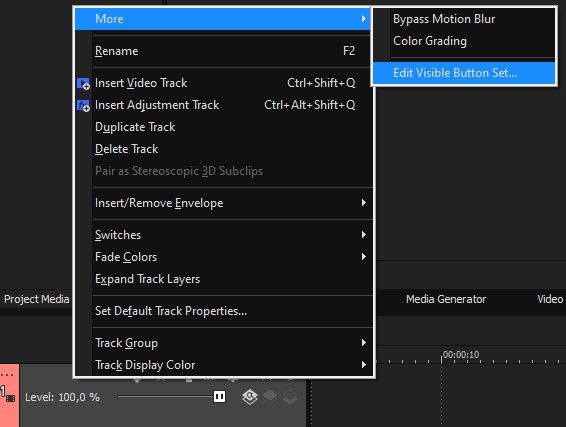
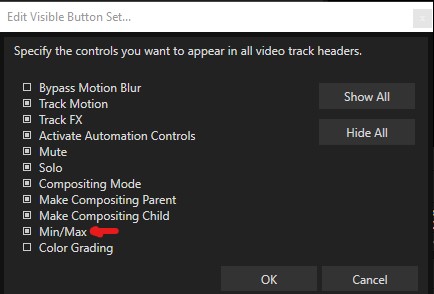
    Right click on your video track -> More -> Edit Visible Button Set… (image 1) and enable Min/Max in the list (image 2) and click OK.

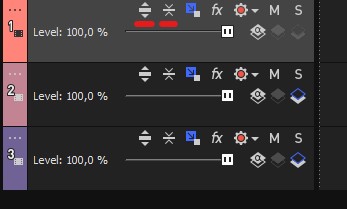
    Then on your video tracks you’ll now see two extra buttons. The first one will maximize the track to full height and the second one will minimize. To go back to normal size just press the same button again.

  • Aivis Zons

    May 31, 2023 at 1:34 am in reply to: Preview Lag / Preview Hiccup

    GPU acceleration should be detected and enabled by default if available. You can check if it is by going to Options -> Preferences -> Video -> GPU acceleration of video processing -> select your GPU if it’s there. If it isn’t, it might be worth a shot to update your drivers, restart and check again. If it’s still not there and it’s just “Off” then either you don’t have a dedicated GPU or your model might not be supported. Might be worth trying to reinstall Vegas at that point or do a system restart if you didn’t after driver update.
    Additionally check the File I/O tab and see if your GPU shows up in the first two dropdown menus. It should be set to your GPU, not “Off”.

    Next thing you can check is in Preferences -> Preview Device. There’s a checkbox for “Optimize GPU display performance” – it should be ticked.

    Beyond that the only remaining option in my mind would be to use dynamic RAM previews. Create a loop region of the footage you want to preview, press Shift+B and it should start building a RAM preview. Once done it should playback much smoother, but it will be limited to the region you selected. The size of the region might shrink automatically if you haven’t allocated enough RAM for this operation (Options -> Preferences -> Video -> Dynamic RAM Preview) – I’ve set mine to 40% of total memory and in 99% of cases that works fine for me.

    Alternatively maybe just don’t use Best (Full) playback, try Best (Half) or lower…

Page 6 of 10

We use anonymous cookies to give you the best experience we can.
Our Privacy policy | GDPR Policy