Roei Tzoref
Forum Replies Created
-

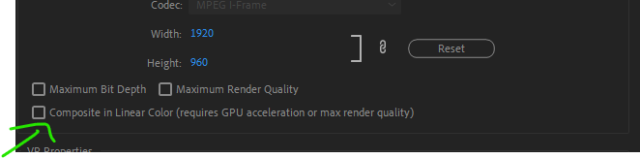
either export Tiff premultiplied or uncheck this option in the sequence settings

-
Roei Tzoref
March 31, 2021 at 1:45 am in reply to: Alpha incorrect in Premiere, but correct in After Effectseither export premultiplied tif or in premiere uncheck this option
-
Bear in mind, remove unused will not remove footage that is in one of the sequences. So if you want to remove all the footage but the ones who are in a selected sequence – it will not work, and I don’t see any other way but to copy paste the sequence to another project like the fellow suggested.
-
here’s a code courtesy of Stephen Dixon:
make sure you are using the JavaScript expression enginelet digits = 9; // number of digits
Math.round(Math.random(Math.pow(2, digits) -1)).toString(2).padStart(digits, “0”)
-
BTW the trim path + offsetpath method I showed is courtesy of Max Spreen and Paul Congiliaro from the Mograph Slack Group. Here’s another method by Stephen Dixon using all expressions. put this in the shape path parameter:
<pre data-stringify-type=”pre”>let theRadius = effect(“radius”)(“Slider”);
let startAngle = effect(“start”)(“Angle”);
let endAngle = effect(“end”)(“Angle”);
let pts = (endAngle – startAngle >= 360)? [] : [[0, 0]];
for (let i = startAngle; (i < endAngle && i < startAngle + 360); i++){
pts.push([Math.sin(degreesToRadians(i)), 0-Math.cos(degreesToRadians(i))] * theRadius);
}
createPath(pts, inTangents = [], outTangents = [], closed = true);and create 3 expression controls: 2 angle controls named “start” and “end” and another slider control named “radius” and you are good to go 🙂

-
several ways to do this, I prefer this option which I discovered recently.
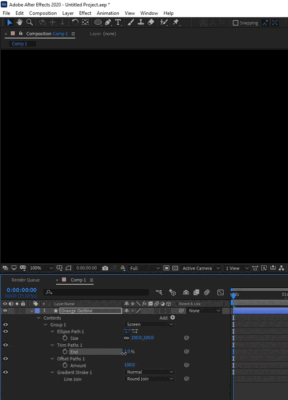
add the trim path over the elipse, then add offset path set to half the ellipse size (not you would need to reduce the ellipse size to half to retain the original size), then add your fill or stroke. if you use a stroke make sure you set it to round join. like this:what I like about this method is that the fill is a fill and the stroke is a stroke
-
thanks Robert, after I posted I saw that I needed another thing to reduce the edge that was left from the layer cutting into itself so I added simple choker:
using your method of channel combiner does give a more accurate edge, but I see I still get the the boundary (which is now bigger).
-
Roei Tzoref
September 9, 2020 at 4:57 pm in reply to: Checking file integrity of an image seuqence of JPGthanks for correcting the link. I am not aware of other tools, it’s not a personal necessity in my projects and I knew Ramma existed.
-
Roei Tzoref
September 8, 2020 at 12:32 pm in reply to: Checking file integrity of an image seuqence of JPGI would try this:
https://lesterbanks.com/2016/08/easily-detect-bad-missing-frames/ -
you can add a camera, create an orbit null and rotate the null. this will rotate the camera around the 3d object. you are not supposed to change any of the transform parameters of the c4d layer.
for matching the keyframes questions make sure the frame rate are the same in c4d and Ae