Forum Replies Created

Page 1 of 3
  • Oscar Polanco

    February 19, 2025 at 4:46 pm in reply to: Present a logo showing handles and anchor points

    Hi,

    You have to go to Illustrator Preferences (Edit / Preferences) and in the “Selection & Anchor Point” section you have to check the option “Show handles when multiple anchors are selected” and click ok to close the window.

    Then select the object using the direct selection tool (white arrow tool) as in the example attached. You can make a screenshot to show the image. Hope that’s what you’re looking for.

  • Oscar Polanco

    January 16, 2025 at 2:06 pm in reply to: How to create this fabric/tecture

    Your question is how do you create a pattern for fabric?

  • Oscar Polanco

    January 14, 2025 at 7:33 pm in reply to: Book page layout..

    Hi,

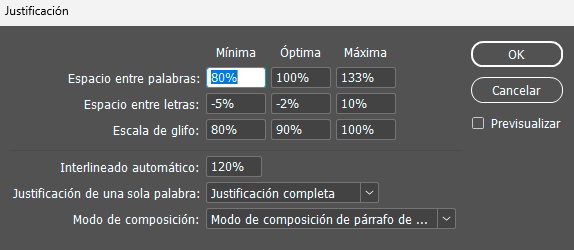
    It seems you’re forcing the full paragraph to align as a full block as in the attached screenshot1, is that correct?

    If so, you need to adjust the paragraph justification so the last line will align properly instead of leaving big gaps between the words.

    Open the paragraph menu and then click on the paragraph menu options. Select “Justify” options and put the top values as in the attached screenshot (sorry it’s in Spanish but you got the idea). That should fix the alignment of the last line as well.

  • Oscar Polanco

    September 19, 2024 at 10:31 am in reply to: Line thickness added to final measure objects.

    Hi,

    It should be under Align panel:

    The “Use Preview Bounds” option is in the flyout menu of the Align palette.

    Also you can find in preferences menu:

    Edit / Preferences / General / check “Use Preview Bounds”

    Hope that helps

  • Creating a flare effect on a white background is not possible because the flare is usually a white shine on a surface, so a white background or a white surface cannot be whiter to reflect the shine.

    An option to shine a clear background would be to make the surface “off white” applying maybe a color like #FAF9F6 or #F5F5F5. That way the background won’t be pure white and the shine or flare will be visible. Then you can create the flare and add a Difference transparency blend mode and play with the opacity.

    Hope that helps.

  • Oscar Polanco

    August 19, 2024 at 11:16 am in reply to: Creating dynamic dots

    Hi,

    I would recommend you to do that effect using the blend tool in Adobe Illustrator. That way you can create the transition maybe in 3 steps from small circle to big one and vice-versa, and the blend tool will create automatically the blending based on the specified steps between each one of them. Then you can create multiple lines of blending changing the size of the main dots.

    You can find a tutorial here about how to use the blending objects tool in Illustrator:

    https://helpx.adobe.com/illustrator/using/blending-objects.html

  • Oscar Polanco

    July 16, 2024 at 5:09 pm in reply to: Edit text on old .ai file

    Yes, please. That would be great! Thx!

  • Oscar Polanco

    July 16, 2024 at 5:02 pm in reply to: Edit text on old .ai file

    Not really. The problem is that CS6 doesn’t identify the text as “editable text” but as paths so the layers are not editable. That’s why you need a newer version of Illustrator to edit the text.

  • Oscar Polanco

    July 16, 2024 at 4:39 pm in reply to: Edit text on old .ai file

    That’s the problem. Illustrator CS6 was released in 2012. That’s 12 years ago so the functionality of the layers and integrations of the newer versions don’t work correctly with previous versions. If you want to edit the text in that file you need a newer version of Illustrator.

  • Oscar Polanco

    July 16, 2024 at 3:51 pm in reply to: Edit text on old .ai file

    In which illustrator version are you opening the file?

Page 1 of 3

We use anonymous cookies to give you the best experience we can.
Our Privacy policy | GDPR Policy