Forum Replies Created

  • Nick Ha

    June 12, 2026 at 11:33 pm in reply to: Drag-select edit points without the playhead moving?

    hi, i know i’m extremely late to this, but while i haven’t found a way to disable the playhead movement, i found a workaround that prevents it from moving!

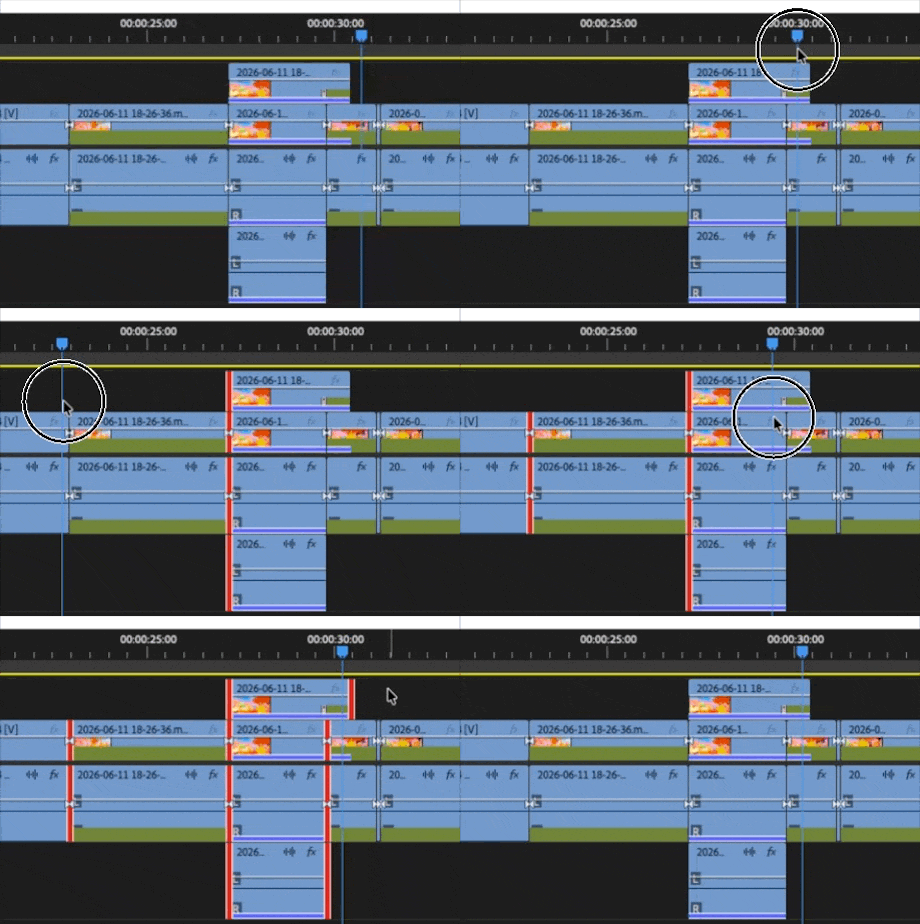
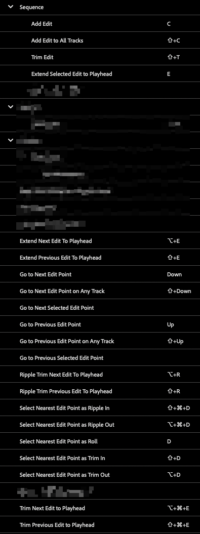
    there’s a keyboard command called “select nearest edit point as roll”. if you tap this key while holding or dragging the playhead, it’ll select the nearest edit to the playhead without moving it (on targeted tracks, at least). subsequent keytaps will add more edits to the selection.

    combine this with the “extend selected edit to playhead” commands, and you basically never ever ever have to manually select clips ever again.

    tl;dr:

    * start dragging your playhead around the relevant edit points

    * tap “Select Nearest Edit Point as Roll” as many times as you need

    * tap “Extend Selected Edit to Playhead” to move the edits

    there’s extra selection types as well, like “select next / previous edit point as ripple / trim”. heck, you can skip selecting by using “trim / ripple / extend next / previous edit to playhead”.

    with these commands, you can pretty much just hold LMB indefinitely to drag your playhead around, and make all your edits that way, without ever having to click even once. heck, you don’t even need to use LMB if you use the “move playhead to cursor” command.

    it’s actually a bit wild how much this has sped up my editing workflow!

    here’s an example, and also a list of the most relevant keyboard commands for this workflow:

    • ah, yeah, i was hoping to avoid nesting. it’s hard for my brain to keep track of everything when it’s not all on the same timeline.

      i ended up using track matte and multiple layers, which isn’t great, since it turns it into more of a composition than a timeline… but eh, what can ya do lol

    • hi mads,

      ooh, that’s a great idea. so basically if i speedramp the clip to 1%, it effectively creates a hold frame without an edit point? i think that might actually do the trick.

      (i had actually come up with another solution, which was to use a Track Matte along with an Adjustment Layer that Wipes between a black fill and a white fill. but it’s a stupid and overly complicated solution that requires multiple tracks lmao. i think your solution is far cleaner and seems like the way to go!)

      thanks again!

    • hi hector,

      i can’t find any “Snap To” function in the top right corner of the Timeline panel

      but if you’re talking about the “Snap in Timeline” toggle in the top left corner of the panel, i don’t really understand how that can fix my problem. i’m not having an issue with snapping. my issue is that a clip is too short for a transition to be the length i need it to be.

    • (mispost)

    • Figured out a workaround of simply duplicating the comp, removing all keyframes, and setting the values per duplicate instead of having it all on one comp. It’s making my timeline a mess, but it at least gets the job done.

      If anyone still knows how to fix this issue without a workaround I’m all ears.

    • Holy crap, what a game changer. Thanks so much!

      Another question: do you know if there’s a quick way to unfold the Master Properties collapsible? (Like S for Scale, P for Position, and T for Opacity)

    We use anonymous cookies to give you the best experience we can.
    Our Privacy policy | GDPR Policy