Joe Marler
 22
Apple Final Cut Pro X Coins
22
Apple Final Cut Pro X Coins
 39
COW Coins
39
COW Coins
Forum Replies Created
-

Glenn, if the three “tracks” (aka video lanes) are synchronized angles on the same event, it’s best to first create a multicam clip which is designed to cut between those angles.
If it’s just random b-roll but you want dissolves or dip-to-black fades either between those or to/from the primary storyline, you can put those b-roll clips in a secondary storyline. IOW select the clips and do CMD+G. To revert it’s SHIFT+CMD+G (Break Apart Items). Maybe you already did that.
If by chance you’re dumping a lot of stuff in various full-duration “tracks” to facilitate material selection, with FCPX it can be better to first curate and organize the material in the Event Browser, then query that and add connected clips as needed. However to allow transitions those would need to be in secondary storylines — where needed.
One exception to that is continuous splitscreen (e.g, 2×2) so when adjusting timing all clips from each quadrant are locked to a specific lane.
Maybe you already know this but here is a brief tutorial from Ripple Training about using alternate storylines: https://youtu.be/nGK3MFqohWw
Some contents or functionalities here are not available due to your cookie preferences!This happens because the functionality/content marked as “Google Youtube” uses cookies that you choosed to keep disabled. In order to view this content or use this functionality, please enable cookies: click here to open your cookie preferences.
-
The backgrounds are possibly 16 bits per color channel, yet you are exporting as H264 and most versions of H264 are 8 bit. It’s similar to editing a 16-bit single-color TIFF gradient in Photoshop, then exported it as 8-bit JPG. Another issue is the H264 export is re-compressed, then re-compressed again for Youtube upload.
You could try exporting a short tests clip as ProRes 422, check how it looks when played locally, then upload that to Youtube. Of course ProRes files are large.
Another possibility is exporting as 10-bit HEVC. Unfortunately FCPX currently does not have hardware acceleration for 10-bit HEVC encoding, so it’s very slow. You could export as ProRes which is fast and preserves color depth, then use Handbrake to transcode that to 10-bit HEVC. Handbrake is pretty fast and that would hopefully provide smaller upload files and avoid the banding problem.
Hopefully the next version of FCPX will have hardware acceleration for 10-bit HEVC encoding. It’s not a Mac hardware issue because both Resolve and Premiere do that rapidly on the same machine.
-
I formerly owned a top-spec D700 12-core Mac Pro. It’s a good machine for ProRes, but if decoding or encoding 4k H264, it will be slow on AME, Premiere, FCPX or any other NLE. The machine has no hardware acceleration since Xeon doesn’t have Quick Sync. In theory the AMD GPUs have an early version of AMD’s UVD/VCE, but I don’t know if any software used that version.
Even if it had Quick Sync, in general Adobe software has been very slow to adopt that or other acceleration methods — especially for decoding. For encoding Premiere started using it more recently and the very latest version supposedly uses nVidia and AMD encode acceleration, but only for Windows.
I just re-tested Premiere 14.5 on my Vega 64 10-core iMac Pro, and it is very sluggish on playback of 4k 8-bit 4:2:0 H264. However for *encode* to 8-bit 4:2:0 H264, Premiere 14.5 (and other recent versions) is pretty fast, at least on the Macs I’ve tested (which were all equipped with either Quick Sync or T2 acceleration).
You are facing several problems: (1) Your 2013 Mac Pro has no hardware decode/encode acceleration (2) It’s only a 4-core machine, so when Premiere or AME falls back to software-only encode, it’s CPU-limited (3) Although your main problem is encoding, Premiere is also generally very sluggish at decode (ie playback) of 4k H264 on Macs, due to not using hardware acceleration.
Doing a 12-core OWC upgrade on your Mac Pro would at least give a lot more CPU power, so it reasonably might be 2x or 3x faster at software-based H264 encoding, IOW 2 hr vs 5 hr.
If you have access to any other non-Xeon machine — Windows or Mac — it’s possible you could export a ProRes file from AME, copy it to that machine, then transcode to H264 using Handbrake. That two-step process would likely be faster. Even a three-year-old MacBook Pro 15 might encode to H264 faster than your Xeon-based Mac Pro.
That said, the OWC upgrade looks pretty cost effective and might enable you to stretch that machine a while longer.
Your question is essentially an AME performance issue. If there is some AME config or optimization possible, you’d probably get a more informed answer on an Adobe forum.
-
Joe Marler
October 22, 2020 at 12:53 pm in reply to: Relinked master clips retain proxy names in library and timeline?When media is originally imported to FCPX, while clip names are taken from the original disk file names, within FCPX those are actually more like labels. In FCPX you can rename them anything and they will still point to the same disk file.
When you relink, it retains the original clip label name. That’s the way it has always worked. I’m not sure the reasoning behind it. However many users rename those clip label names within FCPX to aid in organization. You also might do lots of work creating smart collections or other filtering dependencies on the original clip label names. If relink changed all those it could cause problems.
However you can manually batch rename FCPX clips using the procedure shown in this Ripple Training tutorial:
Some contents or functionalities here are not available due to your cookie preferences!This happens because the functionality/content marked as “Google Youtube” uses cookies that you choosed to keep disabled. In order to view this content or use this functionality, please enable cookies: click here to open your cookie preferences.
-
In general it is risky to use externally-generated proxies as original media then plan on relinking to the true original media. It’s true this can be done and some people use camera-generated proxies. However it requires *lots* of testing before committing to this workflow.
For most users it is far better to use the built-in FCPX proxy system, which now supports various frame sizes, H264, and proxy relinking.
However starting with 10.4.9 there is apparently an undocumented method of using XML to connect externally-generated proxies to FCPX as actual proxies (not original media). Apple mentioned this when 10.4.9 was released, describing it this way:
“Editors can now link to proxy media generated by third-party applications via XML. Examples include Frame.io, a cloud-based creative collaboration platform for review and approval, plus asset management tools like Keyflow Pro and PostLab.”
To my knowledge public documentation about how to construct that XML does not exist. Those details must be privately held between Apple and a few approved companies.
If you pick a *single* proxy file and try to relink that, the dialog will tell you the reason it fails. It won’t do this when relinking multiple files.
Once you do that for one file, note the reason it fails. Then use Invisor’s comparison mode to examine the metadata of your proxy and the original file, and see where they differ.
https://apps.apple.com/us/app/invisor-media-file-inspector/id442947586?mt=12
Some relink issues can be solved by deleting all FCPX cache files, which includes thumbnails. That cannot be done with the FCPX UI but only by deleting the folders within the library. The safest approach is use the Library Inspector Storage Locations>Modify Settings>Cache to define a folder for cache. That places all cache items including render cache, optical flow, waveforms and thumbnails in a single bundle named YourLibraryName.fcpcache. You can safely shut down FCPX, delete that entire bundle, re-launch FCPX and the items will be regenerated. Note there is a bug on FCPX before 10.4.10 on Catalina whereby it will hang if attempting to create a folder using that UI. That is fixed in 10.4.10.
Since you apparently have relinked most of the clips and have a problem on a few, you may need to manually do a replace edit on those clips then copy/paste the attributes. You can usually use the clip skimmer to find the starting clip timecode of the current clip in the timeline, note the clip length, then find the corresponding range in the original media clip, mark that range then do OPT+R to replace.
Known FCPX re-link constraints:
– Files must have the same audio config (same number of channels), but sample rate can differ.
– Pixel aspect ratio should be the same, but it may relink even if different. This could result in a squeezed or stretched frame.
– Clip duration must be the same or longer. If longer, then later relinking to the original clip won’t work because the new target will then be shorter.
– File suffix must be the same.
– Codec need not be the same, e.g. you can create 720p H264 proxies and relink to those as original media.
– After relinking to a different resolution file, the viewer may show a window-boxed screen. This is typically a cache issue and can be resolved by deleting the FCPX cache for that event, which is either stored in the library or outside as defined by the library inspector. The cache is a file bundle named LibraryName.fcpcache.
-
The quality of the export does not vary based on whether you transcoded the original camera files to optimized media. The format of the exported media is determined solely by the options you pick for the export. The only purpose of transcoding to optimized media is performance, not quality. By default the internal render files are ProRes 422. There is no generational loss, no matter how many edits you do, since those are stored as metadata in SQL tables. An edited timeline clip is not re-encoded from intermediate render files but the existing render cache segments are marked invalid and it’s re-encoded from the original camera files as you edit.
-
David, it depends on the expected finishing workflow. You don’t need to send a hard drive if you will be finishing it. If your remote collaborator will be finishing it, he needs that.
Yes he can send you back a project XML, ideally based on a renamed project to avoid confusion when you load it.
If he adds media, then you’ll need those files.
The new FCPX procedure includes a guided process which takes care of non-video items such as audio and graphics. If you have two machines it’s good to locally test the proxy-only library on another machine before uploading it.
If you export as proxy, it will warn you then allow it. It exports in whatever mode (proxy vs original) is configured.
Also take a look at frame.io: https://frame.io
PostLab Drive: https://hedge.video/drive
KeyFlowPro2: http://www.keyflowpro.com
Unlike other NLEs, a lot of work in FCPX takes place before touching the timeline — rejects, favorites, keywords, etc. The issue arises how to reconcile that in a collaborative situation. There was a product called MergeX which did this, but it’s now owned by PostLab: http://www.merge.software
The Ripple Training media management tutorial has been totally reworked and includes a lot more advice about using the new proxy features: https://www.rippletraining.com/products/final-cut-pro/media-management-in-fcp-x-10-4-9/
-
Usually you can’t meaningfully compress most camera codecs since they are already compressed. Also ZIP, etc are doing lossless compression, which further limits the possibility. For collaborative work it’s usually best to transcode those to a smaller size for uploading.
To upload very large files you really need symmetrical gigabit fiber service with no data cap. Most cable-served ISPs have highly asymmetrical service, with upload rate often just 5% or 10% of the download rate. This stems from the original frequency channel map chosen for the cable infrastructure, which allocates far more RF spectrum for download. In theory a new technology called full-duplex DOCSYS 4.0 could allow symmetrical gigabit service over existing coax, and I think Comcast is testing it in a few markets. But widespread implementation is probably several years out.
FCPX starting with 10.4.9 has a new proxy system which allows creating H264 proxies with a smaller frame size, also a proxy-only library.
It’s probably better to FedEx a hard drive with the media, then create a proxy-only library with 25% H264 proxies, upload that as the basis for collaborative work. Then either side can relink to full-res media when needed.
See this Ripple Training video about 10.4.9 new proxy features starting at 11:32:
https://youtu.be/0j7zNEoc8tg?t=693
Some contents or functionalities here are not available due to your cookie preferences!This happens because the functionality/content marked as “Google Youtube” uses cookies that you choosed to keep disabled. In order to view this content or use this functionality, please enable cookies: click here to open your cookie preferences.
-
Mauricio, I don’t know the current performance situation with large-scale use of compound clips. Years ago on early versions of FCPX it was reported poor. Maybe others with more recent experience could comment.
My guess is your performance issue was the convergence of three items (1) How FCPX handles large numbers of projects or snapshots (2) Very large numbers of compound clips (3) Library on same mechanical drive as media.
There can be some performance issues for #1, but usually it’s not a major problem for moderate numbers of projects. However IMO it needs some optimization.
Given you were handed the situation you could not change #1 or #2, although maybe some of the backup projects could have been moved to a separate event, while still referencing the existing media. I can’t remember if that helps the performance issue, maybe someone could comment on that. The projects themselves are simply small SQLite databases and users sometimes group projects in a dedicated event for organization.
Re #3, the primary FCPX IO streams are for media (or proxies), cache and library. The cache includes render files, thumbnails, waveforms and optical flow files. By default the cache is inside the library but best practice is to define a specific folder using the Library Inspector’s Storage Locations>Modify Settings>Cache. This allows placing it on a separate SSD, plus enables easy deleting of the cache in case it gets too big. All items will be automatically regenerated as needed.
Media or proxy IO is characterized by large sequential reads. That is easy for a mechanical drive or RAID. However IO to the library is characterized by small random IOs. That is difficult for a mechanical drive or RAID, plus it conflicts with and disrupts the sequential IO for media/proxies. If at all possible put a “lean library” (meaning no media or cache) on a separate SSD.
It’s unknown to what degree that would have helped your situation but my gut feel is it might have improved it significantly.
All SSDs are not alike and some (esp QLC or Samsung’s QVO) can suffer major performance degradation if handling many intense writes. That is because the underlying technology has slow sustained write performance and is propped up by TLC cache.
For editing a feature I’d consider putting the library and cache on something like 4 x 1TB Samsung 970 Pros in an OWC Thunderbolt 3 chassis in a RAID-0 config. An alternate would be 4 x 2TB Samsung 970 EVOs, which have lower sustained sequential write performance but a RAID-0 config might paper over that.
https://www.amazon.com/dp/B07BYHGNB5/
https://eshop.macsales.com/item/OWC/TB3EX4M2SL/
For other info about Avid editors transitioning to FCPX, see:
https://www.youtube.com/channel/UCZEWB-9BQ2DW-gwBlJJaWNg
-
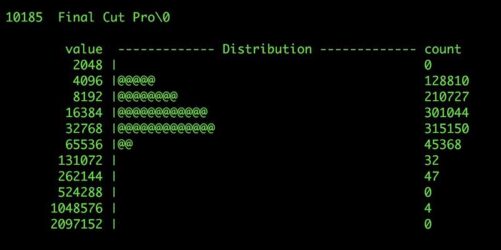
Here is another Dtrace capture showing FCPX doing many small IOs. I don’t remember what task. When the “Opening project” slowdown happens, it might be doing something like this.
This kind of IO profile can be inefficient on any mechanical drive, esp. a RAID due to the large stripe size. MacOS has a “unified buffer cache” which attempts to cache IO requests, and the library database is not large. In theory this would be cached, reducing physical IO even for the difficult “small random” case.
However with databases there is a heightened need for data integrity, so it’s common for databases to bypass OS-level cache systems to ensure transactions are committed to persistent disk storage. Another possibility is since each project is a separate database file, if opening many of those the aggregate IO profile could fall out of the buffer cache’s “locality of reference”, thus becoming physical and constrained by the disk characteristics.
The “slow open” behavior is difficult to reproduce and requires a specific data set and library config. If I had time I could try and reproduce it and gather more data, but an easy practical step is try putting the library and cache on a separate fast SSD.