Brice Munn
Forum Replies Created
-

Finally realised what I was doing wrong, incase anyone was wondering… turns out you have to make a camera in your comp alongside the sphere to plane footage. Change the focal length of the camera layer to zoom. Makes perfect sense really. Can’t believe I missed this!
-
Brice Munn
July 30, 2021 at 12:05 pm in reply to: Best practices for organizing clips with timecode and single audio trackAppreciate this doesn’t help you, but I really wish there was a ‘sync all clips in bin’ kind of function. Like you, we often roll Multicam + sound throughout the day. We sync with lockit boxes. It’ll be great if Premiere could automatically create a sequence with layers for all the sources, populate those layers, and sync the contents. Wishful thinking I guess. Theoretically I see no reason why it’s not possible though.
-
Second this! I usually workflow animations with no motion blur to make previewing along the way easier, and then go through and add it in bulk before my final export. Would love if one checkbox could do that!
Also would love if motion blur with the C4D 3D Renderer was a thing, but that’s a whole different conversation.
-
Brice Munn
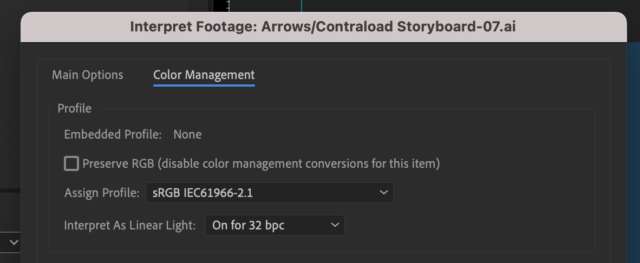
March 5, 2021 at 11:11 am in reply to: Color shift when I ‘Create Shapes From Vector Layer’Interpret footage settings match too. Strange ?
*Update: I have since tried checking ‘Preserve RGB…’ in the interpret footage dialogue, which results in a complete crash when I then try and convert to shapes. When I say complete crash, I mean it doesn’t even manage to write a log file and I have to power cycle the machine to force quit AE. Buggy!

-
Brice Munn
March 5, 2021 at 9:55 am in reply to: Color shift when I ‘Create Shapes From Vector Layer’Hi Robert,
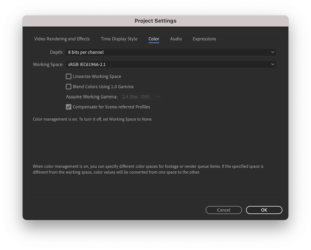
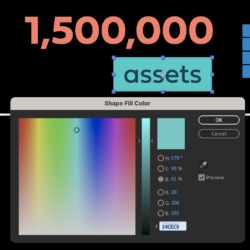
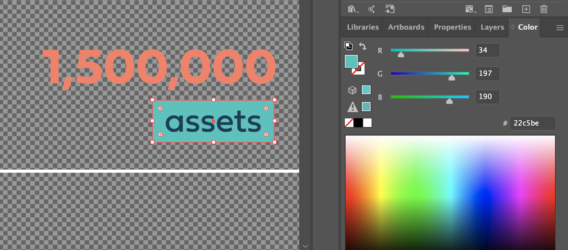
Thanks so much for your help, but unfortunately I’m still seeing different colour values in AE. I wonder if you could give my screenshots a once over to see if I understood your instruction?
1 – AE Project Settings
2 – Shape in AE created by ‘create shapes from vector layer’, note RGB fill AE generated
3 – Shape in AI, note fill I selected is different to AE
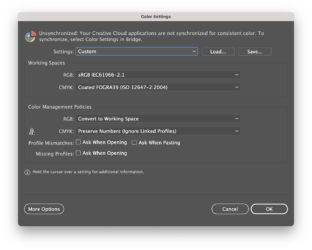
4 – AI Color Settings
*Update: Since taking the screenshots I installed bridge and used it to synchronise color settings across Creative Cloud, but I’m still seeing the shift in RGB values in AE.
-
You want to duplicate your footage layer and apply the colour correction, then animate an Alpha Matte to track the face. Search for tutorials for ‘apply motion tracking to mask’ or ‘alpha matte for colour correction window’ or similar…
-
Hi,
Just set position and scale keyframes. To do this, select your text layer and press ‘S’ on the keyboard. The scale property will appear. Left click the little stopwatch icon next to the scale property to enable keyframes, move your playhead a couple of second later and left click the “100%” next to scale and type “0” to have the text animate from full size down to 0% size. You’ll see the keyframe appear under your playhead. You can drag this back and forth to speed up or slow down your animation.
To match it with a reposition into the bottom corner, select the layer and hit “P” on the keyboard. The position property will open up. You can repeat the keyframe process there to animate a position move.
Hope this helps!
B
-
Brice Munn
July 31, 2020 at 4:08 pm in reply to: Adding line breaks to a block of text based on character lengthWould a text bounding box work? Just click and drag with the type tool to create a rectangular text box like you would make in word processing or graphics software. Then you can use the normal settings in the Character and Paragraph windows to control the typesetting.
-
Yep agree, Skew would make sense.
Also try the Corner Pin effect, or if you want more control over the distortion try and Distortion Map.
-
Thanks for the reply. Tried polar coordinates but it doesn’t do the trick. Where should I be applying it? I’ve tried precomping the footage and applying it in the precomp, with the sphere to plane map outside the precomp.
Tried optics compensation too but it has the opposite effect of further cropping the final image.
Footage is 2976×1674.
I’m trying to output it on a 1920×1080 comp.