Forum Replies Created

Page 4 of 13
  • Yoan Boisjoli

    January 23, 2025 at 1:58 pm in reply to: Making bezier path size text reactive

    Hi Tamara! Do you have a screenshot of the bezier path you could share with us?

  • Yoan Boisjoli

    January 21, 2025 at 4:36 pm in reply to: setJustification and setText

    Sorry Dan! I had the text in a text box so it wasn’t working! haha Also you made me realise I don’t need all that complex expression. Yours has more style hehe

  • Yoan Boisjoli

    January 21, 2025 at 4:22 pm in reply to: setJustification and setText

    Hey Dan, I think you need to create a style first because setJustification(“alignRight”) creates a new TextDocument object but doesn’t apply the change directly to the style object before calling setText(txt). I think that to make sure the updated justification is applied, the style first has to be updated, then combined with the text content.

  • Yoan Boisjoli

    January 21, 2025 at 3:54 pm in reply to: setJustification and setText

    Hey Matt! Are you looking for something like this?

    // Retrieve the text source from another layer
    var textContent = text.sourceText;
    // Get the current style of the layer
    var currentStyle = textContent.style;
    // Update the style with the desired justification
    var updatedStyle = currentStyle.setJustification("alignRight");
    // Combine the updated style with the text content
    updatedStyle.setText(textContent);
    // Output the final styled text
    updatedStyle;
  • Pleasure was mine Dean. Happy New Year also!

  • Yoan Boisjoli

    December 23, 2024 at 6:54 pm in reply to: Controlling the Speed of offset Turbulence

    Hi Javad!

    I think something like this should work:

    const s = effect("Slider Control")(1).value;
    [value[0], value[1]+time*s]

    Let me know if anything !

  • Hey Dean, I think this might help you:

    For both text layers add this expression for anchor point:

    var rect = thisLayer.sourceRectAtTime();
    [rect.left + rect.width / 2, rect.top + rect.height / 2];

    For the top layer add this expression to its position:

    var bottomText = thisComp.layer("Bottom Text"); // Replace with the actual name of the bottom text layer
    var topRect = thisLayer.sourceRectAtTime();
    var bottomRect = bottomText.sourceRectAtTime();
    var maxWidth = Math.max(topRect.width, bottomRect.width); // Get the larger width
    var x = thisComp.width / 2 + maxWidth / 2 - topRect.width / 2; // Align the right edge
    var y = thisComp.height / 2 - topRect.height / 2 - 25; // Position vertically
    [x, y];

    For the bottom layer, add this expression to its position:

    var topText = thisComp.layer("Top Text"); // Replace with the actual name of the top text layer
    var topRect = topText.sourceRectAtTime();
    var bottomRect = thisLayer.sourceRectAtTime();
    var maxWidth = Math.max(topRect.width, bottomRect.width); // Get the larger width
    var x = thisComp.width / 2 + maxWidth / 2 - bottomRect.width / 2; // Align the right edge
    var y = topText.position[1] + (topRect.height / 2) + (bottomRect.height / 2) + 50; // Position below the top text
    [x, y];

    This setup dynamically aligns the two text layers as a right-aligned block, ensuring the entire block is centered horizontally based on the larger width of the layers while maintaining proper spacing between them.

    I’m including me after effects file also if it can help you !

  • Yoan Boisjoli

    December 11, 2024 at 3:59 pm in reply to: Google Docs Live Edit

    Hi Doma! This is the kind of thing that would be easy to do using the script Pins & Boxes (link here: https://aescripts.com/pins-and-boxes/ )

    If you don’t want to buy a script, then a solution that could work would be to add this expression in the source text:

    inputText = "Your full text here"; 
    speed = 10; // Characters per second
    visibleChars = Math.floor(time * speed);
    inputText.substr(0, visibleChars);

    And add a Null Object to follow the top-right corner of the text dynamically using SourceRectAtTime. Then, you can parent the colored box to the null. For example:

    textRect = thisComp.layer("Text Layer").sourceRectAtTime();
    textPos = thisComp.layer("Text Layer").transform.position;
    [textPos[0] + textRect.width, textPos[1] - textRect.height];

    This way, the null adjusts automatically as the text grows, and the colored box follows it smoothly. It keeps things simple and flexible.

    I took the liberty of creating it to test it out and here’s the aep file for you.

    Hope this helps!

  • Yoan Boisjoli

    November 20, 2024 at 5:11 pm in reply to: per-character styling

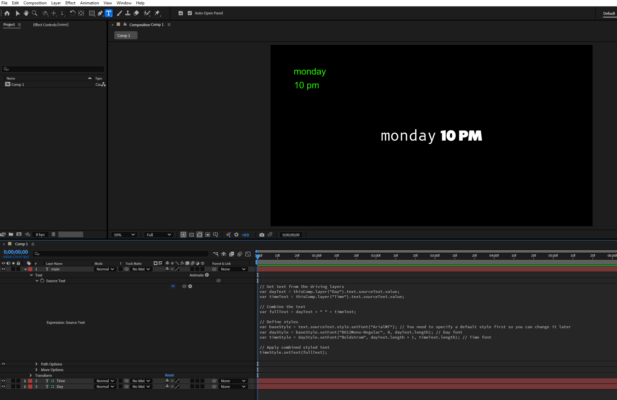
    Hey Adam! Basically what it does now is that you can feed the expression the length of the text (how many characters are in the text) so that the expression know how many characters should have the specific style (font in this case) that you want.

    My favorite way of doing this is to have 2 text layers (i.e. day and time) that drives a main layer where everything is assembled. So the main layer looks for the length of each layers so that way, no matter how many characters you have in the day, it will be in the right font.

    I will usually feed the Day and Time source text to the essential graphic’s panel. That way it’s easier for the editor to replace the day and time individually. You could also go one step further and have both be controlled by a drop down menu.

    Here’s an exemple:

    // Get text from the driving layers

    // Get text from the driving layers

    var dayText = thisComp.layer("Day").text.sourceText.value;

    var timeText = thisComp.layer("Time").text.sourceText.value;

    // Combine the text

    var fullText = dayText + " " + timeText;

    // Define styles

    var baseStyle = text.sourceText.style.setFont("ArialMT"); // You need to specify a default style first so you can change it later

    var dayStyle = baseStyle.setFont("B612Mono-Regular", 0, dayText.length); // Day font

    var timeStyle = dayStyle.setFont("Boldstrom", dayText.length + 1, timeText.length); // Time font

    // Apply combined styled text

    timeStyle.setText(fullText);

  • Yoan Boisjoli

    November 18, 2024 at 4:33 pm in reply to: Slider control and character mouth rigging help

    Hey Taylor! Don’t know if this is gonna help, but I did this in the past and worked well for me. I’ sending over an Ae file where I made different key poses for a mouth and I linked it to a dropdown menu where you can choose which pose you want and keyframe it. I’m simply having the path value changing depending on that menu with this expression here:

    var s = effect("Dropdown Menu Control")(1).value;

    key(s).value


Page 4 of 13

We use anonymous cookies to give you the best experience we can.
Our Privacy policy | GDPR Policy