Forum Replies Created

  • George Moreno

    August 29, 2025 at 4:07 am in reply to: Resolve Studio 20.0 Build 49

    Hi Peter
    You’re on an iMac with macOS Ventura 13.7.7 running Resolve Studio 20.0 Build 49, and Resolve crashes even when idle. The catch is that newer builds (20.1 and up) require macOS 14, which your Mac can’t install.

    This is a compatibility issue, not hardware load. Resolve 20 was really designed for macOS 14+, so Ventura support is unstable. Here are your options:

    1.Resolve 19.1.4 (recommended)

    .-Last version officially supported on Ventura.

    .-Rock solid for editing, prepping media, transcoding, and metadata tagging.

    .-Projects from 19 can be opened later on newer machines.

    2.Resolve 20.0 (first release)

    .-The very first 20.0 build runs on Ventura (many users reported it works fine, sometimes even more stable than 19).

    .-Later builds (20.0.1, 20.0.49) are less stable, and starting with 20.1, Ventura is blocked entirely.

    3.Other tips

    In Preferences → System → Memory & GPU, try toggling between Metal and Auto to reduce random crashes.

    Enable automatic project backups so you don’t lose work.
    On Ventura, either stick with Resolve 19.1.4 for maximum stability, or if you want Resolve 20 features, run the very first 20.0 release, which still works on macOS 13. Everything newer is either unstable or blocked.

    Here you can find the very first version of Resolve 20 https://www.blackmagicdesign.com/support/family/davinci-resolve-and-fusion

  • George Moreno

    August 29, 2025 at 3:56 am in reply to: Multicam Audio Playback Issues (20.1)

    Hi Chris!
    This usually happens because disabling tracks inside the Multicam timeline doesn’t automatically tell Resolve which track should be the “master” audio source. Resolve expects you to define the audio angle in the Multicam properties or the Angle Editor. That’s why you’re seeing a waveform but not getting any playback.

    Solution:
    Check Multicam Clip Properties

    Right-click the Multicam clip in the Media Pool → Clip Attributes.

    Go to the Audio tab and make sure the lav mic is set as an active audio source and properly mapped (usually to A1).

    Use the Angle Editor

    Instead of just disabling audio tracks in the Multicam timeline, open the clip in the Angle Editor (right-click → Open in Angle Editor).

    Assign the lav mic as the active audio angle here — Resolve will then know which track to use.

    Pick Audio Angle in Timeline

    Back on your edit timeline, right-click the Multicam clip → Switch Multicam Audio Angle → choose the lav mic.

    You should now get both waveform and playback.

    Optional: Keep Other Mics Accessible

    If you want the interviewer or shotgun mic later, don’t disable them completely in the Multicam. Leave them available and just switch audio angles when needed.

    In short: muting tracks inside the Multicam timeline doesn’t set the audio angle. The fix is to assign the lav mic as the active audio source in the Multicam properties/Angle Editor, then select it as the audio angle in your timeline.

  • George Moreno

    August 29, 2025 at 3:46 am in reply to: Keywords

    Hey Nina,
    That’s a great question. Resolve handles keywords globally, so once you tag a clip the keyword shows up in the Keyword Collections panel for the entire project, not just inside a bin like in FCPX. There isn’t a per-bin keyword collection view, but you can keep things tidy with Smart Bins and metadata:

    • Smart Bins with filters: build Smart Bins that include a keyword and also narrow by bin/folder or other metadata (e.g., “Interview” and inside “Day 1”).
    • Bins + keywords combo: keep bins as your main structure (Day 1, B-roll, Interviews) and apply keywords within them; search/filter combines both.
    • Custom metadata (Studio): add fields like Scene/Take/Day and build Smart Bins on those for more control.

    If it helps, I can share screenshots to guide you step by step.

  • George Moreno

    August 28, 2025 at 9:30 am in reply to: adjust keyframes for ‘write on’ text?

    Hey Tim,

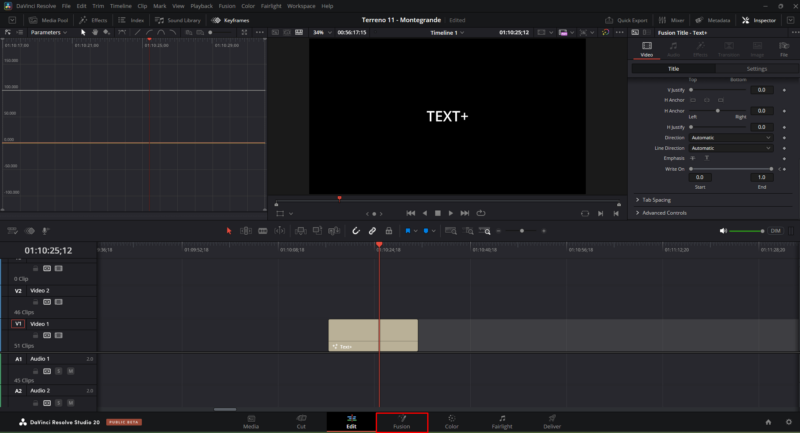
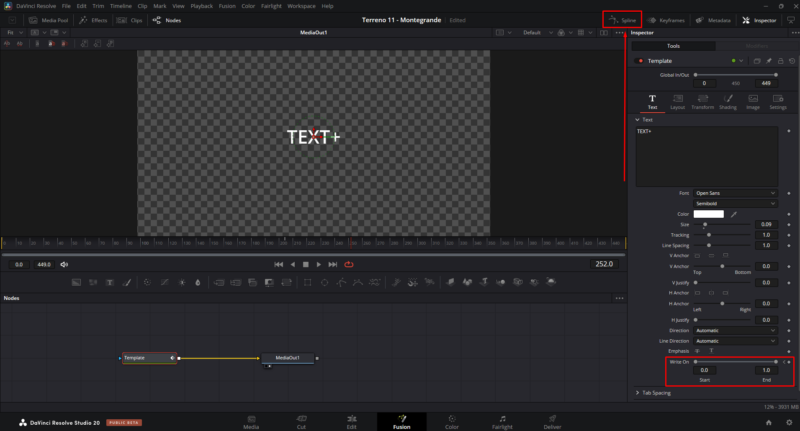
    In Resolve 20 the way keyframes are managed for Write On text is a little different. You can set them in the Inspector on the Edit page, but to really adjust and fine-tune them you’ll want to jump into the Fusion page and use the Spline editor. Here’s a quick step-by-step with screenshots to guide you.


    • 1. Switch to Fusion and open Spline
    • With your Text+ clip selected, click into the Fusion tab at the bottom.
    • You’ll see your Text+ node connected to MediaOut. (Red box in the screenshot below shows exactly where the Write On controls live.)
    • At the top, click the Spline button (highlighted in red in the screenshot).
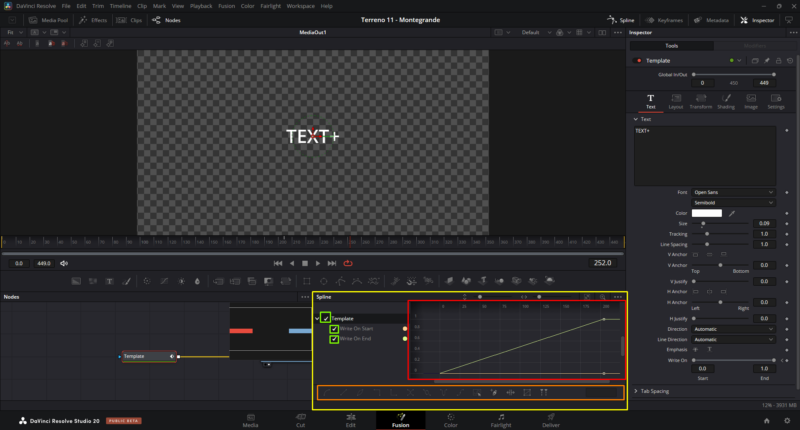
    • Check Write On Start/End in the list and hit “Zoom to Fit.

    3. Adjust your animation curve

    • Now you’ll see the Write On keyframes as lines.
    • Drag the keyframes left/right to change timing.
    • Use the curve handles (yellow box area) to smooth the animation, or right-click a keyframe to adjust easing


We use anonymous cookies to give you the best experience we can.
Our Privacy policy | GDPR Policy