

Activity › Forums › DaVinci Resolve › adjust keyframes for ‘write on’ text?
-
adjust keyframes for ‘write on’ text?
Posted by Tim Neighbors on August 3, 2025 at 8:59 pmAfter adding some keyframes to make text write on with the Text+ editing parameters, how do you then access those keyframes to adjust them?
Tim Neighbors replied 11 months, 1 week ago 2 Members · 2 Replies -
2 Replies
-

George Moreno
August 28, 2025 at 9:30 amHey Tim,
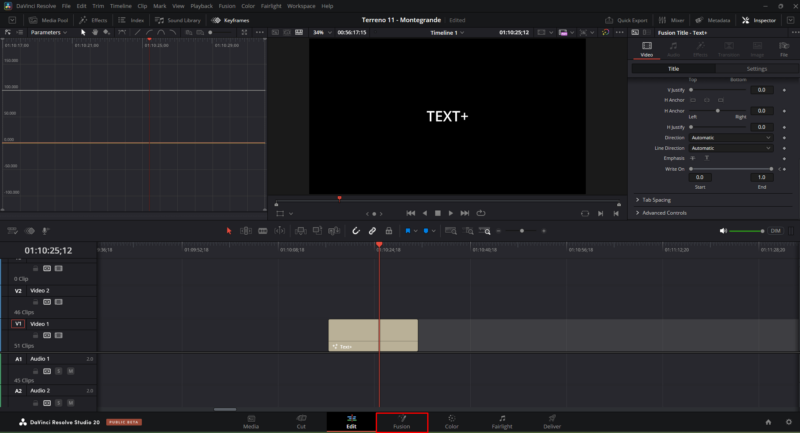
In Resolve 20 the way keyframes are managed for Write On text is a little different. You can set them in the Inspector on the Edit page, but to really adjust and fine-tune them you’ll want to jump into the Fusion page and use the Spline editor. Here’s a quick step-by-step with screenshots to guide you.
- 1. Switch to Fusion and open Spline
- With your Text+ clip selected, click into the Fusion tab at the bottom.
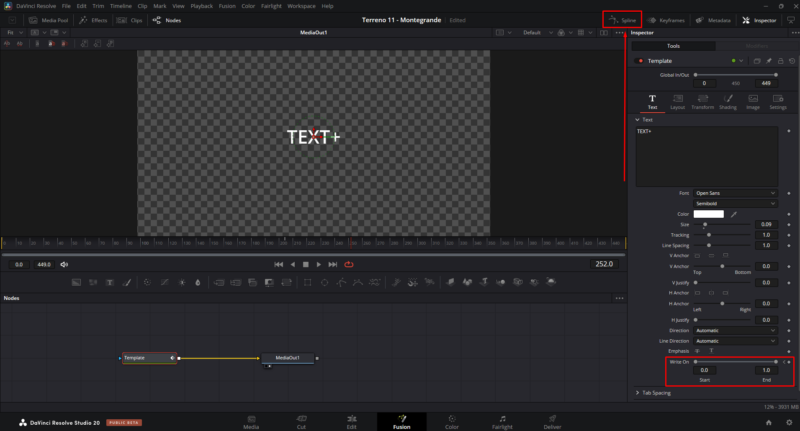
- You’ll see your Text+ node connected to MediaOut. (Red box in the screenshot below shows exactly where the Write On controls live.)
- At the top, click the Spline button (highlighted in red in the screenshot).
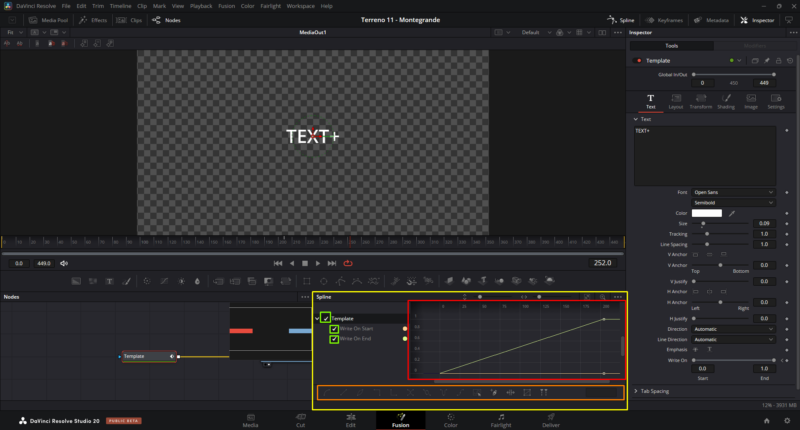
- Check Write On Start/End in the list and hit “Zoom to Fit.
3. Adjust your animation curve
- Now you’ll see the Write On keyframes as lines.
- Drag the keyframes left/right to change timing.
- Use the curve handles (yellow box area) to smooth the animation, or right-click a keyframe to adjust easing


Reply to this Discussion! Login or Sign Up