Forum Replies Created

Page 72 of 277
  • I’ve written a script for this some time ago:

    it checks if the first and/or last keyframe of opacity and/or scale == 0 and trims to those points.

    Here it is:

    https://we.tl/t-c4ff1fW2mC

    Choinks – date modified is 2008, I’m getting really old 😉

    Still works though!

  • Actually, I’m working on something.
    I have it working for single and multi-line textlayers, but still some tests to do.

    Unfortunately it’s not sourcecode I’m willing to share publicly right now, as I’m pondering wether to offer it as a script on aescripts.

  • I don’t think so actually.

    Maybe it’s best to test for properties that only certain types of layers have ?

    l=thisComp.layer(2);
    layerKind="unkown";
    if (l.text) layerKind = "Text";
    else if (l.source) {
    layerKind = "Footage";
    if (l.source.duration ==0) {
    layerKind = "Solid/Null/Still";
    }
    if (l.source.numLayers!=undefined) layerKind = "Composition"
    } else if (l.cameraOption) layerKind = "Camera"
    else if (l.lightOption) layerKind = "Light"
    layerKind

    Can’t find a way to discern between Solids, Nulls and Stills though…

  • probably just the curly quotes that wordpress added to the Walter’s post.

    Try:

    loopOut("offset");
  • Unfortunately No: After Effects does not allow you to set different Styles to differnt characters/words within a sourceText

  • Are you keyframing, or just sliding with the values ? When you keyframe just make sure there is a definite point when the rectangle is complete, and use that time, then it ‘ll work. Not when you’re just trying different values without keyframes as you did in your screengrabs

  • The issue would occur as soon as one of the two dimensions=0.

    The stroke width is nott included.

    Here’s some messy code for reordering the points to a new FirstVertex (0 based), but you’d have to do the same for inTnagents and outTangents if the shape would be anything else than just harde edges like your example.

    newFirstVertex = 2; // attach to slider
    p = thisProperty;
    r = sourceRectAtTime(0,false);
    pts = p.points();
    pts=pts.slice(newFirstVertex,pts.length).concat(pts.slice(0,newFirstVertex));
    createPath(pts ,[], [], p.isClosed())
  • The moment your trimPath makes the shape disappear completely, the sourceRect will have a width and height of 0, resulting in division by 0 errors.

    The easiest fix is to keyframe the trimpath properties, and to reference the sourceRectAtTime() to a time where you’re sure the whole rectangle is visible. for example r=sourceRectAtTime(10, false);

    Or we can do a check if the width/height is 0, and not do the divisions, but then the shape will revert to normal when it’s invisible (which might not be a big deal, but is confusing)

  • Filip Vandueren

    September 27, 2020 at 11:32 am in reply to: Make multiple layers move in random spirals

    As is often the case, if you think about animating not the position but the anchorpoint of the layer, it becomes much easier.

    I created a 3D-Null that served as the spiral center.

    Other 3D layers were positioned in 3D space (randomly, but you can put them at your desired end-locations manually).

    Now, if each of those layers would have it’s anchorPoint “moved” to the spiral center it would be a simple matter of rotating them all around their desired axis and you would have an orbit. If the anchorpoint would change to gete close away while orbiting, you get a spiral.

    I used these expressions on every 3D layer:

    position:

    ctr = thisComp.layer("Spiral center");
    seedRandom(index,true);
    time>-100 ? ctr.position : random([0,0,-1000],[1920,1080,1000]);

    If you need specific keyframed ending positions, not random ending positions change the last line to: time>-100 ? ctr.position : value;

    The trick here is that we actually just position the layer at the spiral center, it’s apparant position will be a result of manipulating the anchorPoint value. but we need a way to reference the actual position of the layer before expressions were applied, so we “hide” that value at negative times <=-100.

    (Note that if everything can be random, we don’t need this, everything could be setup in the anchorPoint expression, and this would simply be ctr.position. But I got the impression from your post that the end-positions were deliberately chosen.)

    anchorPoint:

    seedRandom(index,true);
    ctr = thisComp.layer("Spiral center");
    endPos = ctr.position - thisLayer.position.valueAtTime(-100);
    startPos = endPos * random(2,8);
    easeOut(time, 0, 4, startPos, endPos);

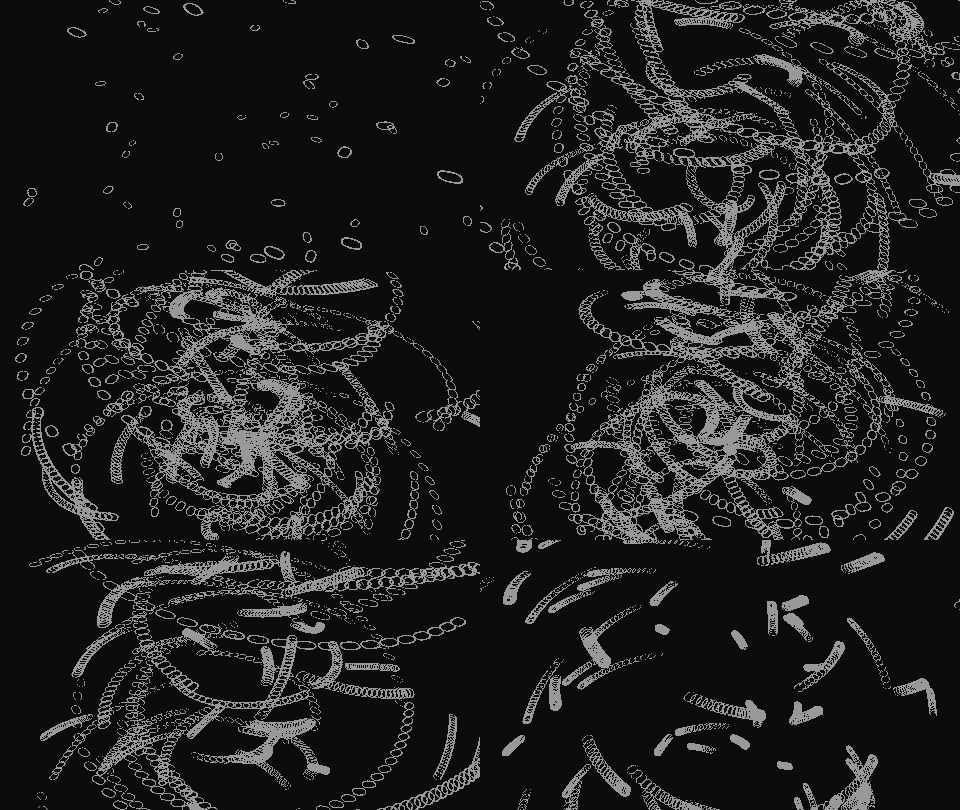
    Notice that the startPoint is not just another random value, but a random amount further away from the anchorpoint. This gives a true spiralling effect. But using a random Number gives an equally interesting, more chaotic effect where each layer follows it’s own spiral (seee second gif)

    Z-rotation (or any other axis/axes you want to rotate around):

    <pre class=””>seedRandom(index,true);
    easeOut(time,0,4,random(90,180),0);

    I’ve kept the values all in the same direction in this example just to make it a bit more clear that it’s spiraling in the GIF, but you can make it as chaotic as you want

    you’ll probably want to add some randomness to the timing instead of 0-4, but I think you know how to handle that.

  • Filip Vandueren

    September 27, 2020 at 10:36 am in reply to: Layer styles

    Your 3D renderer is most likely set to Cinema 4D, which doesn’t allow layer styles on 3D layers.

Page 72 of 277

We use anonymous cookies to give you the best experience we can.
Our Privacy policy | GDPR Policy