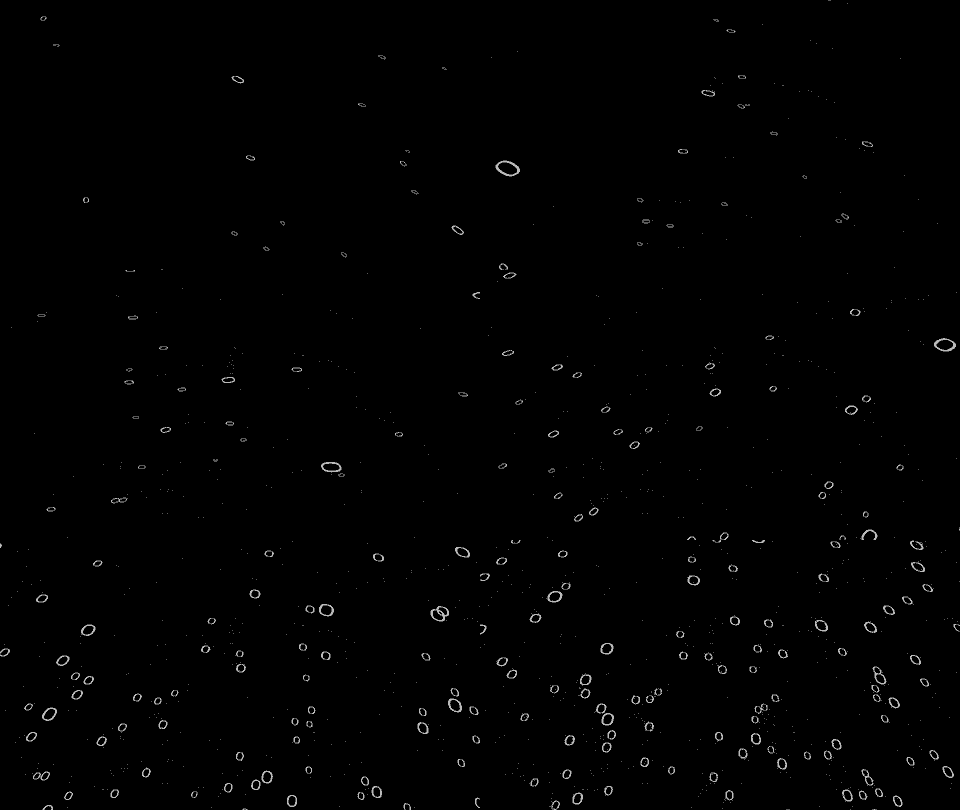
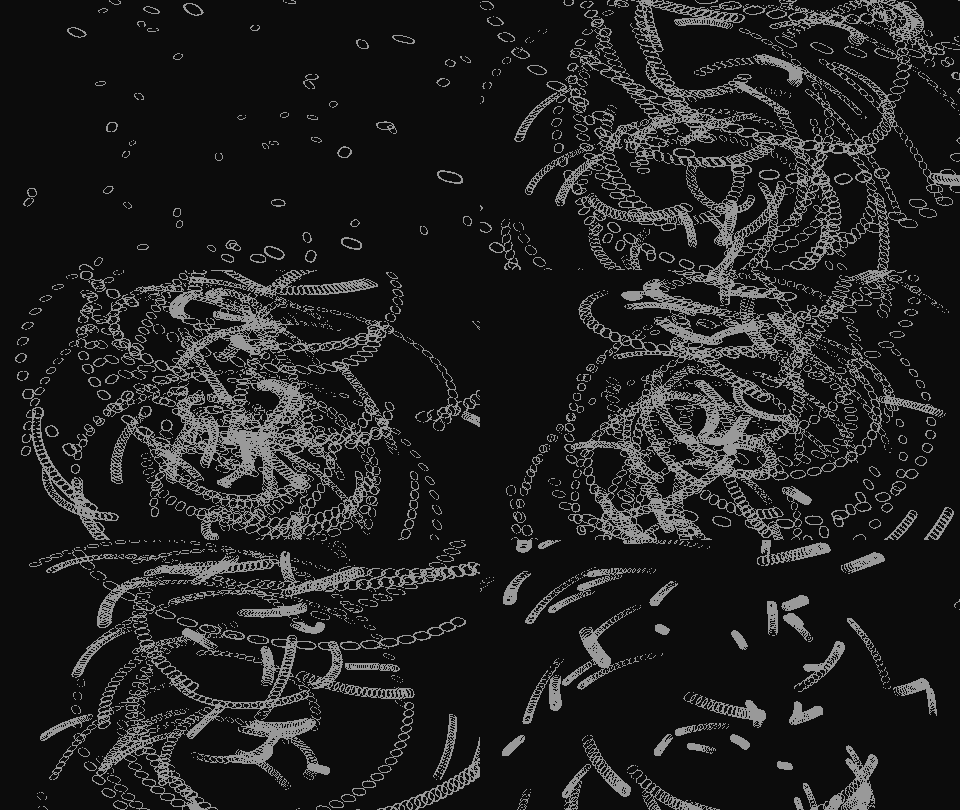
As is often the case, if you think about animating not the position but the anchorpoint of the layer, it becomes much easier.
I created a 3D-Null that served as the spiral center.
Other 3D layers were positioned in 3D space (randomly, but you can put them at your desired end-locations manually).
Now, if each of those layers would have it’s anchorPoint “moved” to the spiral center it would be a simple matter of rotating them all around their desired axis and you would have an orbit. If the anchorpoint would change to gete close away while orbiting, you get a spiral.
I used these expressions on every 3D layer:
position:
ctr = thisComp.layer("Spiral center");
seedRandom(index,true);
time>-100 ? ctr.position : random([0,0,-1000],[1920,1080,1000]);
If you need specific keyframed ending positions, not random ending positions change the last line to: time>-100 ? ctr.position : value;
The trick here is that we actually just position the layer at the spiral center, it’s apparant position will be a result of manipulating the anchorPoint value. but we need a way to reference the actual position of the layer before expressions were applied, so we “hide” that value at negative times <=-100.
(Note that if everything can be random, we don’t need this, everything could be setup in the anchorPoint expression, and this would simply be ctr.position. But I got the impression from your post that the end-positions were deliberately chosen.)
anchorPoint:
seedRandom(index,true);
ctr = thisComp.layer("Spiral center");
endPos = ctr.position - thisLayer.position.valueAtTime(-100);
startPos = endPos * random(2,8);
easeOut(time, 0, 4, startPos, endPos);
Notice that the startPoint is not just another random value, but a random amount further away from the anchorpoint. This gives a true spiralling effect. But using a random Number gives an equally interesting, more chaotic effect where each layer follows it’s own spiral (seee second gif)
Z-rotation (or any other axis/axes you want to rotate around):
<pre class=””>seedRandom(index,true);
easeOut(time,0,4,random(90,180),0);
I’ve kept the values all in the same direction in this example just to make it a bit more clear that it’s spiraling in the GIF, but you can make it as chaotic as you want
you’ll probably want to add some randomness to the timing instead of 0-4, but I think you know how to handle that.