Chris Hewitt
Forum Replies Created
-

Oh ok, but I only downloaded the file from your site a few days ago but installed it over an older trial version.
-
Yes, that certainly affects it, Edward. Anyway, I’ve got it looking good now by using that new option box. Thanks Edward.
-
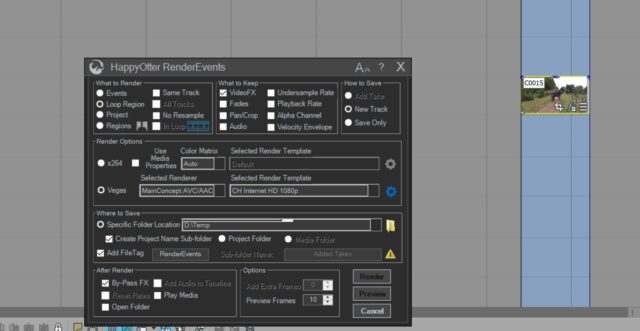
Hi Wayne, I’ve been trying out the demo for a while and ready to buy but I have one problem (see attached screenshot).
I’m using Vegas Pro 17 and want to render a small event to a new track that has a Mercalli 4 effect on it. The screenshot shows that the RENDER button is greyed out. Not sure where I’m going wrong here.

-
Aah, I’ve found the answer. It’s in the Preferences/Display panel and I had to tick the box ‘Reverse Event Background Color’…..it’s not an option in Vegas Pro 12, must be new.
Thanks for your help, Steve.
-
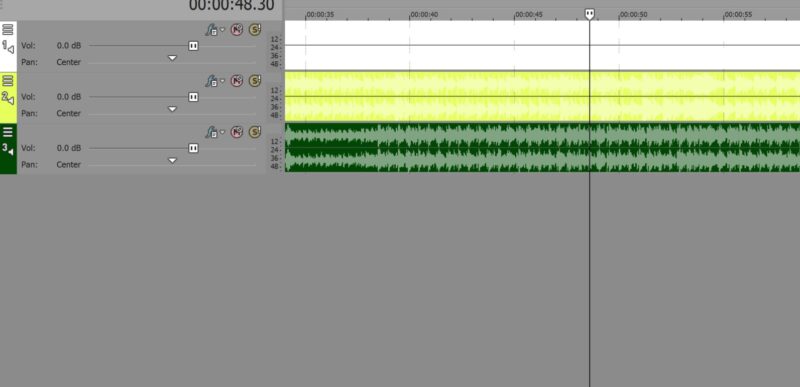
Hi Steve, thanks for your reply. I had looked at that but it’s not the problem as such. For instance, if I add a new audio track and drop an audio file onto that track, the event will be whatever color the “Track Display Color” is set to. The issue is that the audio waveform is the same color, especially so when the track is not selected.
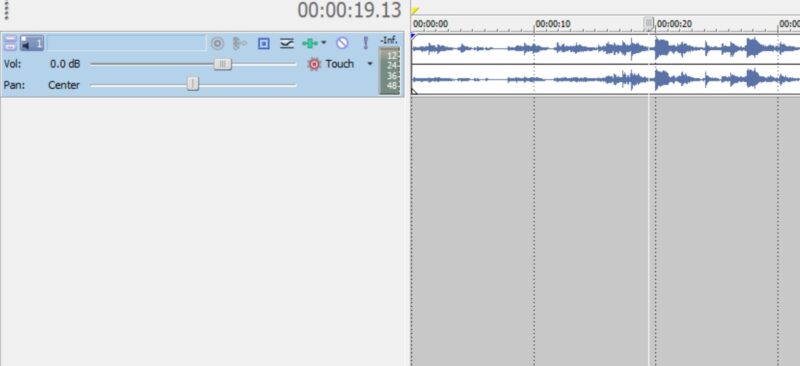
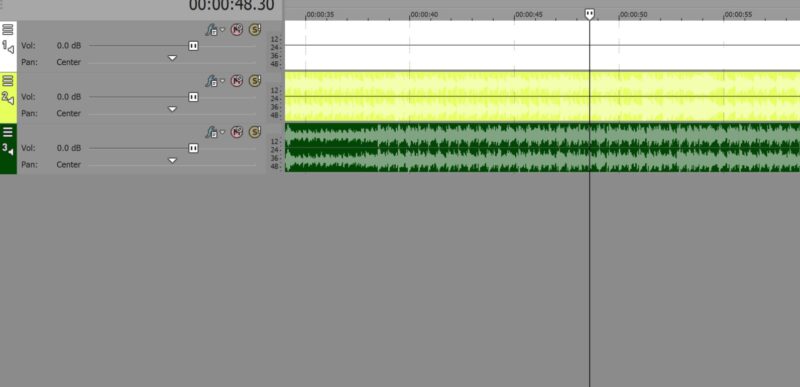
I’m actually trying to make that waveform a dark color in relation to the background color of the event. I’ve attached two screenshots. The first is from Vegas Pro 12 and shows the white event background color when that track is selected. All good and easy to see.
The second screenshot shows VP17 with the same audio tracks but as you can see, the color backgrounds of those events are much harder to read the waveform. If you have a white background, you can’t even see the waveform but it’s there.
So, all I want to do is have VP17 show what VP12 is showing on the left in the first screenshot.
I can’t see any way of achieving this.
-
Chris Hewitt
February 19, 2020 at 5:54 pm in reply to: How to make Mercalli stabilization permanent on a clip?Hi Wayne,
I’ve been using your script “Render Event, Add As Take” in Vegas Pro 12 for a few years now and it’s been absolutely essential for my work. That was on Windows 7 and it worked fine, no problems.
I’ve just upgraded to Windows 10 and although I can install the script, when I run it, I get this error message…
“An error occurred during execution of the script C:\Program Files\Sony\Vegas Pro 12.0\Script Menu\RenderEventAddAsTake.cs.
Error 0x80131600 (message missing)
I’m wondering if this is a known issue. I’m all reinstalled except for your very valuable script.
Kind regards, Chris Hewitt -
Hi Francois, thanks for your reply. The video is a wedding project so no fast motion really. I have tried 720p/50 on a blu-ray disc and it looks fine but I was wondering if keeping it at 1080 would be better for the resolution even though it would be interlaced.
The raw footage is 1080P/50 shot on a Sony CX-730 and a Panasonic AG-AC160.
I haven’t had the time yet to convert to 1080i to see what it looks like. Also, 1080/24 which I was unaware of re BRay.I shot the wedding for a friend of a friend who has a 50 inch 4K TV and am concerned with how the final video will look on that screen. They have asked for Blu-ray.
Thanks again, Francois, all help appreciated.
-
If anyone has any advice, I’d be grateful. Thanks.
-
Chris Hewitt
September 21, 2014 at 10:50 am in reply to: How do I prevent audio to be replaced in multicameralike setup?Are you certain the audio is being replaced. In my experience, the new audio might sit on top of the original audio obscuring it if it is long enough.
Select the problem audio on the timeline and press T which will cycle through the audio if more than one audio event is there.
I would create a new audio and video track for each of the three camera shots you have and that way your audio tracks will all be on their own tracks….then just slide them to sync. -
Chris Hewitt
September 21, 2014 at 6:56 am in reply to: How do I prevent audio to be replaced in multicameralike setup?Use the Trimmer and select the video only.