Philip Evans
Forum Replies Created
-

I’ve tried:
Vimeo
Youtube
mp4 on usb
I know my TV is the problem, but I just wonder how many other TVs out in the world are showing my secrets. I can’t understand why the background black isn’t staying black, while the real blacks in the shots are.
Here’s a link to the full video:
Any suggestions would be appreciated.
Some contents or functionalities here are not available due to your cookie preferences!This happens because the functionality/content marked as “Google Youtube” uses cookies that you choosed to keep disabled. In order to view this content or use this functionality, please enable cookies: click here to open your cookie preferences.
-
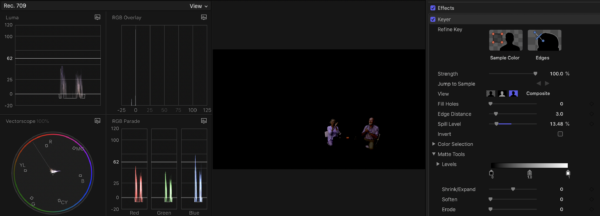
Hi Jeremy, I’ve attached a pic of the front couple showing the scopes. I’ve purposely set the black level very low to get the ‘dimly lit bar’ effect.
-
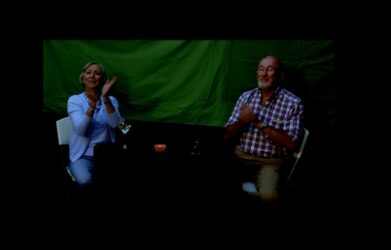
Hi Paul, I’m using the FCPX Keyer, which is doing a great job of my poor green screen shooting. I’ve attached a pic of the from couple with the keyed off. The table they sit at has a black table cloth, which shows as black in the scene. The problem is the background on which the keyed elements sit. My TV is brightening the black background but not all the black elements, thus showing my cheats. I’ve tried a black solid behind everything but it makes no difference.
-
Philip Evans
February 10, 2010 at 3:17 am in reply to: about to give up – any advice would be so appreciated.Stoo, if you are encoding from Premiere using Media encoder, you might want to “uncheck’ the “de-interlace” option in the top left of the encoder screen. If your footage was interlaced, it’s best to keep it that way or fix it in After Effects (look for tutorial by Andrew Kramer on this website).
A note for people publishing to youtube – the de-interlace default tick has helped me to waste many hours trying to upload footage to youtube, which keeps getting rejected. Why? My footage was interlaced & I thought the Adobe de-interlace tick would be a good thing but youtube doesn’t.
The same goes for png graphic files (advantageous if you want a transparent background). The de-interlace tick in Media Encoder screws them badly. Simply un-tick for clear & crisp graphics.
Hope this helps
Phil -
Hi Matthew,
Glad to be of assistance.PROBLEM: As I understand it, Premiere verifies mpeg2 footage using the first & last few frames. If any of these are corrupt, it will screw the decoder & shut down the program.
CAUSE: I found that when I used “On Location” to capture, there was almost always a problem in this regard. This was because I was using an external HDD via USB2. Although the drive spec was fast enough, the speed of USB2 meant that On Location was chasing it’s tail to try & write the footage to the drive, which is why there were glitches at the beginning & end of each file.
SOLUTION: Apart from the obvious solution of using a faster internal HDD when shooting, I found a way to fix the footge I had already shot by bringing it into After Effects & doing a straight render to Mpeg2 Blu Ray. Don’t try to crop any frames at the beginning or end, just re-render on the above setting. Don’t woryy if you see strange green or blue checks, the re-rendering will help Premiere to ignore these corrupt frames. You can edit these out when you bring the file back into Premiere. Be patient with AE – if your files are big it will take some time to render & may not show any progress but don’t interrupt it.
Good luck & let me know how you go
Cheers
Phil -
Hi Patti,
after many experiments with my Mackie firewire interface (16 audio channel desk) I’ve had to accept that PPro CS3 can only deal with 1 stereo channel of incoming audio. Audition 1.5 works fine but Sound booth won’t see it. Any other Adobe programs just crash when I enable the Mackie.I use Cubase SX3 for recording audio then import the files into PPRoCS3 & use my normal on-board sound card.
Sorry I can’t be of any further help.
Phil