Forum Replies Created

Page 3 of 4
  • Levi Borland

    December 9, 2021 at 10:54 am in reply to: Animation looks bad in YouTube

    I understood what you meant. What I was trying to say is the only reference you offered us was the YouTube upload. For that reason we have no way of determining what the differences are between between the export and the way that it looks after you’ve uploaded it to YouTube.

  • Levi Borland

    December 9, 2021 at 7:59 am in reply to: Animation looks bad in YouTube

    what exactly bothers you about the export? without seeing at least a screenshot of the comp window before export we cant go without assuming it looks the way you wanted it to.

  • Levi Borland

    December 8, 2021 at 3:42 am in reply to: Preview lagging!!!

    Hey Mehdi,

    I was in the middle of giving you a ton of suggestions on the CC Live Stream when my internet cut out and I had to start a new stream. Going live again tomorrow morning. I’ll be happy to reiterate those suggestions to you and see if we can get your problem fixed.

  • Levi Borland

    December 6, 2021 at 8:03 am in reply to: Guys I need to put a video into a text and….

    hope it helps

  • Levi Borland

    December 5, 2021 at 6:38 pm in reply to: Guys I need to put a video into a text and….

    Pre-comp your logo and text by selecting them both, right clicking, and selecting pre-compose. Choose move all assets into new comp in the window that pops up and hit enter. This will make a pre-comp in your timeline that holds both on a single layer. Put your footage above that comp and then change the track matte drop down of your pre-comp to alpha or perhaps luma matte. I can never remember which. There are four options. Pick the one that makes the video take the outline of your text and shape. It will also do away with the logo and text’s original colors, replacing them with the video layer.

    Key frame the pre-comp to scale up to your liking over time. Then duplicate the pre-comp and put the copy over the top of your footage layer. Be sure to duplicate the pre-comp after the scale keyframes are in place so it has the same animation as the original pre-comped layer. Turn the opacity to zero on the duplicated copy you moved to the top of your comp…set a keyframe where you want the logo to start fading in over the footage, move forward in the timeline to where you want it fully visible and turn the opacity back up to 100. This will make the logo and text fade in over top of your bottom two layers giving the impression that it just faded away to it’s original colors.

    In reality it is just hiding the footage layer beneath it.

  • I have included a project file where I found an easier solution than I previously offered. What I did was write an expression on the Shape on Layer Two’s Fill Color Value.

    ShapeOnLayer2 = (color from Layer 1 Shape + color from Layer 2 Shape + color from Layer 3 Shape)/3 //3 would be replaced with whatever amount of source colors you chose.

    You can see if you change the color value for any of the three shapes on layer 1 it will automatically average out a new color for the single shape that is on layer 2.

    Here is the code I used

    content(“Rectangle 1”).content(“Fill 1”).color = (

    thisComp.layer(“Shape Layer 1”).content(“Polystar 1”).content(“Fill 1”).color +

    thisComp.layer(“Shape Layer 1”).content(“Rectangle 1”).content(“Fill 1”).color +

    thisComp.layer(“Shape Layer 1”).content(“Ellipse 1”).content(“Fill 1”).color

    ) / 3;


    I didn’t need to access separate color values like R, G, and B in my previous post suggestion. I just used the expression pick whip tool and pointed it to each color value of each shape’s color value in layer 1. It automatically averaged out the values of all of those individual colors as the color values are probably an array of some kind.

  • Hello Vipul Rajan,

    You may be able to write an expression for the color of the Square on Grid 2.

    Here is suggested Pseudocode as I don’t have the project file to reference or try and write the real code for.

    var squareOneColorR = R Value of Square One’s Color

    var squareOneColorG = G Value of Square One’s Color

    var squareOneColorB = B Value of Square One’s Color

    var squareOneAlpha = Alpha Value of Square One’s Color

    var squareOneSat = Saturation Value of Square One’s Color

    Repeat this process for each square on layer one. Then Compute Averages

    var squareOneOnLayerTwoR = (squareOneColorR + squareTwoColorR + squareThreeColorR) / n //Where n is the total number of squares you are referencing, in this case three.

    That will give you the average for all R Numeric Values of all squares on layer one averaged together and then assign it to the R Field on the Layer 2 Square. Repeat this math for each of the Fields, RGB, Alpha, and Saturation.

    If you do the math this way as a JavaScript Expression, the color of Layer Two’s Square should automatically change whenever you adjust the value of any squares on layer 1.

    This is of course only workable so long as you can access the individual color values through Expressions. If you send or attach your AE file, I can play around with it on my end and see if I can make workable expression code for you. Good Luck

  • Levi Borland

    December 4, 2021 at 8:44 am in reply to: Fill an outlined font

    Hello there, I added a solid Composite Effect to the bottom layer and it allowed me to fill the inner text to whichever color I wanted. Does this solve your problem. AE Project Attached

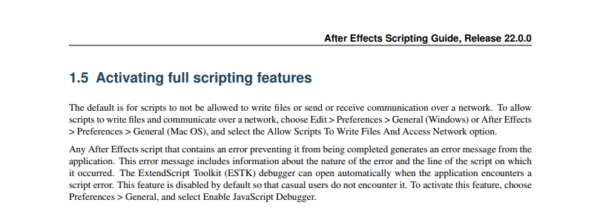
  • I did some digging around in the Adobe After Effects Scripting Documentation and found supporting documentation for one of my offered suggestions. I have attached a screen shot for your reference. Hope this was the right solution to your issue. Let me know either way please.

  • I have never used MS VisualCode for this type of purpose. Perhaps you need to go into after effects and select project settings. There is an expressions tab in the window that opens. Change it from Javascript to Extendscript, or vise versa. You could also open preferences under the edit menu. Go to the Scripting/Expressions Tab and select the tab that says Allow Scripts to Write Files and Access Network. Worth a try on both, but not sure if either is the right solution.

Page 3 of 4

We use anonymous cookies to give you the best experience we can.
Our Privacy policy | GDPR Policy