Forum Replies Created

Page 13 of 96
  • Joe Marler

    October 3, 2020 at 11:46 pm in reply to: 1080 24p Advanced from Panasonic HVX200A

    I uploaded to your dropbox the untrimmed version.

  • Joe Marler

    October 3, 2020 at 7:23 pm in reply to: 1080 24p Advanced from Panasonic HVX200A

    Jeremy I uploaded a smaller, trimmed version of the camera file. I inspected the metadata to ensure it is identical to the original camera file.

  • Joe Marler

    October 3, 2020 at 6:45 pm in reply to: 1080 24p Advanced from Panasonic HVX200A

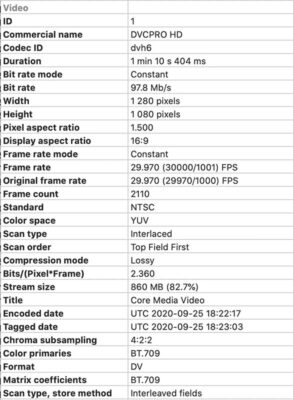
    Phil, Jeremy is right. It apparently was originally shot at 24p but stored at 29.97 interlaced (59.94 fields/sec) using Panasonic’s “Advanced Pulldown” feature. Both FCPX and Resolve identify it as 29.97 fps interlaced because that’s what the metadata says. See below output from the Invisor metadata tool.

    To make 24 fps fit within a 29.97 fps (what the HVX200 storage electronics supported) requires every fifth frame be duplicated. Unfortunately I’m not sure there was a standardized metadata system for identifying this. From the standpoint of FCPX and Resolve, it IS 29.97 interlaced.

    There is a method of using the current version of Compressor to remove the advanced pulldown, which will produce a 23.98 fps progressive output file. To do this, import the file to Compressor, add an HD1080p preset, then under the Video tab at right, go to the bottom to Quality>Retiming Quality, and pick “Reverse Telecine”. Then export that file and it should produce a 23.98p result with the advanced pulldown removed, which you can then import to FCPX.

  • Joe Marler

    October 3, 2020 at 4:57 pm in reply to: 1080 24p Advanced from Panasonic HVX200A

    Phil, I only received the first one. Can you try uploading the 2nd one again?

    Note: I need a camera clip which if imported to FCPX on *your* machine, incorrectly is ID’d as 29.97 when it is actually 23.98.

    Just to be clear, if you export that from FCPX, it is re-encoded and the video header is changed, so I can’t use that for examination. I either need an original untouched camera clip or possibly a camera clip trimmed by Quicktime Player which displays the same behavior due to the no-encode trimming feature.

  • Joe Marler

    October 3, 2020 at 3:01 pm in reply to: 1080 24p Advanced from Panasonic HVX200A
  • Joe Marler

    October 3, 2020 at 1:54 pm in reply to: 1080 24p Advanced from Panasonic HVX200A

    “I’m using the Panasonic HVX 200A and shooting in the 1080 24p advanced codec. When I used FCP7, the clips were always ID’ed as 23.98 fps. Now that I’m using FCP X, the clips at that setting from that camera are ID’ed as 29.97 fps.”

    Do you have a test clip you could upload to DropBox or some other place we could examine? If you have proprietary content, usually any clip that FCPX can import can also be trimmed without re-encoding by Quicktime Player. It is easy to trim it down to a short “sanitized” clip, then save that. Doing so normally will not change the video header, encoding or anything else. Try doing that, then import the trimmed clip to verify it still has the same behavior. If so, then upload it to DropBox so we can examine it.

    The trim command in Quicktime Player is CMD+T. The below tutorial shows how to use it:

    https://youtu.be/W7NrlhZin4M

    Some contents or functionalities here are not available due to your cookie preferences!

    This happens because the functionality/content marked as “Google Youtube” uses cookies that you choosed to keep disabled. In order to view this content or use this functionality, please enable cookies: click here to open your cookie preferences.

  • Joe Marler

    October 1, 2020 at 11:36 am in reply to: 1080 24p Advanced from Panasonic HVX200A

    First I suggest examining the metadata in the DVCPRO media files using three different tools:

    1. Use either Invisor or MediaInfo. My personal preference is Invisor since you can drag/drop multiple files on it for side-by-side spreadsheet-like comparison.

    2. Use the command-line tool ExifTool: https://exiftool.org

    3. Use the command-line tool FFPROBE: http://www.ffmpeg.org, pre-built Mac binaries available here: https://ffbinaries.com/downloads

    To run the command-line tools, first copy to /usr/local/bin

    Go to directory containing media file. Syntax for ExifTool (e.g. mediafile.mp4)

    Exiftool mediafile.mp4

    Syntax for FFPROBE:

    ffprobe -show_format -show_streams -print_format json ~/Desktop/mediafile.mp4

    The GUI tools MediaInfo and Invisor are easy to use but they don’t always reveal all necessary information. ExifTool and FFPROBE are much more thorough.

    In general, cases like this are often caused by non-standard or ambiguous fields in the video file header. E.g. one field may say 29.97 and another 23.98 (within the same file), or an arithmetic rounding error might encode 23.98 as 23.99 or 23.00. The fact that other NLE software seemed to work means little and doesn’t help solve the current problem.

    You can also download the free version of DaVinci Resolve and see how that IDs the clips.

    Sorry about not posting links to some of the above utilities but the forum software classifies it as spam, so you’ll have to search for that yourself.

  • Joe Marler

    September 27, 2020 at 9:57 pm in reply to: Extreme slow rendering with new plug-in 🙁

    “2019 i9 Macbook Pro + eGPU vs 2019 i9 iMac – is an EGPU Worth it?”

    https://youtu.be/Q8ymjiCqCj4

    Some contents or functionalities here are not available due to your cookie preferences!

    This happens because the functionality/content marked as “Google Youtube” uses cookies that you choosed to keep disabled. In order to view this content or use this functionality, please enable cookies: click here to open your cookie preferences.

  • Joe Marler

    September 26, 2020 at 5:46 pm in reply to: Extreme slow rendering with new plug-in 🙁

    Sophisticated effects are often very GPU-bound. This means no matter how fast the CPU is, without a powerful discrete GPU the effect may be slow. You list Intel Iris graphics, which implies that is a 13″ MacBook Pro which doesn’t have a discrete GPU.

    On my 2019 MacBook Pro 16, the GeekBench 5 GPU benchmark (Metal) does 4972 on the internal Iris graphics, whereas the discrete Radeon Pro 5500M does 28405, or 5.7x faster.

    Using proxies may help in some cases. Also using a 1080p timeline for 4k material may help, since render files are sized based on the timeline resolution. However it appears some compute-intensive 3rd-party effects such as Neat Video (and maybe MotionVFX ActionFreeze) do not benefit from this.

    You can investigate if it’s ActionFreeze itself that’s slow or some antagonistic combination of Fx. Try putting ActionFreeze by itself on a clip with no other effects.

    Recent versions of FCPX had significantly improved performance, esp. in some GPU functions. If you are not on 10.4.10, consider trying that.

    FCPX versions starting with 10.4.9 have variable-size proxies, so you could try both putting the material in a 1080p timeline plus creating 25% ProRes proxies. In my testing that helped with some built-in Fx but it didn’t help with Neat Video.

  • Joe Marler

    September 26, 2020 at 12:50 am in reply to: Trying to come back to FCP

    Mojave is OK. After numerous updates Catalina is also OK, but no need to take the risk. FCPX runs fine on Mojave.

Page 13 of 96

We use anonymous cookies to give you the best experience we can.
Our Privacy policy | GDPR Policy