

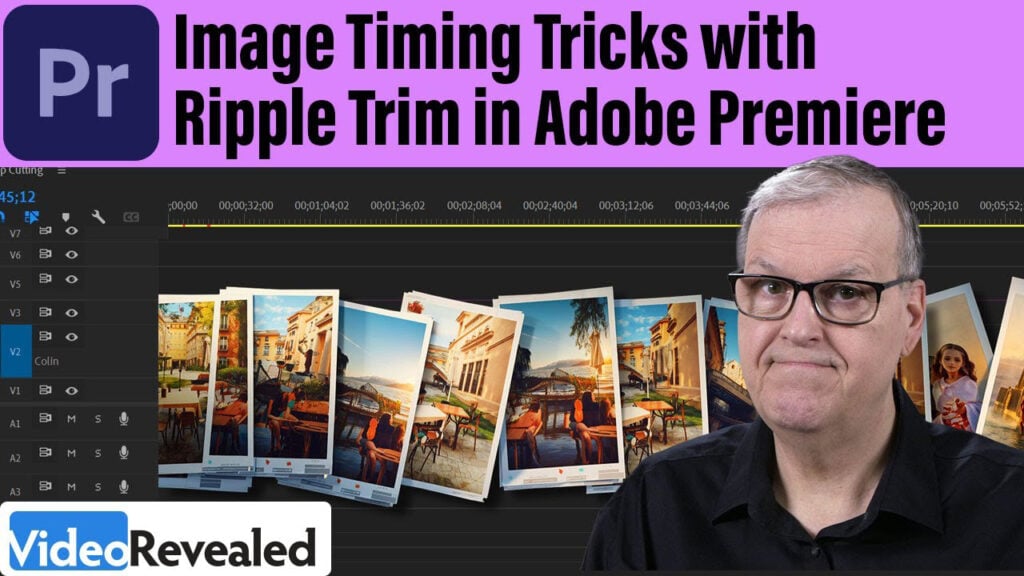
Image Timing Tricks with Ripple Trim in Adobe Premiere

Tired of dragging image durations one by one? In this tutorial, I’ll show you how to instantly adjust the timing of multiple images on your Timeline using the Ripple Edit Tool — no fuss, no wasted clicks. Plus, I’ll share pro-level tips on importing with preset durations, optimizing your preferences, and unlocking time-saving tricks that streamline your entire editing process. Whether you’re building a slideshow or crafting a cinematic montage, this is the shortcut you’ve been waiting for.

Can’t see this video? Click here! If you are in Safari, hover over “Safari” in your menu, click “settings for creativecow.net” and toggle the “Auto-Play” to “Allow All Auto-Play”.
Enjoying the news? Sign up for the Creative COW Newsletter!
Sign up for the Creative COW newsletter and get weekly updates on industry news, forum highlights, jobs, inspirational tutorials, tips, burning questions, and more! Receive bulletins from the largest, longest-running community dedicated to supporting professionals working in film, video, and audio.
Enter your email address, and your first and last name below!


Responses