


How to Sample Shutterstock’s Inventory to Complete Your Projects

Shutterstock is currently offering 20% off with the promo code “STOCKUP”! This promotion lasts until April 1st, so don’t delay!
You’re editing a video, writing an article, or assembling some graphics on a tight deadline. Suddenly you realize what’s missing; the perfect b-roll clip, that one image to capture the mood for your article, or a graphic layout that can neatly tie everything together. You could spend days with a camera finding the perfect light and subject to shoot your own material. You could set up interviews and select just the right photographer/videographer for $100-$400 per hour. You could go back to art school.
Or you could do a quick, smart search through Shutterstock‘s hundreds of thousands of pictures and videos at your fingertips to choose nuanced material that perfectly supports the story you’re trying to tell.
When you navigate to Shutterstock.com, if you find that the selection is so vast it’s overwhelming, you’re not alone. The selection at Shutterstock boasts over 30 million video clips to choose from, and over 70,000 clips added every day. The image library has over 450 million images, with 200,000 more added daily!
Thanks to this incredible and varied library, Shutterstock stands out among other stock sites as being the place to go when you are looking for something very specific. Whether you search for something ambiguous like a moody landscape, or a very specific concept, you are bound to find something to fit the project that you need to complete.
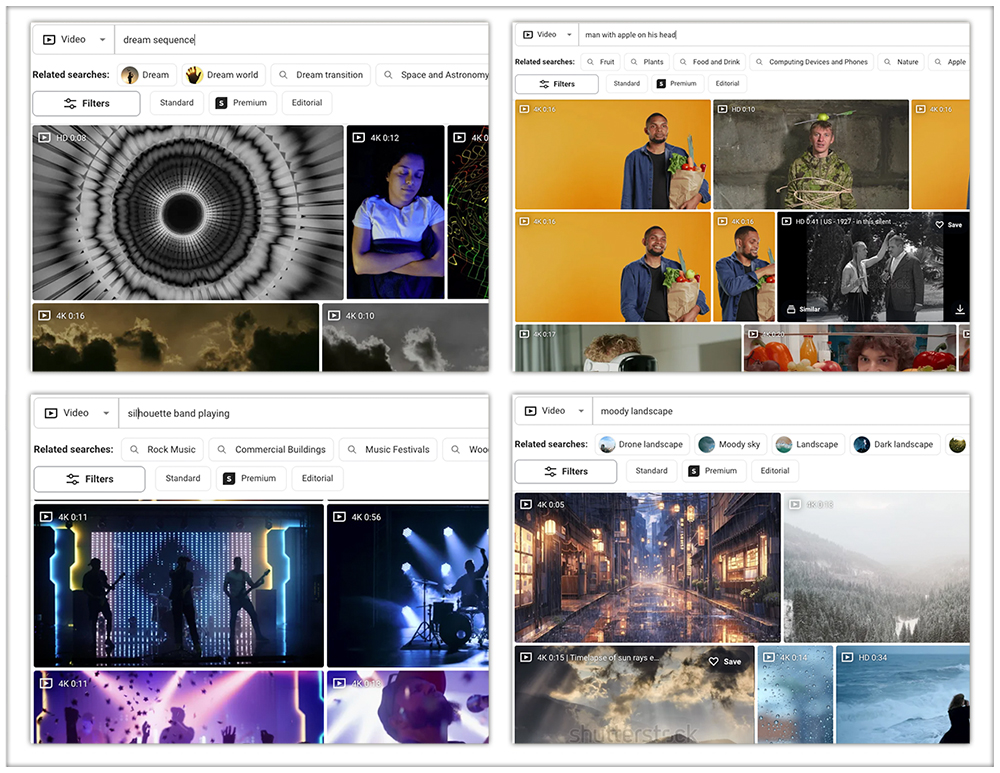
Shutterstock has one of, if not the largest collection of stock images to choose from. With such an evolving selection to choose from, your projects will never lack for material, and your workflow will be inspired.
So, where to begin?
Once you choose a category from the menu, you’ll find the Shutterstock keyword search to be very responsive. Because the library is this large, you can find nearly anything you’re looking for, and perhaps a few things that will surprise you.
This happens because the functionality/content marked as “Vimeo framework” uses cookies that you choosed to keep disabled. In order to view this content or use this functionality, please enable cookies: click here to open your cookie preferences.
Shutterstock’s Video Clips
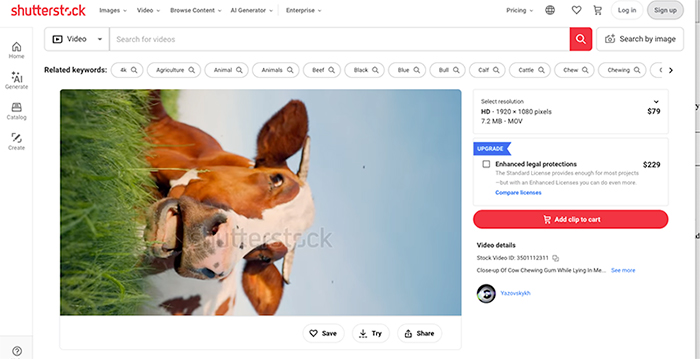
Once you’ve found the perfect asset, it’s time to pay money, and this is where many folks may be surprised to find that a single video can run $79. There is a way to manage this sticker shock, however.
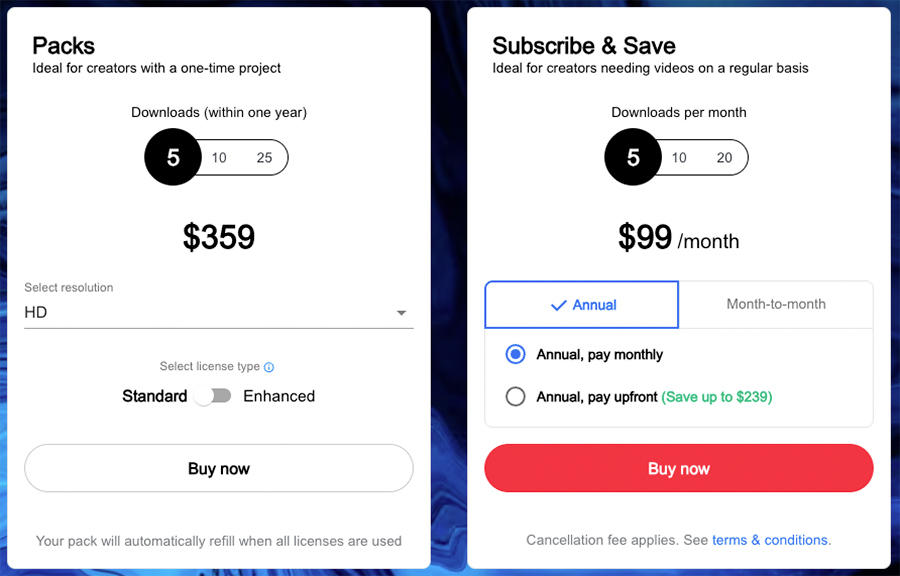
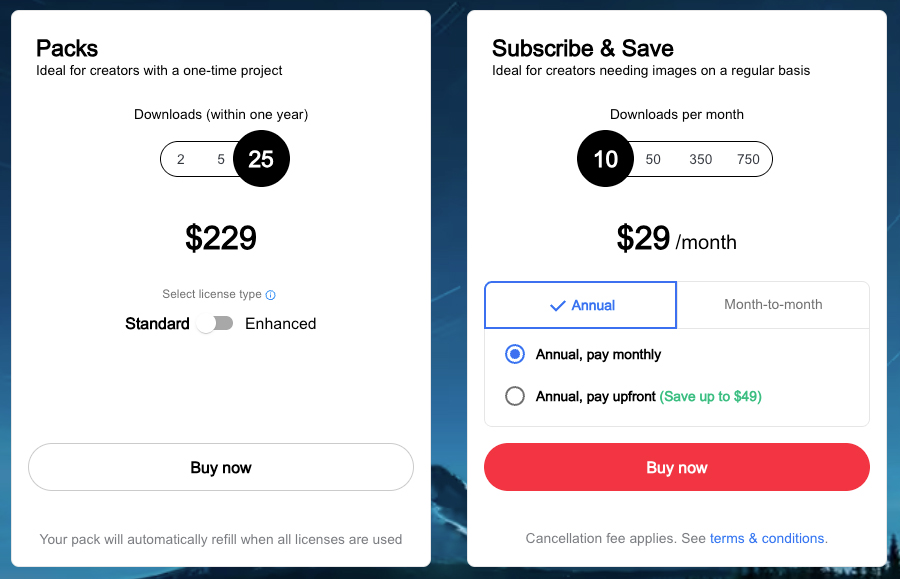
When just starting out on Shutterstock, the best way to dip your toe in the stock image/video waters is to start with a pack of creative assets. In fact, the ability to purchase these affordable non-subscription packs in such a sea of variety sets Shutterstock apart from other stock sites. You can subscribe to Shutterstock videos, images, and AI, but you don’t necessarily have to. This flexibility can get you on your way in a hurry, and if you are ready to commit later on, you can return and save even more on assets with a subscription.
The image and video categories offer their own credit packs, while AI generation and off-set images are sold separately. So if you’ve bought an image pack, for example, you will not be able to use one of those credits to download a video or generate AI images. If you buy an image pack, the image credits can be applied to vectors and editorial assets, however. You will not be able to use credits to obtain an off-set image, but more on that later.
For a branding project here at Creative COW, we began by purchasing a pack of videos, and the run-down was thus:
We opted for the 10 clip package deal, used it to download a great vertical clip of a cow chewing her cud, with a standard video license, and were able to start our TikTok brand video for Creative COW.
This happens because the functionality/content marked as “Vimeo framework” uses cookies that you choosed to keep disabled. In order to view this content or use this functionality, please enable cookies: click here to open your cookie preferences.
Shutterstock Images
Next, we needed a collage frame for the Creative COW Newsletter social media posts. We were presented with an array of options, and settled on a set of designs that would give Creative COW a fresh look.
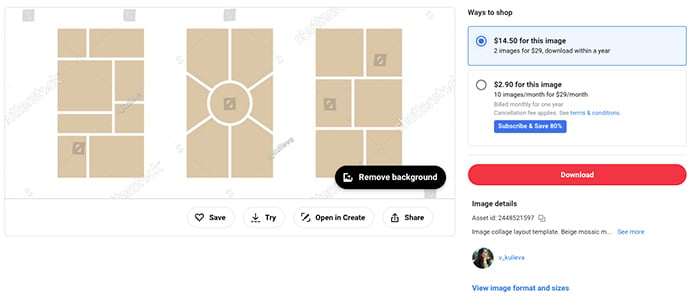
The packs for images come in either 2, 5, or 25 at once, with either a standard license or an enhanced license.
For our project, we simply chose to purchase a pack of 2, knowing that with the volume of graphic work done behind the scenes at Creative COW, it won’t be long before that second image comes in handy.

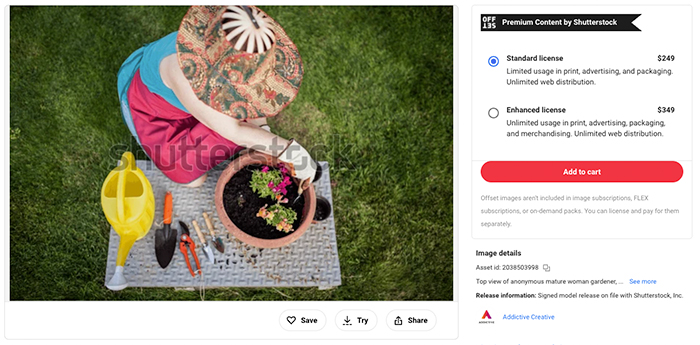
Shutterstock’s Off-Set Images
You will not be able to purchase off-set images using Shutterstock image credits. Off-set images are part of a highly curated collection, and can only be purchased outright, one-by-one. These images also tend to be a bit pricier than the other images, but the individual photographers who supply the premium images also make a larger commission off of the sale.
Controlling Your Shutterstock Profile Plans
When you purchase a pack of either videos or images, you’ll see a certain notice on the bottom of the pack price list that says “Your pack will automatically refill when all licenses are used.” Do not be alarmed, however, as this can easily be turned off within your Shutterstock profile.
Once you’ve selected and purchased your pack, navigate to your profile in the upper right hand corner of the screen to check the settings by clicking the Account Details menu option.

Next, click on the Plans tab on the left hand side of your profile.
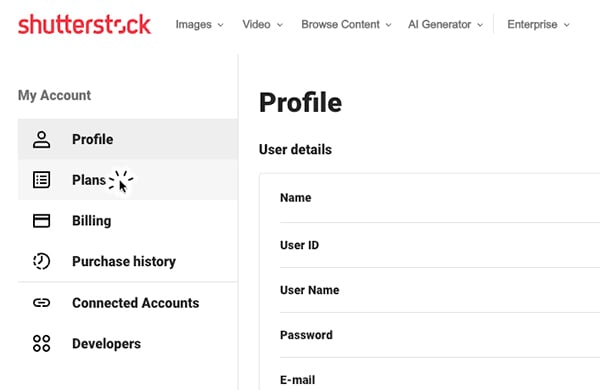
Each package that you’ve purchased will be listed as a plan. Normally, when you use the last credit in each particular plan, that pack’s plan will renew itself, charge the car that you’ve stored on file, and refill the same asset amount you’d previously chosen. If you do not wish for the pack plan to automatically charge your card for a plan refill, you can turn this feature off. Near the bottom of each plan’s box there is an Auto refill toggle that can be clicked to “off.”

Learn more with these Shutterstock articles at Creative COW:
Working With Shutterstock’s AI Editor to Create Unique Images
Enjoying this review? Sign up for the Creative COW Newsletter!
Sign up for the Creative COW newsletter and get weekly updates on industry news, forum highlights, jobs, inspirational tutorials, tips, burning questions, and more! Receive bulletins from the largest, longest-running community dedicated to supporting professionals working in film, video, and audio.
Enter your email address, and your first and last name below!


Responses