Creative Communities of the World Forums

The peer to peer support community for media production professionals.

Activity Forums Adobe After Effects Switch Cameras with a Dropdown menu in After Effects?

  • Switch Cameras with a Dropdown menu in After Effects?

    Posted by Mister Mister on February 17, 2023 at 3:30 pm

    Hi folks.

    I’m trying to make a setup where I can add multiple cameras in a single composition (no precomps) and create a dropdown menu to switch between those cameras after-the-fact.

    I’m making a template in After Effects that will be used in Premiere through the Essential Graphics window. I want to make it really easy to use, only a few settings to choose from.
    I want an editor using Premiere to have access to these multiple camera angles by use of a dropdown menu in the template.

    I’m already doing this with other objects in the scene, using an if else expression linked to a dropdown menu to change the opacity of various layers so they switch on and off. This works well in the template but I don’t know how to do the same thing with cameras.

    Cameras don’t have an opacity property for example, so how do I set them to toggle on/off – other than the eye/visibility tags or trimming the layer in the comp?

    Is there another way to do this without using expressions in the essential graphics window in After Effects perhaps? Appreciate any help.

    Mister Mister replied 3 years, 6 months ago 2 Members · 3 Replies
  • 3 Replies
  • Walter Soyka

    February 17, 2023 at 5:00 pm

    Because visibility (eyeball) cannot be controlled by expression, it cannot be driven (directly) by Essential Graphics.

    I’d suggest working around this by building out all your different cameras and eyeballing them off. Add one more camera that will actually view your scene. For each camera property, add an expression that looks at the dropdown selector to choose a reference camera, then link that main camera to the same property on the referenced camera. Make sense?

  • Mister Mister

    February 20, 2023 at 12:47 pm

    Thanks for this reply Walter, appreciate your thoughts on it!

    This makes sense to me though to be honest, I’m not good on expressions beyond a few basics and pick-whips, so this is where I struggle. I’m not sure how to write an expression that links all the properties of various cameras back to one dropdown selector.

    Also if I’m understanding it, once this first step was set up the main camera would adopt the properties of whatever camera was being referenced in the dropdown menu. I imagine this would use a similar expression to how the other cameras were linking back to the dropdown menu but again, not sure what that looks like.

    I’ll have a go over here but any other thoughts on expressions themselves or how to approach that setup would be really valuable.

    Either way, thanks for taking the time on it already!

  • Mister Mister

    February 20, 2023 at 7:20 pm

    Thanks for this, Walter!

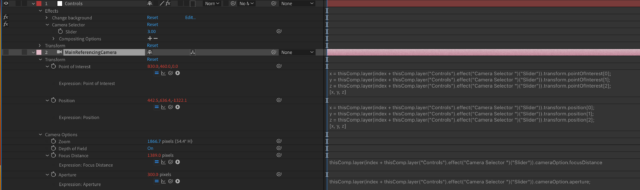
    For anyone who happens upon a similar issue, I got this working using an index expression. Screenshot attached in case it’s helpful.

    So as described in Walter’s solution, I have one main camera and a bunch of other cameras in the scene directly below the main camera in the layer stack, with their eye tags turned off. The main camera references these.

    The main camera has an index expression applied to any properties that need to change, eg: point of interest, position, focus distance. Within the expression, the index number references a slider control, on a separate null layer.

    So in this example, if you change the slider control value; 1, 2, 3, the reference camera updates to the linked properties of the cameras directly below the main camera, in the layer stack. Camera 1, Camera 2, Camera 3. So you can easily select the different camera angles in the scene by changing this slider control.

    This slider can then be added to the Essential Graphics window from this comp and exported as a template file, allowing an editor to easily switch between camera angles in Premiere.

We use anonymous cookies to give you the best experience we can.
Our Privacy policy | GDPR Policy