

-
Problem reproducing video in VEGAS… what’s wrong with the codec?
Posted by Xavier Dolz on April 29, 2012 at 5:37 pmHello
I have some AVI videos in the format: x264vfw ffmpegI can play normally this videos in Windows Media Player or other videoplayers…
However when I drag the video to the VEGAS’s time line and I play the video there, what I get is the blurred image.QUALITY I GET IN SONY VEGAS 11
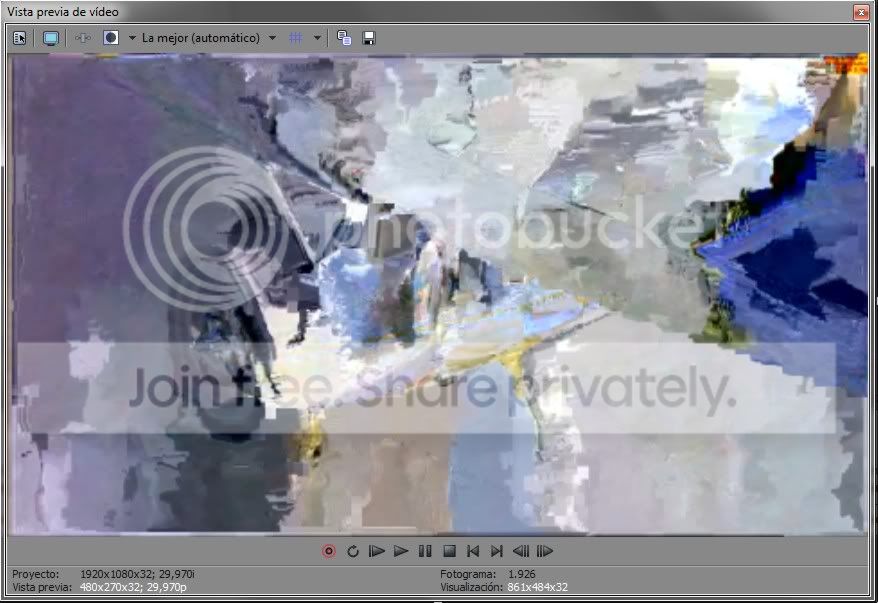
QUALITY I GET PLAYING THE VIDEO IN WINDOWS MEDIA PLAYER

As you may realice… something weird is happening, but I don’t know why?
In VEGAS is impossible to play the AVI file…
Outside VEGAS using any player, Windows Media Player… VideoLAN… the file is played perfectly.Why is this happening?
Any idea about how this can be solved?I give you screenshots of the econding settings as follows:
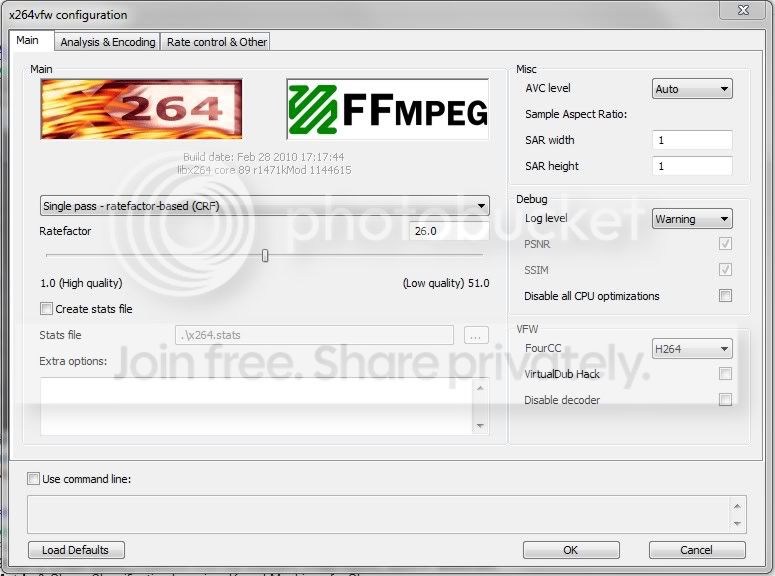
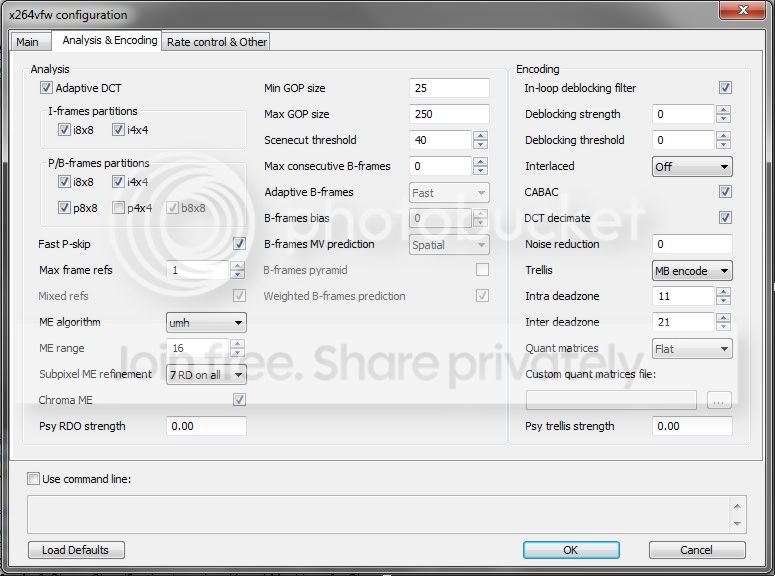
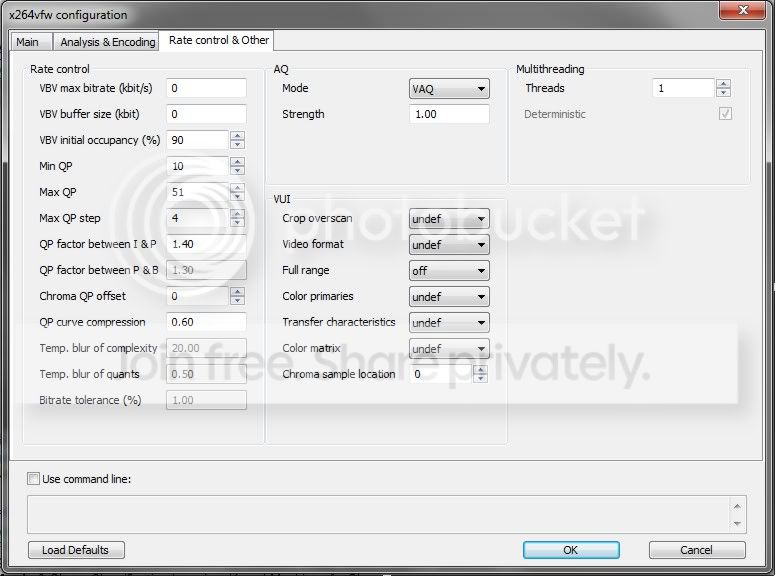
Brett Underberg-davis replied 14 years, 4 months ago 4 Members · 13 Replies -
13 Replies


-

Stephen Crye
April 29, 2012 at 5:59 pmHi;
Just a guess – I don’t use that codec, but I have had similar problems with other AVI codecs that have high compression. I get the best results in Vegas if I use very low compression when creating .AVI from video screen capture. Sure, the resulting files are huge, but Vegas is happier with them.
Steve
Win7 Pro X64 on Dell T3400, MultiTB SATA, 8GB RAM, nVidea FX 570, Vegas 10e (and 11) x64 DVDA 5.2(build 133) Sony HDR-CX550V
-

John Rofrano
April 29, 2012 at 6:34 pm[Xavier Dolz] “Why is this happening?”
Because Vegas doesn’t support editing Xvid, DivX, or any x.264 in an AVI container. This is a delivery format that is not good for editing.
[Xavier Dolz] Any idea about how this can be solved?”
Transcode these files into a better editing codec like MJPEG. You could also uninstall ffmpeg since this may be causing Vegas to not interpret the files correctly. I have used x264vfw without ffmpeg and not had any problems.
~jr
http://www.johnrofrano.com
http://www.vasst.com -
Stephen Crye
April 29, 2012 at 8:39 pmThanks, John … as usual you stated what I was trying to say, only correctly and succinctly!
In the past I’ve found this link to be helpful and a bit amusing:
https://www.foolishpassion.org/vidding-tips/vegas-won%27t-open-avi.html
Steve
Win7 Pro X64 on Dell T3400, MultiTB SATA, 8GB RAM, nVidea FX 570, Vegas 10e (and 11) x64 DVDA 5.2(build 133) Sony HDR-CX550V
-

Xavier Dolz
April 30, 2012 at 1:14 amOkay, transcoding the files to other format is not a problem. The problem I will have with this is I’ll get bigger files, but well, for editing, that isn’t also a problem.
My problem comes when the final editing is done and I want to make the finale video. In that moment, yes, I need high compression…
why? because I want to upload the files to youtube…
This format x264vfw ffmpeg is absolutely magic… because I’ve recorded a whole screen in HD Ready (1280 x 720 High Definition) 1 hour of video is about 260 MB only! the supercompression this format gives you is absolutely wonderful!
So… let’s imagine I have the compressed files and I transcode them to another format… I get bigger files, I edit them in VEGAS… and now I want to make the final video. I will also get a big file in VEGAS… is there anyway to use another method or utility to give the files again the original compression ratio…
??? anyway to compress using x264vfw ffmpeg? -
Stephen Crye
April 30, 2012 at 3:18 amHi;
Xavier, this is the age-old question – how to get the smallest possible rendered video without sacrificing quality.
Many of us, including me, just pick one of the built-in Vegas codecs and let Vegas do it’s thing. NTSC, BluRay, h.264 for Youtube, etc.
There are others who disdain these easy methods and do more complicated things. The “Handbrake” methods come to mind. Nick Hope is a big proponent of them, and his vids looks amazing.
Some more info can be found here:
https://www.jazzythedog.com/testing/DNxHD/HD-Guide.aspx
https://www.youtube.com/watch?v=rWMX5lSvEgY
Have fun!
Steve
Win7 Pro X64 on Dell T3400, MultiTB SATA, 8GB RAM, nVidea FX 570, Vegas 10e (and 11) x64 DVDA 5.2(build 133) Sony HDR-CX550V
Some contents or functionalities here are not available due to your cookie preferences!This happens because the functionality/content marked as “Google Youtube” uses cookies that you choosed to keep disabled. In order to view this content or use this functionality, please enable cookies: click here to open your cookie preferences.
-
John Rofrano
April 30, 2012 at 6:53 pm[Stephen Crye] “Many of us, including me, just pick one of the built-in Vegas codecs and let Vegas do it’s thing. NTSC, BluRay, h.264 for Youtube, etc.”
Same here. If you’re using Vegas Pro 11.0 then MainConcept AVC is what I would use. If you’re using Vegas Pro 10.0 or earlier use Sony AVC. Use one of the “Internet…” templates and adjust the bit-rate to get the file size you want.
[Xavier Dolz] “…anyway to compress using x264vfw ffmpeg?”
Sure, select Video for Windows and create a custom template that uses x264vfw as the Video format.
~jr
http://www.johnrofrano.com
http://www.vasst.com -

Brett Underberg-davis
May 2, 2012 at 3:59 pm[Stephen Crye] “In the past I’ve found this link to be helpful and a bit amusing:
https://www.foolishpassion.org/vidding-tips/vegas-won%27t-open-avi.html
“Great tutorial. I wish I’d found this about two or three years ago. Pretty much summarizes about 90% of the complaints I’ve seen on YouTube forums in the last few years.
-
Brett Underberg-davis
May 2, 2012 at 4:11 pm[Xavier Dolz] “why? because I want to upload the files to youtube…
“I don’t mean to confuse the already excellent advice others have given. Their guidance has been spot on.
But if the compression artifacts you are seeing are only happening after you upload to YouTube then you might be running into a glitch of theirs that’s been ongoing since around Sept/Oct 2011. You can possibly address that by using the SSL uploader they cobbled together as a stopgap.
If your problem only shows up in the YouTube encodings, that is, if your Vegas render doesnn’t show those artifacts, then this is probably just YouTube trying to be too efficient, and conflicting with some sorts of connections on their error correction. Namely, they started trying to process video before it was uploaded, and my guess is that the checksum they’re using is not 100% accurate, since it can’t possibly be based on the file as a whole, if the processing starts before they have the entire file, can it?
The HTTPS/SSL Uploader that YouTube created to address this issue is accessible from the following link: https://upload.youtube.com/my_videos_upload
I’m posting the link as plaintext as well, since the preview was kind of flakey — https://upload.youtube.com/my_videos_upload
While it appears identical to the standard uploader, use of the Secure Socket Layer (SSL) supposedly improves the error checking and should prevent data corruption that leads to such defects. It may run slower than the uploader you were using before, especially if there are significant problems with noise in your current connection.
-
Stephen Crye
May 3, 2012 at 9:56 pmThanks, Brett.
This is useful and interesting. Because I’m obsessive about quality, I’ll probably start using the SSL version for everything!
Steve
Win7 Pro X64 on Dell T3400, MultiTB SATA, 8GB RAM, nVidia FX 570, Vegas 10e (and 11) x64 DVDA 5.2(build 133) Sony HDR-CX550V
Reply to this Discussion! Login or Sign Up