Creative Communities of the World Forums

The peer to peer support community for media production professionals.

Activity Forums Adobe Premiere Pro Multicam project Warp Stabilizer requires pixel aspect ratio to match sequence.

  • Multicam project Warp Stabilizer requires pixel aspect ratio to match sequence.

    Posted by David Jackson on September 30, 2020 at 5:05 am

    Hi

    I am looking for help with applying warp stabilizer effect into a multicam edit (short wedding).  Particularly for my hand held camera clips (DSLR).

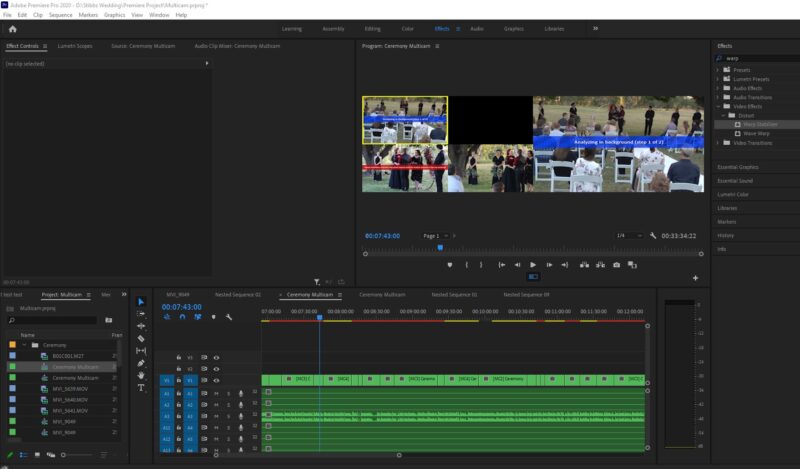
    I have a red bar and the words “Warp Stabilizer requires pixel aspect ratio to match sequence (fix by nesting)”.  

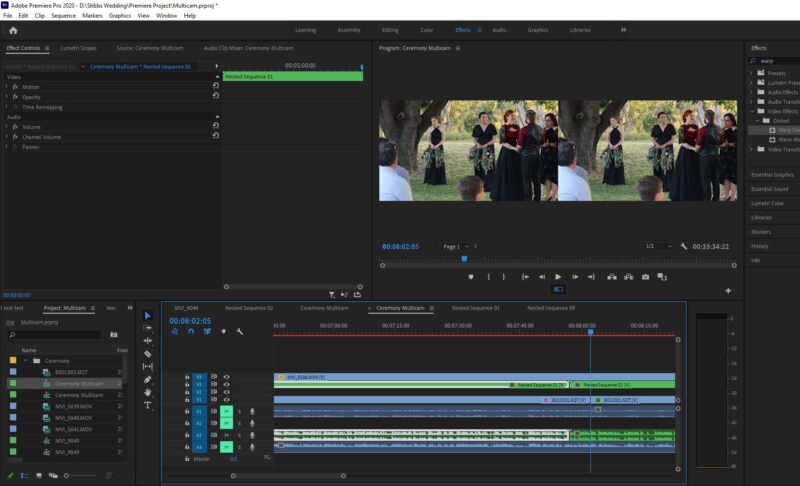
    So I followed a youtube tutorial and nested the clips from the timeline where I can see the various cameras lined up.  No good.

    I asked Adobe Premiere support yesteday and they said the fix was:

    “Could you please right click on the clip and click on reveal in project, it will be highlighted in project bin. Right click on clip in project bin and click on new sequence from clip.

    Once you get the clip in new sequence panel by above process apply wrap stabilizer in that sequence.”

    I’m still at a loss with what the work flow should be for multicam, OR shoudl I jsut delete and re-insert those clips from that camera and then nest and apply the stabilizer over again?

    Can anyone give me straightforward steps for a multicam situation? 

    Ta

    Jonathan Ramsey replied 5 years, 7 months ago 4 Members · 3 Replies
  • 3 Replies
  • Herb Sevush

    September 30, 2020 at 12:35 pm

    First of all I should tell you that I use multicam for almost all my broadcast work, typically 5 cameras, prores codecs, and have no problems using warp stabilizer on multicam sources. So now lets try and figure out where your issue lies.

    “Warp Stabilizer requires pixel aspect ratio to match sequence (fix by nesting)”. – This error message indicates that your multicam source has a different pixel aspect ratio than your sequence setting. This should be avoided if possible, so tell me about the number of cameras in your multicam source and the codecs for each. I will also need to know the settings for the sequence (timeline) you are working on (Sequence/Settings on the Ppro menu bar.)

  • Stephen Eckelberry

    September 30, 2020 at 3:19 pm

    I use multi-formats all the time, like 4×3 6K and 16×9 4K.

    To do your warp, first nest the shot shot you want to warp, then open the nested sequences for that shot and change the nested sequence settings to match the shot – frame size and frame rate. Now that the nested sequence settings match the shot, then you can do your warp within that sequence, and then go back to your edit timeline.

  • Jonathan Ramsey

    September 30, 2020 at 3:59 pm

    Yup. That’s spot on. The other way to do the same thing is to take the original file, create a seq from it (match settings) — that way you know you’ve matched all the variables. Then, stabilize the footage in that seq. Then take that seq and put it into your editing seq (which will nest it).

We use anonymous cookies to give you the best experience we can.
Our Privacy policy | GDPR Policy