

-
Choppy Clips When Slow Motion is Used –
Posted by Andy Winn on August 5, 2026 at 8:38 pmI am currently editing a video where I needed to slow down the clip. Though it did slow down the clip, I noticed that it looks bad and I am wondering if that is because of my frame rate. It seems that it is a bit choppy and seems to skip frames. However, I simply don’t understand frame rate and how to make it look better when the length/speed is manipulated. Does anyone mind sharing with my how to prevent the slipping of clips or adjusting the frame rate to be consistent with the raw footage? (I don’t even know if I am explaining this correctly).
Andy Winn replied 1 month ago 2 Members · 8 Replies -
8 Replies
-

Silviu Negoita
August 6, 2026 at 5:21 amHi Andy,What you’re describing is usually caused by not having enough frames in the original recording for the amount of slow motion you’re applying.For example:If your footage was recorded at 30 FPS and you slow it to 50% speed, VEGAS has to “stretch” those 30 frames to fill 60 frames’ worth of time. Since there aren’t enough unique frames, the result looks choppy or like it’s skipping. If the footage was recorded at 60 FPS, you can slow it to 50% speed much more smoothly because there are twice as many original frames available.Here are a few things to check:1.Match your project frame rate to your source frame rate. If your footage is 60 FPS, set the project to 60 FPS as well.◦ 1.Enable Resampling◦ Right-click the event → Switching → try Smart Resample (or Optical Flow in newer versions). This can generate intermediate frames and make slow motion smoother. 2. DONT slow footage beyond what its frame rate can support◦ 60 FPS is ideal for moderate slow motion.◦ 120 FPS or higher is much better if you plan on heavy slow motion.If you let me know:• what frame rate your original footage was recorded at (30, 60, 120 FPS, etc.)
• how much you’re slowing it down, and which version of VEGAS you’re using,I Can give more specific recommendations
-

Andy Winn
August 6, 2026 at 3:24 pmWow. This was so helpful. Thank you for taking the time to respond.
Though I am a bit embarrassed to say this, I am not sure how to identify what frame rate the footage was captured but I am convinced your explanation described my issue. I have created videos with Vegas Pro for two decades, however, it is on the side, so I am still learning the technicalities of editing. If you wouldn’t mind letting me know how to determine what FPS the source is shot and how to decide what to frame rate my project should be would be very helpful. I often create graduation or wedding videos for those that I know well, so the source media may be in a variety of various formats. I would be interested to know how to adjust a project when there is a variety of footage in the project.
Thanks again for helping me know how to get the best qualify for the finished projects.
Andy
-
Silviu Negoita
August 6, 2026 at 5:39 pmYou’re very welcome! In VEGAS Pro, the easiest way to check your source footage’s frame rate is to right-click the clip in the Project Media window, choose Properties, and look for the frame rate (for example, 29.97, 30, 59.94, or 60 FPS). You can also right-click the clip on the timeline and select Properties to see the media information. As a general rule, it’s best to set your project frame rate to match the footage that makes up most of your project. For example, if the majority of your clips are 60 FPS, use a 60 FPS project. If most are 30 FPS, use a 30 FPS project.
If you’re unsure what frame rate to use for a specific project, feel free to ask. Let me know what types of cameras or phones the footage came from, and I can help you choose the best settings.
-
Andy Winn
August 6, 2026 at 6:05 pmAgain, you have been extremely helpful. I will try to limit my questions to two more emails (this one and one additional), but I wanted to ask if you would help me understand the properties that make up most of the media for this project.
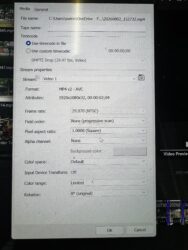
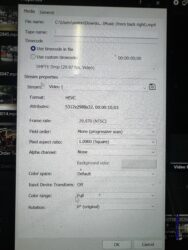
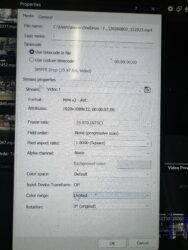
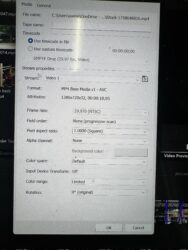
Attached are four photos that display the range of properties in the video clips for the project. It did seem that the footage is 29.97 (that seems to be the standard…correct?), but it had additional information that I am uncertain of its importance nor what exactly to do with the information. Do you mind scanning the properties of the clips to let me know the best way to drop these in the timeline (and if i should pay attention to any of the details other than the fps).
Thanks so much.
Andy
-
Silviu Negoita
August 7, 2026 at 11:40 amHi Andy, Happy to help! And don’t worry, you’re asking exactly the right questions. Looking at the screenshots you attached, the good news is that your clips are actually very consistent. The main things I look at are: Frame rate: All four clips are 29.97 FPS, so there isn’t a frame rate mismatch between them. That’s good news, and yes, 29.97 is still a very common frame rate, especially for phones and consumer cameras. Field order: All of your clips are Progressive Scan, which is what you want. You don’t need to change anything here. Pixel aspect ratio: They’re all 1.0000 (Square), which is also exactly what you want for modern HD and 4K footage. The biggest difference I noticed is the resolution: Three clips are 1920×1080 (Full HD). One clip is 5312×2988, which is a high-resolution recording (likely from a newer smartphone). That’s perfectly fine. VEGAS will automatically scale the larger clip down to fit your project. In fact, having a higher-resolution clip can be useful because it gives you room to crop or zoom in without losing much quality.
If you have one more question after this, I’d be happy to help. -
Andy Winn
August 8, 2026 at 4:30 pmThank you! I will go forward then, but would you recommend a post, or a video, to help me better understand the idea of “progressive scan”, what to do when the FPS is different than 29.97, etc. I know these attributes must be important…I just don’t fully understand why.
Again, thank you for assisting me. This has been helpful.
-
Silviu Negoita
August 9, 2026 at 11:39 amYou’re very welcome! I would watch this video, it easily explains how frame rate affects the video.https://www.youtube.com/watch?v=WxH23dxDIsQ
Some contents or functionalities here are not available due to your cookie preferences!This happens because the functionality/content marked as “Google Youtube” uses cookies that you choosed to keep disabled. In order to view this content or use this functionality, please enable cookies: click here to open your cookie preferences.
-
Andy Winn
August 9, 2026 at 11:45 amFantastic. Just watched. Thank you for that suggestion. Very helpful.
Reply to this Discussion! Login or Sign Up