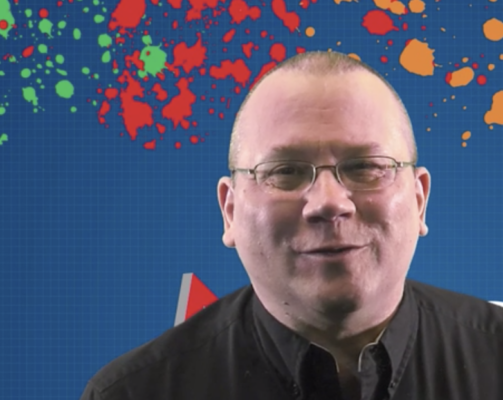
I just wanted to update with what I did to solve this, in case anyone else comes across this post in the future.
I used the RGB Curves tool with the droppers in the Secondary Correction to select just the part of the face that needed to be adjusted. I then brightened the master curve and lowered the Green curve. It looks spectacular (pic attached) and was SUPER easy and fast to do.
If you haven’t used this tool before, I followed this ( https://www.youtube.com/watch?v=UfptFeAaPc8 ) tutorial. Note that in order to do this correction, unlike in the video, I only used the dropper to select the part of the face that I wanted to affect, not the entire face.
Cheers!
Some contents or functionalities here are not available due to your cookie preferences!
This happens because the functionality/content marked as “Google Youtube” uses cookies that you choosed to keep disabled. In order to view this content or use this functionality, please enable cookies: click here to open your cookie preferences.