Ryan Neuman
Forum Replies Created
-

Thank you everyone, I tried that method of narrowing it down and it worked but I still wonder why it’s even happening in the first place. It does seem like an update bug or something. Luckily I was able to just delete the clips that had issues and was still able to use them as short-form videos. I hope this doesn’t happen on longer-form videos in the future though..
-
Ryan Neuman
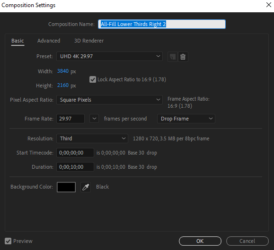
June 17, 2021 at 2:31 pm in reply to: After Effects Lower Thirds Animation Sometimes Not Showing Up In Premiere ProOh wow duh lol thank you! I’m usually super good at getting into the habit of right clicking and hitting “scale to frame size” for certain stuff but I guess I’ve been forgetting to do that for the lower thirds..
-
Ryan Neuman
June 17, 2021 at 12:26 pm in reply to: After Effects Lower Thirds Animation Sometimes Not Showing Up In Premiere Pro -
The proper work flow for this would be: 24fps timeline, shoot 60fps, 1/125th shutter speed, and slow the footage down to 40%, I usually get pretty smooth results following this formula
-
I still don’t fully know what interlaced means, what would be the best option to shoot in for Final Cut then overall?
And it’s a single drive
-
This camera actually does have 24P, I’ve been shooting PF24 because I thought that was the normal fps to shoot at. If my timeline settings were 30fps and I shot in 30fps wouldn’t that solve the issue? Is there a way to get the Canon XA10 to just do MOV files instead of AVCHD? Because I have heard of EditReady but don’t want to spend the extra cash especially if I get a new camera in the near future.
And I believe I have a USB3 cable, I attached a picture of it to make sure.

What kind of cable would make my work flow faster if I stick with operating off an external hard drive?
And any idea why the audio keeps cutting out during playback?
Thank you once again
-
I’m not sure if I have my card formatted correctly but what I did was put the SD Card into my computer, opened it up, opened the “PRIVATE” folder, clicked the AVCHD icon, selected the clip I needed and from the Quicktime player I hit file-save-saved to desktop, once it was on the desktop I just dragged it onto my timeline in Final Cut and the glitchy area went away.
-
Yea I usually import right into Final Cut directly from the SD card so I imported to my desktop first this time and just dragged it into the timeline and that did the trick! Thank you everyone.
-
For some reason it’s not letting me upload a screenshot of it but here’s an unlisted link: https://youtu.be/d__eP1Zzgoo
the glitch happens around the 10 second mark, it did that in multiple other clips too
-
Thank you for all the help everyone. Checking the “Deinterlace” box and changing the Field Dominance Override to “Progressive” seemed to do the trick. Here’s the latest video I did:
It looks good for the most part without any of that grainy/liney footage that I first talked about but I do notice somewhat of a motion blur(?) or something when there’s a lot of movement. You can especially see it in the 2nd to last scene with the guy carrying boxes in the background. Not really sure what that is, but for the most part it looks a lot better than the video I posted at the very beginning of this thread.