Ryan Hood
Forum Replies Created
-

Ryan Hood
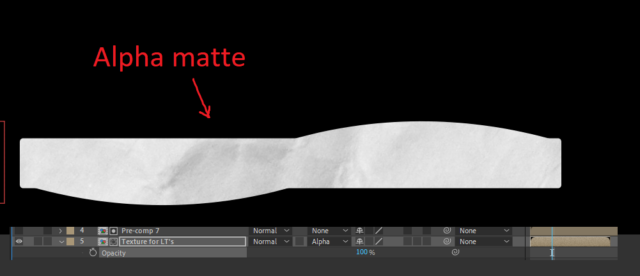
September 12, 2022 at 9:57 am in reply to: Please help! Frustrating track matte/preserve transparency problemThanks for the reply. This is what I get when I use Alpha Matte – it’s not the kind of affect I’m looking for. I went the paper to have the same gradient. When using alpha matte I can’t lower the opacity of the texture to get some of the colour back through because the entire shape dissapears.
Set matte produces the same jagged white lines that look even worse when added into Premiere.
There’s go to be a simple way to do this. All I’m after is a looping texture on a shape :/

-
Can’t seem to find the edit post option but I should say the smoke is literally for 5 seconds and it’s just a normal transition, not anything intensive from after effects.
-
It really is minimal smoke though. I mean, there are far more intensive videos on youtube and they don’t suffer from the same blurryness and artifacts. I mean, are my settings correct? They look so.
-
Here are some comparisons showing the youtube upload vs the render. Apart from one part with the black smoke transition which is shown in the image, the video should be incredibly simple for youtube. It’s just still images and yet it acts like there’s a lot going on. There are also green streaks which I can’t figure out. Clearly youtube is handling the colour differently.
https://i.imgur.com/mBJwWuH.jpg
-
I know the bitrate is overkill, but why would that do anything other than decrease the chance the quality would be bad when it goes through youtube? It’s already destroying the quality on simple images when the bitrate is so high, so I don’t see how lowering the bitrate would help.
-
I appreciate the link Ole, but a lot of that goes over my head as a very occasional video maker.
Just to make things clear, I’m working with a lot of images in the video and those images look fine when working in sony vegas (the preview window) but when I render them they are darker and have more contrast. I also have an approaching deadline of sorts, and don’t really have the time to start looking into scopes and things like that.
Is it possible to achieve the original colour/brightness of the images just changing the render settings?
Thanks.
-
Ryan Hood
January 28, 2019 at 2:58 pm in reply to: Crackling Distorted Audio when 2 clips are overlayed Vegas 14I dropped the music level on the second part of the video.
You say yourself that it’s obvious it’d cause clipping…and yet you can’t hear the crackling…
-
Ryan Hood
January 28, 2019 at 2:57 pm in reply to: Crackling Distorted Audio when 2 clips are overlayed Vegas 14I don’t actually think it’s obvious at all, and I don’t think it should be the case. This issue is stopping from layering multiple sound effects and so on. Why would two tracks that don’t clip cause clipping?
-
Ryan Hood
January 28, 2019 at 10:17 am in reply to: Crackling Distorted Audio when 2 clips are overlayed Vegas 14https://i.imgur.com/3u5VbbI.png
The distortion doesn’t seem to have anything to do with clipping. Neither of these tracks clip, as you can see, but at certain points they become crackly.
Would really appreciate if you could have a listen to this and see if you hear any distortion on the voice track:
(I exported both the audio track and the vocal track to vegas and the clip didn’t exceed any limits, but the distortion was still there.)https://www.youtube.com/watch?v=Te-ifvPRVyM&feature=youtu.be
-
Ryan Hood
January 28, 2019 at 9:29 am in reply to: Crackling Distorted Audio when 2 clips are overlayed Vegas 14So I’ve did a bit more testing and I believe it’s not a problem with sony vegas, but my perhaps with my soundcard or headphones.
Thinking I could bypass the problem by mixing the tracks and exporting it without the use of vegas I think I’ve discovered that the distortion is present in audacity, as well.
It’s very strange because I never hear distortion in anything, but it would seem that soundcard can’t handle a piece of music (set at the right levels) with something else on top of it. I think I can get around this by lowering the volume of things further than I’d like in order to prevent this clipping.
I have checked both audacity and vegas’ meters and they do go above the clipping point (I think. It goes into the red) but I’m confused by that because both tracks don’t clip by themselves. Like I said, it seems additive and both of them together cause the issue.