Creative Communities of the World Forums

The peer to peer support community for media production professionals.

Activity Forums Adobe After Effects What determines the size of a PNG in a PNG sequence?

  • What determines the size of a PNG in a PNG sequence?

    Posted by Ferenc Van der velde on September 9, 2020 at 3:15 pm

    Hello everyone,

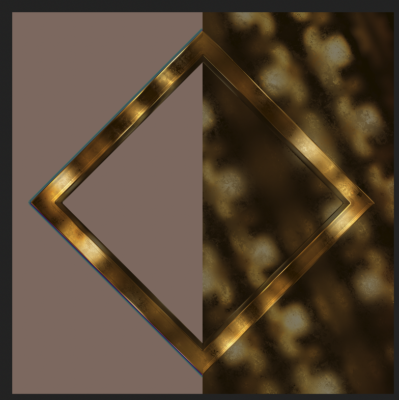
    I am currently rendering some compositions and I noticed how the PNG sizes vary extremely between these comps. All the compositions are very much a like. They are 6000×6000@16bpc and have an equal amount of transparent areas. Actually they are just huge golden squares with a slight variety in the border thickness.

    With one composition each frame is around 6MB while the other takes up nearly 135MB per frame.


    The small PNG sequences occasionally (7 out of 375) have frames with a large frame of 140MB. But based on the content there’s nothing different with these frames.

    I would really like to have small file sizes for all renders. 135MB per frame is really slow to work with and it’s taking up all my HD drive space.

    Does anyone know how to keep the PNG frames as small as possible?

    Thanks in advance!

    Ferenc Van der velde replied 5 years, 7 months ago 3 Members · 5 Replies
  • 5 Replies
  • Chris Jeffries

    September 10, 2020 at 1:45 am

    Can you share a link to two of the disparate files? It may help us figure it out…

  • Ferenc Van der velde

    September 10, 2020 at 12:28 pm

    Because the file sizes were too big I’ve switched to 8bpc. At this color depth the different file sizes still occurs, but just on a smaller scale.

    I have uploaded two examples here:

    https://www.dropbox.com/sh/qb6gnzip4x5hmkm/AADaLsvX-cFSTGxFlbXnDcvya?dl=0

    To rule out any difference between the content I’ve distilled two consecutive frames of the same sequence. The first frame of “Square_#####” is 6MB and the second 29MB. The same applies for “Two_Arrows_#####”. The file size from the first frame is 1MB whereas the second one is 10MB.

  • Filip Vandueren

    September 11, 2020 at 9:56 am

    hi ferenc,

    if you look at the PNG files in After Effects and enable “RGB Straight” in the RGB button (The Show Channel and color management Settings button) then you’ll see why.

    the 6MB has 1 single color in the transparant pixels , while the 29Mb one has texture stored in all of the RGB pixels.

  • Filip Vandueren

    September 11, 2020 at 10:01 am

    You mentioned these are two consecutive frames, so it appears After Effects is deciding this at random wether to include the RGB values or not.

    One way to force those transparant.invisible pixels to a single color is this:

    Add a “Solid Composite” effect, but put it’s opacity at 0%

  • Ferenc Van der velde

    September 11, 2020 at 2:46 pm

    Hi Filip,

    Thanks for taking a look at the images! So that’s where all the information is going to. The whole reflection map is stored for some frames. Very weird that After Effects decides to do this at random.

    I’m using the CC Blobbylize effect here. This effect uses a bump layer to add depth and also uses this layer as a trackmatte. Maybe this effect doesn’t make up it’s mind.

    When I take a look at these frames in the project, they are consistent in the RGB Straight view, but in the render they don’t.

    Great solution with the Solid Composite effect. This will decrease the file sizes by a factor 10 and hopefully a faster final render.

    Thanks a lot!

  • Chris Wright

    September 22, 2020 at 7:10 am

    I compared them with compress-or-die webchecker and the bigger one has massively detailed transparent data with a ‘dirty’ alpha matte. I don’t know why your encodings are doing that. Try EXR 16 bit lossless compression PIZ mode instead.

We use anonymous cookies to give you the best experience we can.
Our Privacy policy | GDPR Policy