Creative Communities of the World Forums

The peer to peer support community for media production professionals.

Activity Forums VEGAS Pro Vegas Pro 14 Recent Projects Problem

  • Vegas Pro 14 Recent Projects Problem

    Posted by Otto Nilsson on October 12, 2025 at 9:01 pm

    Hello all!

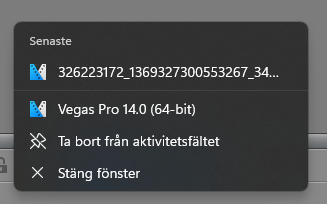
    I have this weird issue, which I’ve tried to Google to no avail. I’m working in Vegas Pro 14 on Win 11 and have a legit copy of the software. Whenever I work in a project and import a couple of files to the timeline, it ends up as a project file in my recent projects list. This is kind of annoying as I only want the actual project files in that list as that’s what matters to me. Is there some way to fix this?


    The attached picture shows how it looks, the long number is a picture that I’ve imported and I don’t want it in my recent projects list.

    Thanks in advance! 🙏

    Otto Nilsson replied 7 months ago 2 Members · 2 Replies
  • 2 Replies
  • Derek Moran

    October 13, 2025 at 3:22 am

    Hi Otto
    If I am understanding you correctly, you have a Windows problem, not a VEGAS Pro problem.
    Your screen shot is showing Recently Used Files on your W11 system.
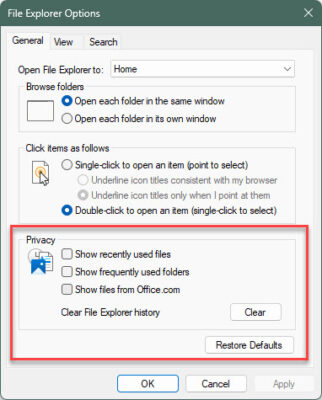
    The only way I know of to control that, is in File Explorer Options Windows 11 settings.
    Personally I have that setting turned off, otherwise I get an overload of file data showing.
    Using the Windows Search box in your Taskbar, search “File Explorer Options” and select option.
    On my system I have all Privacy options turned off.
    It might also be worth pressing the Clear button.

  • Otto Nilsson

    October 13, 2025 at 6:14 pm

    Thank you for the reply and for the tip! I’m afraid that didn’t work, it still shows all the added files. Only in the taskbar though as I’ve checked the recent projects list inside Vegas.

    I’ve done some more testing and narrowed it down to it ONLY showing files that I have imported by replacing files in the project media window in Vegas. When I import files by either dragging them inside Vegas or importing through the Explorer, it doesn’t show.

We use anonymous cookies to give you the best experience we can.
Our Privacy policy | GDPR Policy