Creative Communities of the World Forums

The peer to peer support community for media production professionals.

Activity Forums Adobe After Effects transform sandwich in 3D space

  • transform sandwich in 3D space

    Posted by reinert wasserman on April 1, 2025 at 1:31 pm

    Hi all,
    I’ve been using the old transform sandwich to stabilise shots, add effects, and reverse the stabilisation. But struggling to apply this work flow in three dimensions with the camera moving freely in space. Most examples I find explain how to add an object to your footage and have it track along.
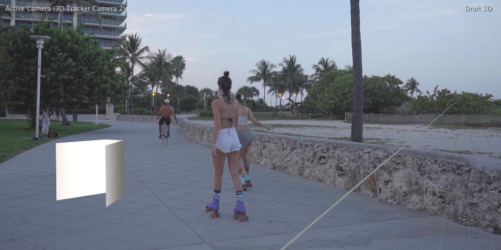
    Ive attached an image below of a reference object in my scene (this is the last frame in my composition) If I’m doing it right when I play this scene that object thould not move at al in distance or rotation and the whole frame should warp to stabilize it.

    If anyone has some wisdom for me that would be incredible.

    Thanks!
    Alex Todorov replied 1 year, 1 month ago 2 Members · 1 Reply
  • 1 Reply
  • Alex Todorov

    April 4, 2025 at 4:06 pm

    Hello, if I’ve understood you properly, you need to do a matchmoving, not stabilize. You need to:

    1. Add Effect> 3D Camera Tracker to your footage (if the size of your footage doesn’t fit composition size than you need to make pre-comp>Move all attributes) >

    >Shot type> Set what you need

    >Horizontal angle of view> Set what you need

    >Track point size>Increase (to see the rest of the crosses)

    2.Move a playhead on timeline and delete flickering crosses (when the cross appears on a few frames only). In order to delete, use Ctrl+left mouse button and drag>delete

    3. You need to choose the crosses that stay in their original positions longer and which are also not overlapped by other characters or items. Select this items>Right mouse button>Create camera and Null.

    4. Parent your shape to Null object (But your shape must be 3d object too!)>Shift+left mouse button to Parent pick whip

    5. Select all layers>make pre-comp>Move all attributes)

    6. Outside the pre-comp add Time Stretch or Time-Reverse Layer or Time Remapping

We use anonymous cookies to give you the best experience we can.
Our Privacy policy | GDPR Policy