Creative Communities of the World Forums

The peer to peer support community for media production professionals.

Activity Forums Adobe After Effects Taking a video of a product 360 and extracting 48 frames.

Tagged: 

  • Taking a video of a product 360 and extracting 48 frames.

    Posted by Stephanie McKendrick on December 16, 2020 at 8:16 pm

    I have searched high and low for an easy-to-follow tutorial for a total AE newbie like myself to walk me through this process, but I always keep coming up with long threads of people arguing on how to do it accurately (ie, this 6 year thread) and all it’s doing is wasting my time and getting me more confused.

    I have videos of a product rotating on a turntable. Most videos are around 3-5 mins long (products were precarious; had to take my time so they wouldn’t tumble over).

    I need to take these videos and extract 48 frames from them at equal intervals as TIFFs. (I am aware of how to do this part – Export > Render Queue > Output > TIFF Sequence)

    I need a DETAILED walkthrough of how I need to prepare the video in order to export just the 48 frames. I’ve heard Posterize Time is a thing, but I seriously am an idiot at AE (this is literally my first project ever inside the program) so I’m gonna need you to talk me through this like I’m your 85 year old grandma.

    Bonus points if you can explain to me a method of centering and taking any wobble out of the product during rotation. 🙂

    Huge thanks in advance!
    -Stephanie

    Graham Quince replied 5 years, 4 months ago 2 Members · 1 Reply
  • 1 Reply
  • Graham Quince

    December 19, 2020 at 11:05 am

    Hi Stephanie,

    If I understand correctly, you want 48 frames from a video of a rotating object. Honestly i don’t think you need to bother with Posterize time or anything complicated.

    Drop your video into a new composition.

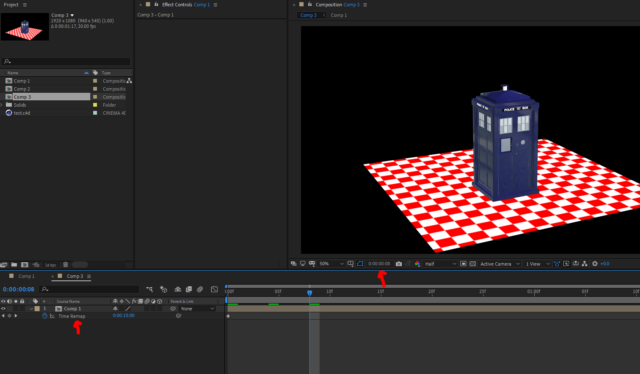
    Then go to Layer > Time > Enable Time Remapping.

    Two new keyframes appear on the timeline. Copy the second keyframe to your clipboard.

    Then use Go To Time to set the current time indicator to 48 frames.

    Highlight the Time Remapping value and paste in your copied keyframe.

    So what you’ve done is speed up the video so that it runs through its entire length in just 48 frames. You can now render out of the first 48 frames of your comp and you will have evenly spaced, rotational shots.

We use anonymous cookies to give you the best experience we can.
Our Privacy policy | GDPR Policy