

Activity › Forums › Adobe Premiere Pro › Stereo Audio Clips – How do I link them for simple fade outs etc ???
-
Stereo Audio Clips – How do I link them for simple fade outs etc ???
Posted by Karen Yarosky on August 30, 2022 at 2:21 pmI know I am just missing something simple here – but I just can’t seem to figure it out!
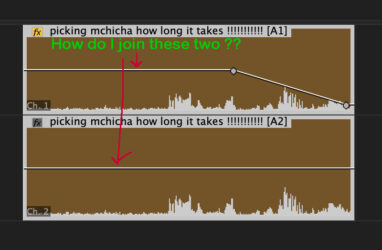
If I have a single video clip with stereo audio (which appear on two tracks in the timeline) if I want to fade the audio clip out (for instance) using the pen tool (and the horizontal white line on the audio clip) I am forced to do it TWICE – once on each track. Is there no way to have the 2 tracks somehow linked so that they will be matched and I can cut this work in half?
Tod Hopkins replied 4 years, 1 month ago 3 Members · 8 Replies -
8 Replies
-

Rob Mcgreevy
August 30, 2022 at 2:59 pmYes, it is simple, but you need to do it before editing the clip into your timeline/sequence. To link your tracks you need to modify your audio in the bin from 2 separate channels into 1 stereo track.
Just right-click the clip in question in your bin and select “modify” and then “audio channels.” Once there, make sure the “Clip Channel Format” dropdown is set to “stereo” and the “number of audio clips” is set to “1”.
You can modify multiple clips all at once by selecting them in your bin and follow the same procedure above.
The handy keyboard shortcut to jump straight into the dialogue box for this is “Shift-G” on PC and I think it is the same on Mac as well.
-

Karen Yarosky
August 30, 2022 at 3:05 pmMany many thanks for such a quick reply Rob … just 2 questions …
1. If it is already edited in the timeline (which it is) does that mean I can’t do this retroactively? No way to do it in the timeline?
2. If you modify the audio channels in this way – how does that effect them when you come to the final audio mix (since 1 channel is a lav and one is a boom mic in some cases so they might need to be dealt with independently in the final mix)?
Thanks again!
-

Tod Hopkins
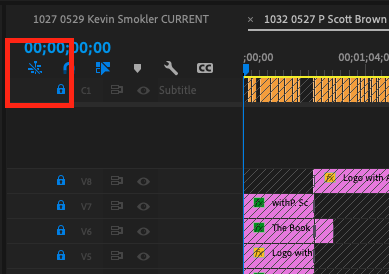
August 30, 2022 at 3:28 pmAlternatively, you can “Link” clips in the timeline so that Premiere will default to editing them together. This is the default with most clips. If you click on video, for instance, the audio is automatically selected. This behavior can be enabled and disabled in the timeline (see picture). If you have two independent clips you want to be treated as tracks in a single clip, you can link them in the timeline so they are treated as one. Select both clips, right-click and select “Link.”
Once linked, when you click on one track’s transition, the linked track
should automatically be selected (if the function is on, see picture). Apply a transition and both tracks
should get the same transition.Yes, if you modify the clip to stereo it will become more difficult to control. What you want is not “stereo” but dual-audio meaning two synchronous tracks in one clip, that are not meant to be combined as stereo. If these came into the system together as a single clip they should already be linked and you may simply need to enable linking in the timeline.

-
Tod Hopkins
August 30, 2022 at 3:37 pmOh, and you might want to learn the “replace” function. If you have a clip in the timeline and want to replace it with a clip in the browser AND keep all the attributes of the clip in the timeline, that’s “Replace” and it’s one of the great features of Premiere.
https://www.premiumbeat.com/blog/replacing-clips-in-premiere-pro/
https://www.premiumbeat.com/blog/matching-frame-and-replace-edit-in-premiere-pro/
I use Replace constantly to replace unedited photos with edited versions. Option-drag and drop, boom! No re-doing motion and effects.
You can also use Replace to change the sync point of a clip, rather than trimming. Sometimes it’s much easier to find a new start point and replace rather than trimming to a new spot.
As you see in the article, Match Frame and Find in Project are very useful with Replace.
-
Karen Yarosky
August 30, 2022 at 3:40 pmReally appreciate your reply Tod – indeed the two audio clips are linked (so if I click on one of the audio tracks the other is also highlighted. This allows me to cut them simultaneously, or change the gain on both of them simultaneously (“g”) BUT .. when it comes to changing a portion of the clip (like using the pen to create points on the white horizontal audio line, like my “fade out” example), Premiere reads them as 2 independent clips. Not sure if there is a work around for that – maybe it is just that white horizontal audio line (sorry not sure what the right term for that is …) that cannot be linked?
-
Rob Mcgreevy
August 30, 2022 at 3:41 pmFor number 1 – Unfortunately, no. I am not aware of any method to do that.
And number 2 – Yes, you would not want to do that in your situation as you’d want to keep those 2 sources separate.
My best suggestion would be instead of keyframing each fade use one of the “crossfade” transitions in your “Effects” bin. A little less clicking that way. Shift-D will apply your default audio transition to any number of clips in your timeline that you’ve selected by clicking the beginning or end of the clip. You can then adjust the transition to the length you’d like.
Hopefully that helps…
-
Tod Hopkins
August 30, 2022 at 4:30 pm<div>I would recommend that you disable one track for your offline and leave the other to the later mix. Cut both only if you believe the producers will want both later in mix, but only enable one or the other as needed. Personally, I always cut the boom by default, and substitute or add the lav only when the boom is deficient unless the boom is clearly not the prime. Mixing is sometimes useful at the final mix stage, but it would never recommend as a default. It simply muddles the sound.
</div><div></div>
Reply to this Discussion! Login or Sign Up