

-
Sony vegas pro 10.0c WMV render problems
Posted by Dan Wilson on November 6, 2011 at 3:31 amAlright, I was using HD platinum for a while now, so im sorta familiar with how sony vegas works.
but, now that i have had to restore factory settings, i decided to upgrade to Pro 10. this is where the problems start. after i render the video in WMV format, everything looks fine but the audio cuts out way too early. sometimes its 3-15 sec’s of no audio at the end, depending on the actual video length.
Im not sure if the problem is that it’s my win 7 64x or what it is. the videos im attempting to render are game play videos. I use VirtualDub with x264vfw codec. and I have both 32bit and 64bit of the x264vfw codec installed. and sony vegas plays back the video just fine. now if i take the rendered video and put it vegas, the audio has the early cut off, but past that it has it as if the audio looped. i have tried multiple settings with the render and project. all resolutions, and all audio options available.
i can render in MainConcept AVC/AAC but the picture comes out a bit fuzzy, and if i add a sharpen effect to the video, it just grains the picture. is there a fix for this? i have re-installed sony vegas and the problem still persists.Dan Wilson replied 14 years, 8 months ago 3 Members · 6 Replies -
6 Replies
-

Stephen Crye
November 7, 2011 at 10:32 pmHi Dan,
Why are you running 10c? 10e is out and has a LOT of bug fixes.
Welcome to Vegas Pro! Expect a bit of a learning curve, I’ve had it for two years and am still learning things.
Also curious – what is your target audience that requires .wmv? I’ve pretty much given up on WMV – I mostly do .mp4 for YouTube.
For settings, this fellows recommendations are pretty good:
—————-by Bruce Quayle on Nov 6, 2011 at 2:23:08 pm
Hi Rob,
You obviously need a solution rather than others’ tales of success…so here is my 2-bits worth (forgive me if it was the first thing you did!):
Check your program properties to ensure that they conform to your video and audio as well as being the best for your project.
Do this by clicking: File>Properties. This opens your Project Properties window.
I shoot my material on an EX1r and have the following VIDEO settings:
Template: Custom (1920×1080, 29.970 fps) (By clicking on the folder icon, you can browse your files for a file of your original material and clicking this will set the correct template for you).
Width: 1920 / Hight: 1080
Field Order: None (Progressive scan).
Pixel Aspect Ratio: 1.0000 (square).
Output Rotation: 0 (original)
Frame Rate: 29.970 (NTSC)
Pixel Format: 8 bit
Compositing Gama: 2.222 (Video)
Full resolution rendering quality: Good (NOTE: I have been advised that using “Best” slows down your rendering process considerably and is unnecessary for almost all applications).
Motion Blur Type: Gaussian
De-interlace Method: Blend
Ticked – Adjust source media to better match project or render settings.My AUDIO settings are:
Master bus mode: Stereo
Number of stereo busses: 3
Sample rate (Hz): 48,000
Bit depth: 16
Resample and stretch quality: BestOnce you’ve checked all that, try clicking Options>Preferences to open your preferences window. Click on your VIDEO tab and make sure that you have the maximum number of rendering threads displayed that your processor can handle (Mine displays 16 threads with my i7 840Q processor). I have my dynamic RAM preview set at 200MB. Also check if your graphics card is showing up in the GPU acceleration box. I only have a NVIDIA GForce GT230M (kind of low end) and it shows up now, since I installed the latest version of SVP 11 (https://www.sonycreativesoftware.com/download/updates/vegaspro), as well as the latest NVIDIA drivers.
——-Steve
Win7 Pro X64 on Dell T3400 MultiTB SATA 8 GB RAM Vegas 10e x64 DVDA 5.2 Sony HDR-CX550V
-
Steven Talley
November 7, 2011 at 10:33 pmIs the audio gradually creeping ahead of the video on playback?
-

Dan Wilson
November 9, 2011 at 3:42 amfirst off, my cousin gave me his copy of vegas cus he is able to buy pro 11. so he just sent me his since it took forever to save up for my copy of platinum and i didn’t think i could get 10.0e by only having 10.0c. anyway the reason i use wmv container is because i noticed that after render, even if i dont change any color settings, the video is always brighter on all other formats, excluding avi uncompressed, but thats just too much space. wmv on the other hand keeps the video at the same level as far as my eyes can tell, as well as the file size being considerably smaller (probably the Mbps difference though).
here vids/pic for comparison/example of problem. with the pic, you can see the clear difference in color and in the video, you can hear the sound end a second early in the wmv. it seems for every 30 seconds, there is one second of
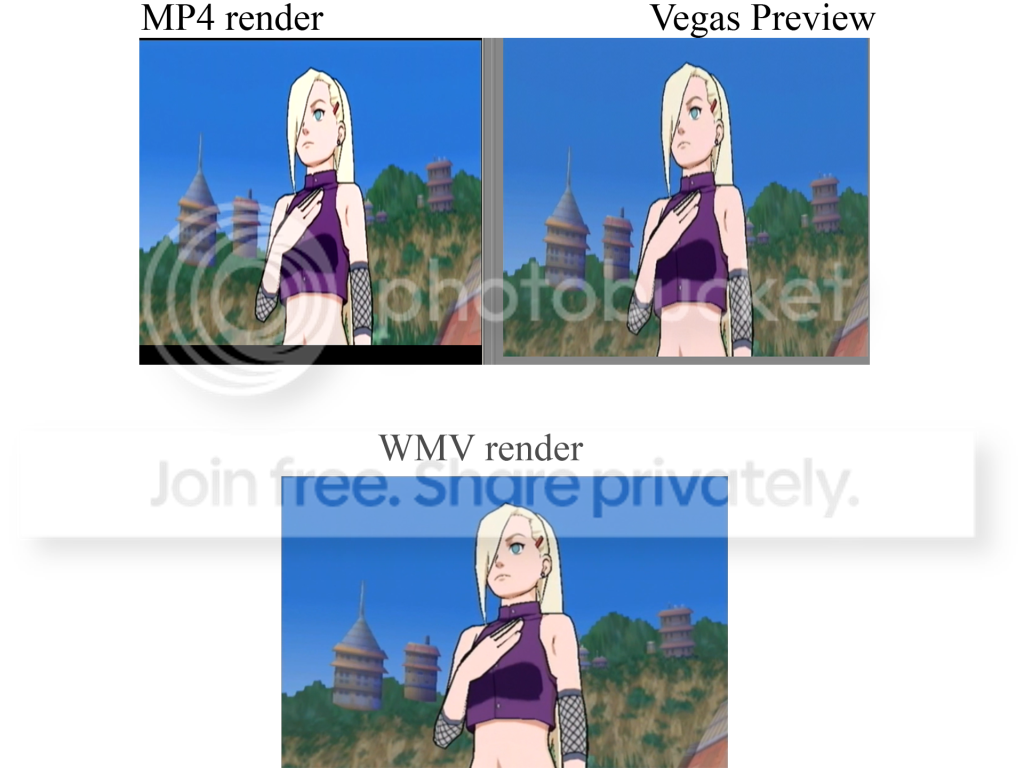
@ Steven. no the audio just stops all together as if i cut it there.
at 0:03 on both, you can see the color difference clearly. at the end the audio stops at 30 sec in on wmv, unlike how it finishes like in the mp4.
Mp4:
https://www.youtube.com/watch?v=HTUodDMoGJcWMV:
https://www.youtube.com/watch?v=sHnxyAWVxz4my render setting are as close as possibe for both containers.
project settings are
1920×1080
Field order: None (progressive scan) ~ Same as original video
pixel aspect ration : 1.0000 (square)
frame rate 29.970 NTSC
Pixel format 8bit
Render quality Best
Motion blur: Gaussian
Deinterlace method: Blend
checked – adjust source media…..MP4 render. (MainConseep AVC/AAC)
Video: 29.970 fps, 1920×1080 Upper field first, YUV, 20 Mbps
Pixel Aspect Ratio: 1.000
checked – used deblocking filter
constant bitrate of 20,000,000
Video render quality: Use project settings.Sony AVC
Video: 29.970 fps, 1920×1080 Progressive, YUV, 16 Mbps
Field order: None (progressive scan) ~ Same as original video
pixel aspect ration : 1.0000 (square)
frame rate 29.970 NTSC
bps 16,000,000
encode: automatic (have tried all options, with same results.)WMV
Video: 29.970 fps, 1920×1080 Progressive, 8.4 Mbps
Pixel Aspect Ratio: 1.000
Mode: CBR
format: WMV9
frame rate: 29.970 NTSC
checked – override default compression buffer (seconds) 3
video smoothness: 100
bitrate: internet lan 8M -
Dan Wilson
November 30, 2011 at 12:32 amno, it stays constant, but then just ends out of nowhere. but i have upgraded to the latest vegas pro 11. and dont have problems with wmv rendering except it just dont look as good as original quality.
any idea where i can find some rendering tutorials to speed up render time and increase compression. cus im waiting like 5hrs for 15 min of video. i dont mind waiting an hr or 2 but 5 seems a bit extreme.
-
Stephen Crye
December 1, 2011 at 9:23 pmThose render times seem a bit long. On my computer with Vegas 10e, a 15 min vid with medium amounts of FX and 6 tracks will render in about 80 minutes. (BTW if you “own” Vegas 10, you can download and use 10e. Let us know if you can’t find the link).
As far as rendering tutorials, there are many, but most are either not-to-the point or focus on things you already know.
This link has some interesting info, and it can also point you to some posts on the Sony Creative forums:
https://www.jazzythedog.com/testing/DNxHD/HD-Guide.aspx
As far as the “fuzzy” effect after rendering, I was having that problem with rendering in many different containers and codecs (even lossless Huffy .avi) until I realized I was dong something stupid. I had my projects all set to 1280×720, even though I was rendering to 1920×1080. I set the project to 1920×1080 and the “fuzziness” went away completely.
Something else to experiment with is the interlace settings in Project. Your choices are non, blend, or interpolate. Try all three and compare. (just to a few seconds of the vid, obviously).
In my quick review of your YouTube vids, I could not see a big difference in the quality of ,mp4 vs .wmv. However, read that Jazzy the Dog link – it has good info about how YT mangles vids.
Steve
Win7 Pro X64 on Dell T3400, MultiTB SATA, 8GB RAM Vegas 10e x64 DVDA 5.2(build 133) Sony HDR-CX550V
-
Dan Wilson
January 11, 2012 at 3:25 amThanks for the help. but unlike your cause for the fuzziness, i have both project and render as 1920×1080. maybe it’s an upscale problem as i sometimes have to use 720p raw files. and i just updated my sony vegas to 10e. i over looked it due to the vegas 11 downloads.
but the time it takes is still a big issue. about the only thing i add to video is some cropping to get rid of black bars, and a a static text that last through the whole video. would that really cause the long render time?
I read through the link, and it’s pretty insightful. I already use handbreak for short clips that i dont need to add any watermarks to. and it works wonders. now following through with the avid codec part, im am strangely missing the quicktime render option to even be able to use it. was it removed in 10e? and if so, how can i downgrade my sony vegas. would i have to uninstall/reinstall?
again thanks for the help. hopefully i can get the render time down if i can get this to work.

Reply to this Discussion! Login or Sign Up